Automated Meeting Scheduler
On this page
TL;DR: Meeting scheduling shouldn't be a part-time job or repetitive daily task. This guide shows you how to build an AI-powered "virtual receptionist" using ByteChef that reads incoming emails, checks your Google Calendar, and automatically either books the slot or suggests alternative free times - saving you hours of manual back-and-forth.
If your team is still manually handling reservations, you’re spending time on repetitive work that should run itself. The back-and-forth of checking calendars, confirming times, and suggesting alternatives can take up hours of your week.
To solve this, we designed a ByteChef workflow that acts as a 24/7 virtual receptionist. It uses AI to "read" incoming emails, checks your Google Calendar for conflicts, and either confirms the booking or suggests free slots. All without you lifting a finger, kind of :)
This blog post breaks down how to set up this intelligent scheduling assistant step-by-step.
The Problem: The Scheduling Ping-Pong
Manual scheduling is prone to delays and friction. A typical manual flow looks like this:
- Read a reservation request email.
- Open your calendar to check the date.
- If busy, look for 3-4 other options.
- Reply to the user.
- Wait for their confirmation and finally add it to the calendar.
This workflow eliminates those steps by automating the decision-making process using AI (OpenAI) and real-time calendar data.
Workflow Overview
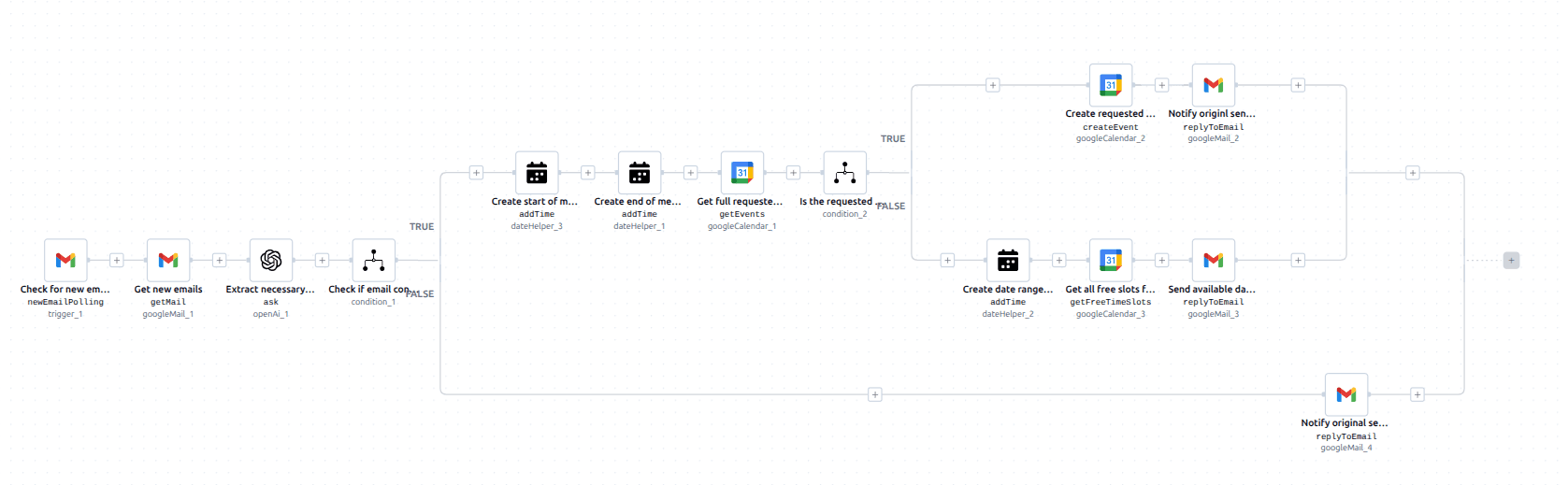
The workflow follows a logical path to ensure no reservation is missed and no double-booking occurs:
- Trigger: Detects a new email request.
- AI Extraction: OpenAI parses the email to find the date, time, and name.
- Validation: Checks if a valid date was even mentioned.
- Availability Check: Queries Google Calendar for the requested slot.
- Smart Response: Either confirms the booking or sends a list of alternative free slots.
1. Trigger: New Email Polling
The process starts with the googleMail/v1/newEmailPolling trigger. It monitors your inbox for any new incoming requests.
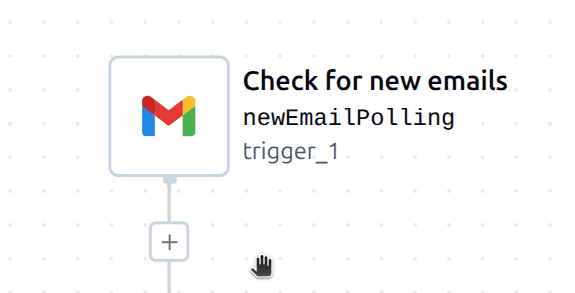
- Label:
Check for new emails - Action: Detects the incoming message and passes the ID forward.
2. AI Data Extraction (OpenAI)
Not every email is formatted perfectly. We use the openAi/v1/ask task to transform messy email text into structured data.
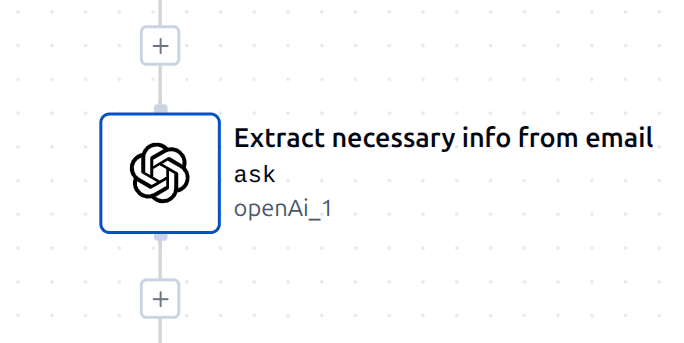
We ask the AI to return a JSON object with:
- The date in a standardized format.
- A boolean (true/false) indicating if a date was actually found.
- The name of the person requesting the meeting.
Prompt Example: "Give me date of the reservation in format 'mm/dd/yyyy, --:--:--'. If date exists put boolean to true, if not put to false."
3. Logic Branch: Is there a date?
Using the condition/v1 module, the workflow checks the boolean returned by the AI.
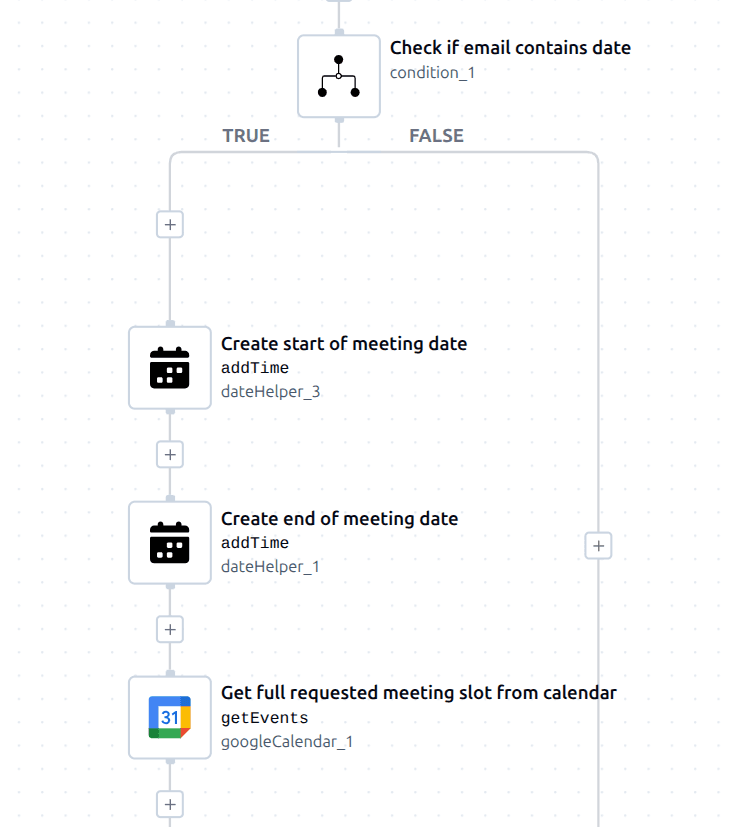
- If False: The workflow replies to the sender asking them to specify a date.
- If True: The workflow proceeds to calculate the meeting duration (e.g., adding 1 hour to the start time) and checks the calendar.
4. Checking Calendar Availability
The workflow uses googleCalendar/v1/getEvents to see if there are any existing conflicts for the requested time slot.
We then use a second condition: Is the number of events in that slot equal to 0?
5. Final Action: Confirm or Suggest Alternatives
Depending on the availability check, the workflow takes one of two paths:
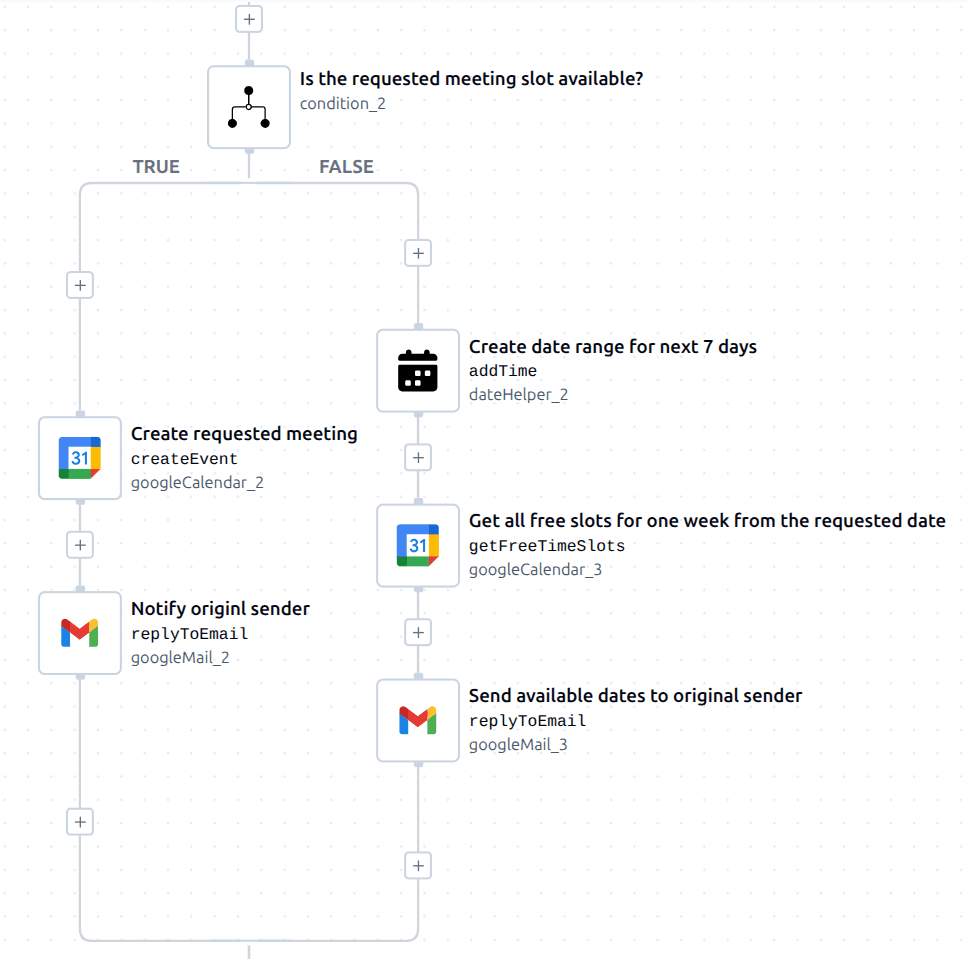
Path A: Slot is Available (Success)
- Create Event: The workflow adds the meeting to Google Calendar using the sender's name and email.
- Confirmation: Sends an email to the user saying: "Appointment reserved”.
Path B: Slot is Taken (Smart Suggestion)
- Find Free Time: The workflow uses
googleCalendar/v1/getFreeTimeSlotsto look at the next 7 days. - Auto-Reply: It sends an email to the user explaining the conflict and listing the available slots for the upcoming week.
Workflow Summary
| Step | Component | Purpose |
|---|---|---|
| 1 | Gmail Trigger | Poll for new emails: Monitor inbox for incoming reservation requests. |
| 2 | OpenAI | AI Data Extraction: Parse unstructured email text into structured data (name, date, time). |
| 3 | Condition 1 | Input Validation: Check if a date was found. If False, auto-reply asking for missing details. |
| 4 | Date Helper | Time Calculation: Define meeting duration by creating "Start" and "End" timestamps. |
| 5 | Google Calendar | Availability Query: Check for existing events in the requested time slot. |
| 6 | Condition 2 | Slot Verification: Determine if the slot is free (size == 0) or occupied. |
| 7a | Success Path | Booking: If free, create the calendar event and send a confirmation email. |
| 7b | Conflict Path | Alternatives: If busy, find free slots in the next 7 days and send them to the user. |
By using AI to handle the "reading" and the calendar integration to handle the "checking," you turn your inbox into a self-sorting system.
- No manual checking: The system knows your schedule.
- No back-and-forth: The user gets alternatives immediately if you are busy.
- Consistency: Every requester gets an instant response.
Conclusion
Automating your schedule isn't just about saving five minutes here and there, but about removing the mental load of coordination. With ByteChef and a few more integrated tools, you can build a robust reservation system that feels secure and fast for both you and your clients.
Subscribe to the ByteChef Newsletter
Get the latest guides on complex automation, AI agents, and visual workflow best practices delivered to your inbox.