4 min read
Petra Pažanin

Handling email attachments manually is a repetitive operational task common across many industries. Each time a new email arrives, users often need to download its attachments, sort them into folders, upload the files to a cloud drive, and repeat this process throughout the day. Although the task is simple, the accumulated time spent on it can become significant, especially for teams that process large volumes of email.
To streamline this process, we created a ByteChef workflow template that automatically checks for new emails and uploads their attachments directly to a specified Google Drive folder. The workflow is fully automated and runs in the background once configured.
This blog explains the purpose of the workflow, what problem it solves, and how it operates step by step.
Many teams receive documents such as invoices, patient records, reports, contracts, or user-submitted forms via email. Storing these documents consistently in Google Drive requires several manual steps:
When this happens dozens or hundreds of times per week, the time cost becomes non-trivial, and errors such as missed files or mis-sorted documents are more likely.
This workflow automates the entire process of detecting new emails while checking whether they include attachments, and if so, the attachments are uploaded to Google Drive. The result is a consistent, repeatable flow that eliminates manual file handling and mistakes.
The workflow consists of four key components:
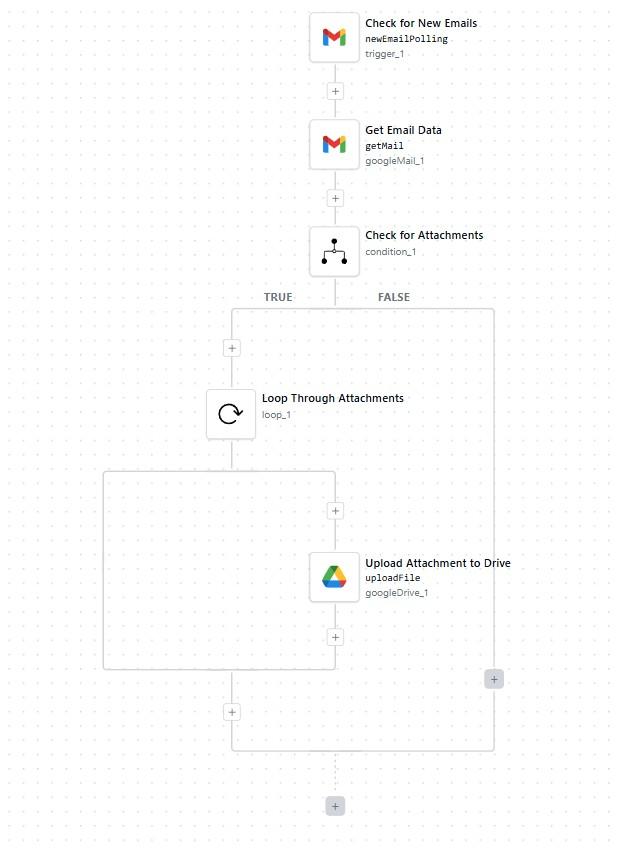
The workflow begins with the googleMail_1/newEmailPolling trigger. This component periodically checks the connected Gmail inbox for new incoming messages. When a new message is detected, its ID is passed to the next component.
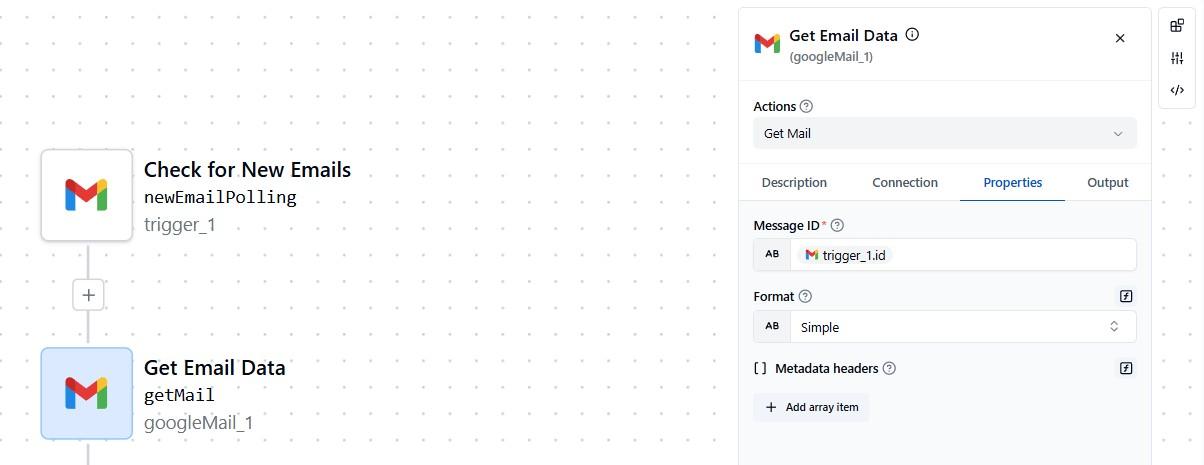
Check for New EmailsNext, the workflow uses the googleMail_1/getMail module to fetch the contents of the email associated with the trigger-provided ID. This retrieves sender information, subject, message body and attachment metadata. The attachments field returned from this step is especially important for downstream logic.
Label recommendation: Get Email Data
Key parameter settings:
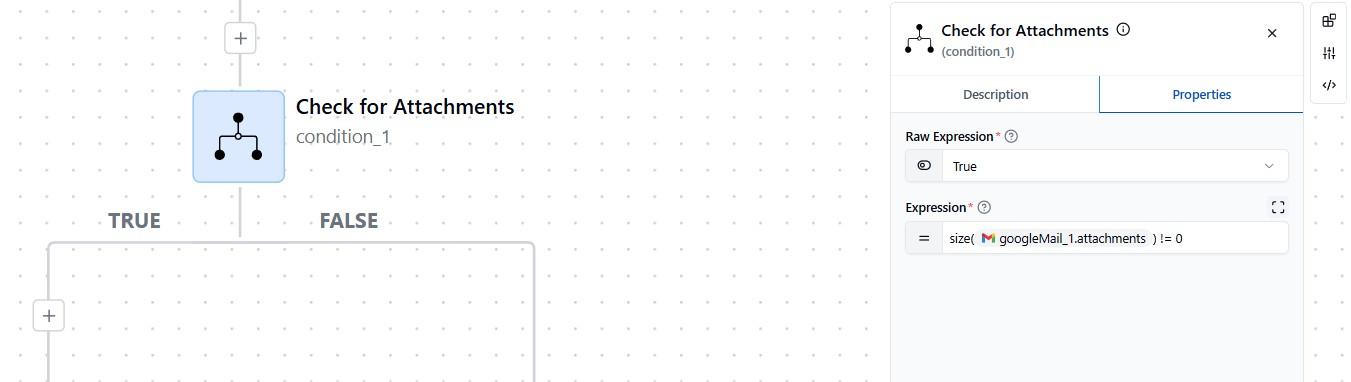
format: SIMPLEid: ${trigger_1.id}To avoid unnecessary operations for emails without files, a conditional step is used.
Label recommendation: Check for Attachments
Expression:
=size(${googleMail_1.attachments}) != 0
This evaluates whether the list of attachments contains at least one item. It ensures efficient execution and prevents empty loops.
a) If false → workflow stops (no attachments to process)
b) If true → workflow proceeds to process files
When attachments are present, the workflow iterates over each file using a loop module. During each iteration, loop_1.item contains the current file's metadata and binary content. Inside the loop, the workflow uploads each attachment to Google Drive.
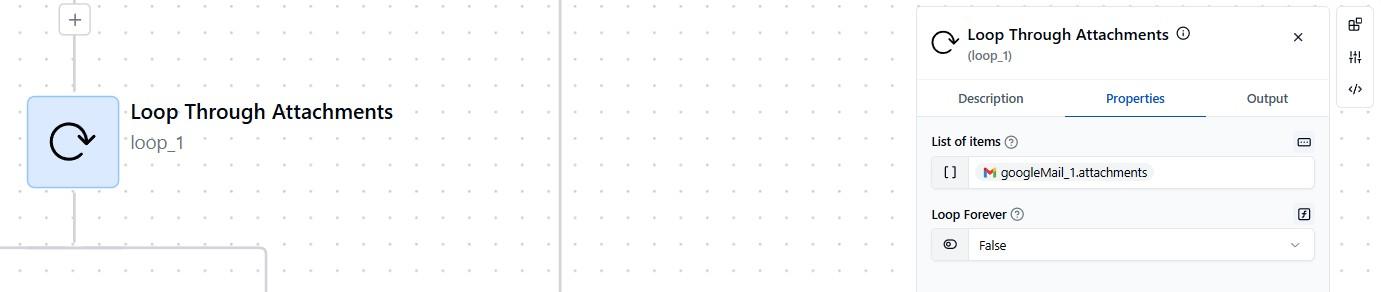
Label recommendation: Loop Through Attachments
Loop items: ${googleMail_1.attachments}
Each file is uploaded via the googleDrive_1/uploadFile component. This action performs a direct upload of the original file, preserving its name and format. Once completed, all attachments from the email are stored in the designated Drive folder without manual intervention.
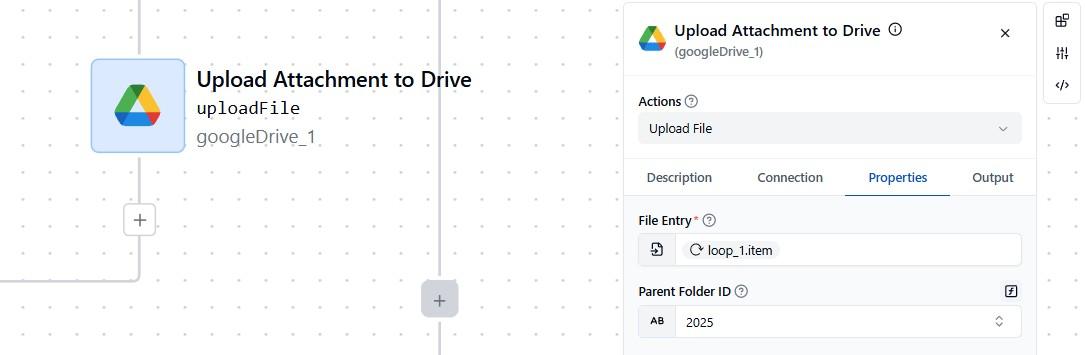
Upload Attachment to DrivefileEntry: ${loop_1.item}folderId: 2025 (ID of the target Drive folder)| Step | Component | Purpose |
|---|---|---|
| 1 | Gmail Trigger | Detect new incoming email |
| 2 | Get Email Data | Retrieve message details and attachments |
| 3 | Condition | Ensure attachments exist before processing |
| 4 | Loop | Iterate through all attachments |
| 5 | Drive Upload | Save each file in Google Drive |
This modular structure makes the workflow easy to understand and modify - adding renaming logic, routing files to different folders, or notifying team members.
Depending on use case, teams may extend the workflow with additional steps:
ByteChef's modular design allows these additions with minimal configuration.
This workflow template provides a straightforward and reliable way to automate the storage of email attachments in Google Drive. It removes manual downloading and uploading steps, reduces errors, and ensures documents are consistently archived.
Because it uses a small number of components and straightforward logic, it can be implemented quickly by both technical and non-technical users. The workflow is especially useful in environments that process large volumes of email-based documentation.
Get the latest guides on complex automation, AI agents, and visual workflow best practices delivered to your inbox.