Handle Meeting Agenda and Notes
On this page
Well-structured meeting notes are not just about documentation-they directly impact productivity. When notes are consistent and tasks are clearly captured, nothing gets lost between meetings and follow-ups become predictable instead of reactive.
The real challenge with meetings isn’t writing notes, it’s maintaining structure and continuity over time. Without a system, tasks slip through, context gets lost and follow-ups depend on memory.
This automation ensures that:
- Every meeting starts with clear context from the previous one
- Tasks are always visible and never lost
- Notes follow a consistent structure
- Progress is tracked across meetings without extra effort
Instead of disconnected notes, you get a continuous, structured workflow that improves clarity and execution.
Workflow Overview
In this guide, we’ll walk through a real-world automation built in ByteChef that turns meetings into a structured, continuous workflow:
- Creates a new Notion page on a schedule
- Links your task database for visibility
- Summarize the previous meeting using OpenAI
- Updates your Google Calendar with the new notes

1. Create Notion Page on Schedule Trigger
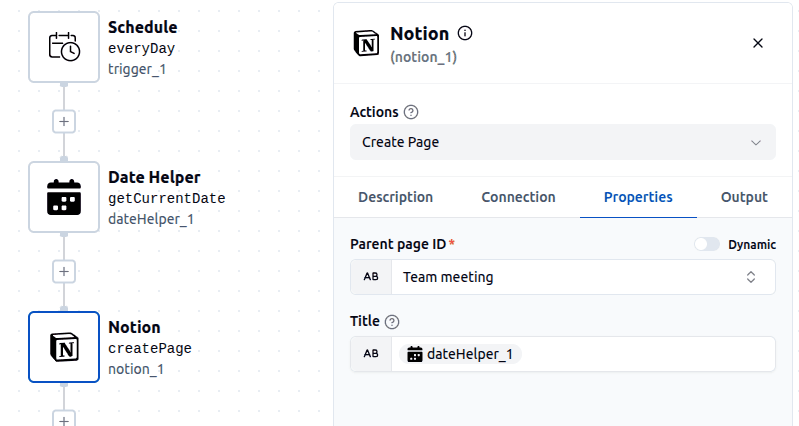
The workflow starts with Schedule trigger, configured for Monday and Thursday at 11:30 AM, about 45 minutes before the meeting. A Date Helper formats the current date (dd-MM-yyyy) and uses it as the page title in the next step. To create a page in Notion, you also need to provide a Parent Page ID. In this setup, a parent page (e.g., Team Meetings) is created manually in advance and all generated meeting notes are stored under it.
2. Link Task Database
Another prerequisite for this workflow is a task database in Notion where all tasks are stored. This structure is flexible- you can customize the database to fit your needs. In my case, I created a table with the following columns: Task, Assignee, Description, Status and Date.
To keep the focus on actionable work, I also created a filtered view that shows only tasks with status In progress or Not started. This allows me to focus on current tasks without clutter, while still keeping the full database intact with completed tasks for historical tracking.
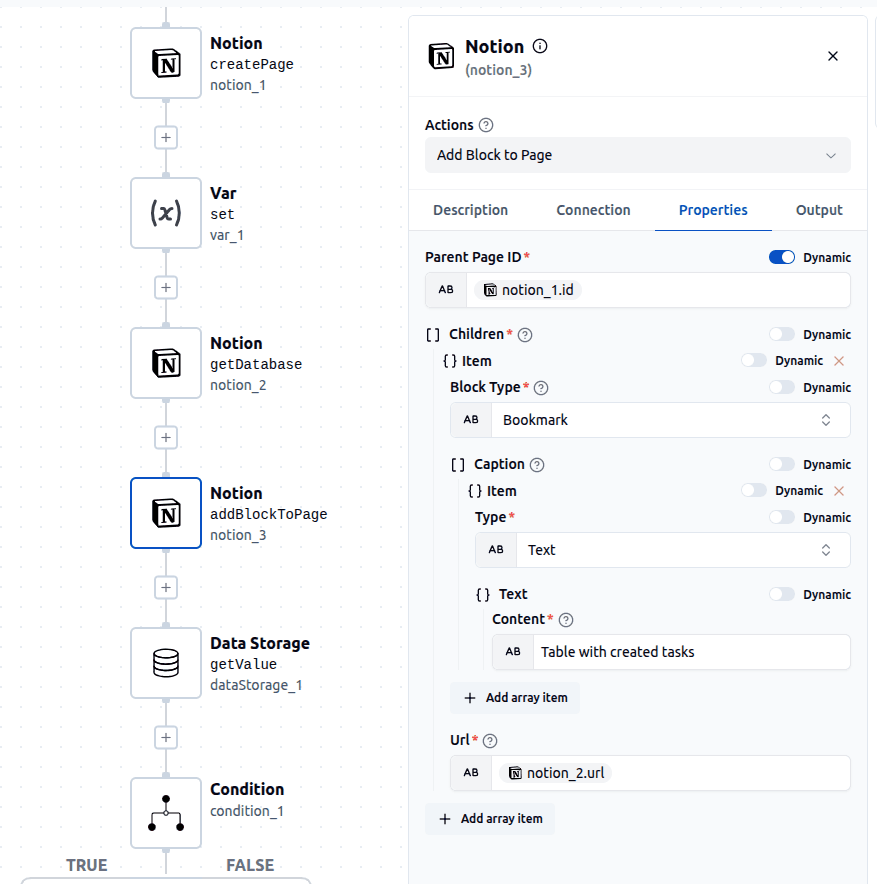
In the workflow, the database ID is stored in a variable, its details are retrieved using the Notion's Get Database action and it is then added to the meeting page as a bookmark block. This way, every meeting page includes direct access to the task list without duplicating any data.
3. Retrieve and Summarize Previous Meeting Notes
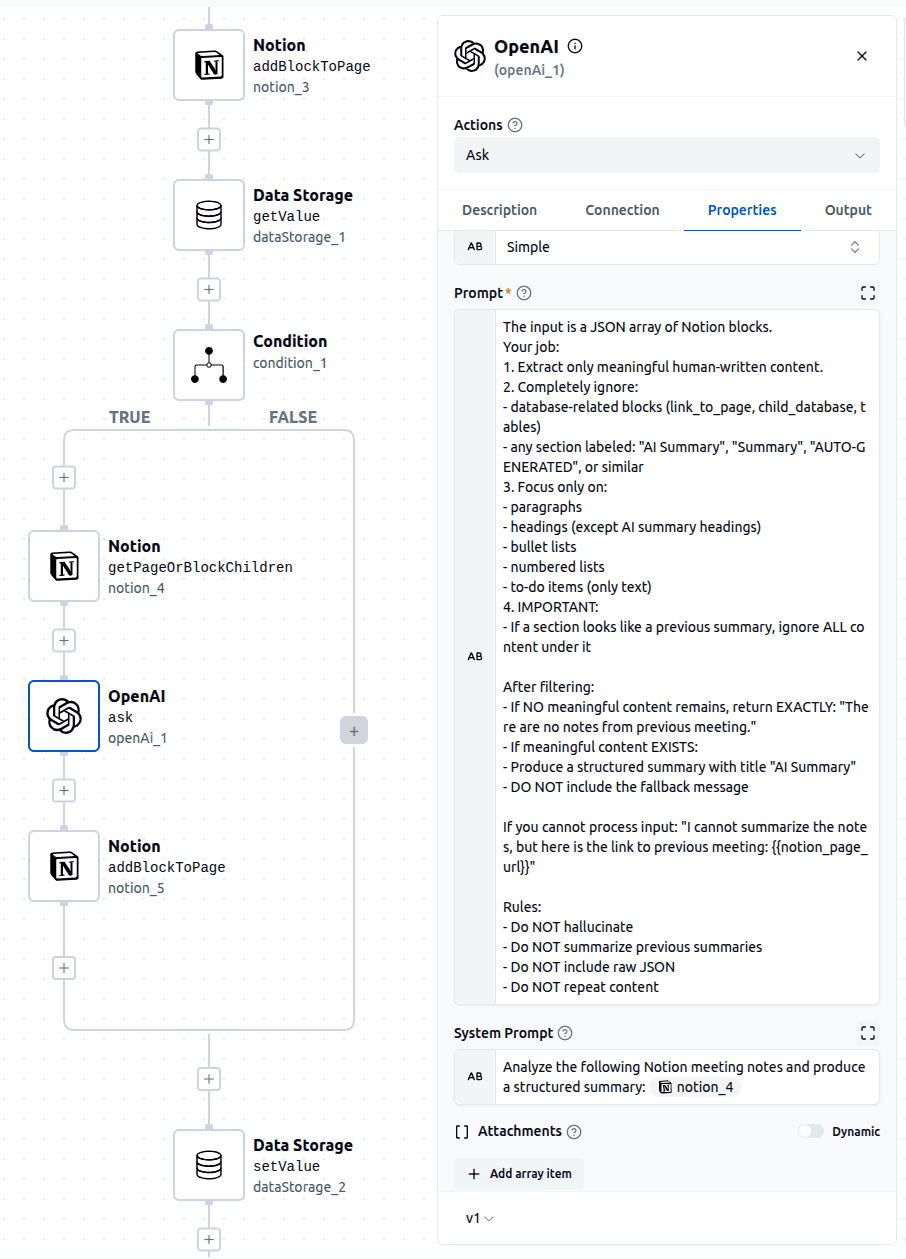
This step ensures continuity between meetings. The workflow stores the last meeting page ID in Data Storage and checks whether a previous meeting exists. If a page ID is available, the workflow retrieves the content of that page, sends it to OpenAI for processing and generates a structured summary. That summary is then added to the newly created meeting page so that each meeting starts with clear context. After this step, the current meeting page ID is saved, replacing the previous one.
4. Update Calendar
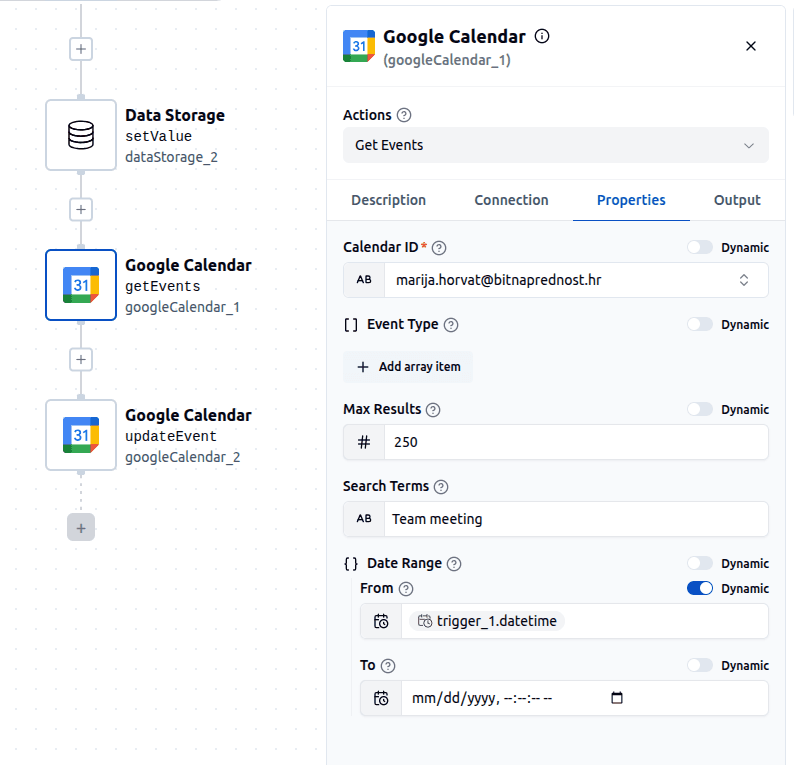
The final part of the workflow updates the corresponding meeting event in Google Calendar by adding a link to the newly created Notion page. The workflow searches for events using a keyword such as Team meeting and filters them based on the trigger time to find the correct event.
Once the event is identified, the Notion page URL is added to its description. It is important to ensure that there are no multiple events with the same name occurring at the same time, as this could lead to incorrect matches.
Possible Enhancements
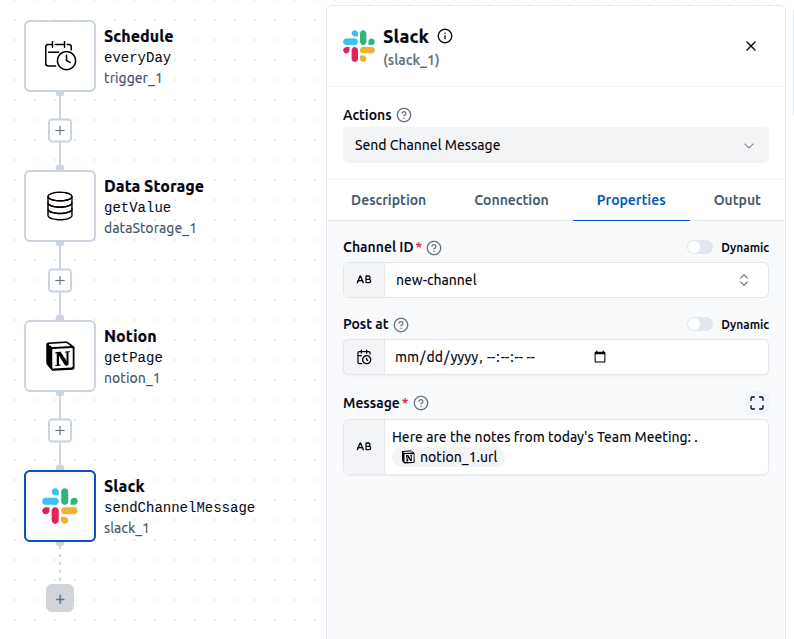
One useful enhancement is to create a follow-up workflow that runs after the meeting, for example 30 minutes later. This workflow can retrieve the latest meeting page ID, extract the page URL and send it to a Slack channel. This allows team members to access the notes immediately after the meeting and ensures that even those who missed it stay informed.
Another powerful improvement is integrating GitHub into the workflow. Tasks identified during meetings can be automatically converted into GitHub issues, making it easier to move from planning to execution. Each issue can include a link back to the Notion page, creating a clear connection between discussions and implementation. This approach is especially useful for development teams, as it keeps work aligned across tools and improves traceability.
In Conclusion
This workflow transforms meetings from isolated events into a continuous system. Instead of relying on memory and manual updates, you get:
- Structured notes for every meeting
- Clear visibility of tasks
- Automatic context from previous discussions
- Seamless access through your calendar
The real value isn’t automation- it’s consistency. When every meeting follows the same structure, execution improves and nothing falls through the cracks. Once you have this in place, meetings stop being just conversations and start becoming a reliable engine for progress.
Subscribe to the ByteChef Newsletter
Get the latest guides on complex automation, AI agents, and visual workflow best practices delivered to your inbox.