7 min read
Petra Pažanin
TL;DR: Making data pills draggable into workflow property inputs meant solving four distinct problems: a custom MIME type for reliable drop detection, a
cloneNodeghost image fix for rounded elements,pointer-events-noneto silence child element interference, and cursor-accurate insertion inside a TipTap rich text editor. None of it is in the HTML5 drag-and-drop spec.
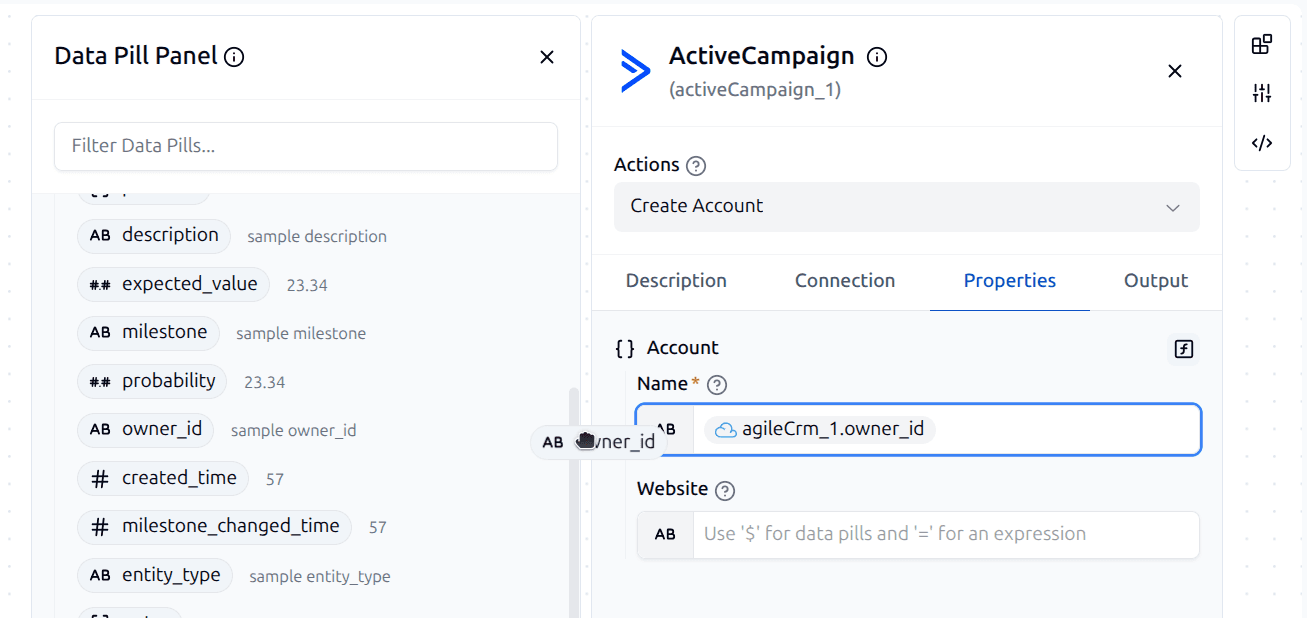
At ByteChef, building workflows should feel as intuitive as possible. Drag and drop is a core part of that promise: grab a component, drop it where it needs to go, and watch your automation take shape visually. The variable reference inserts itself exactly where the cursor lands. No friction and more importantly, no cognitive overload.
The first instinct when implementing drag and drop is to reach for a library, add a draggable attribute, and call it done. That works fine for reordering a list. It breaks down the moment the drag source and the drop target are different kinds of things living in different parts of the component tree.
In ByteChef's workflow builder, the challenge was specific: data pills (small tokens representing output values from previous nodes) needed to be draggable into property input fields inside the node configuration panel. These two UI regions are rendered in completely separate parts of the React tree. They don't share a parent nor do they share a state. And the canvas between them is itself interactive.
Before writing a single line of implementation, three questions needed answers:
Each question maps to a concrete implementation decision.
The data pill panel and the node property inputs are rendered in completely separate parts of the React tree. They share no parent component, no local state, and no direct reference to each other.
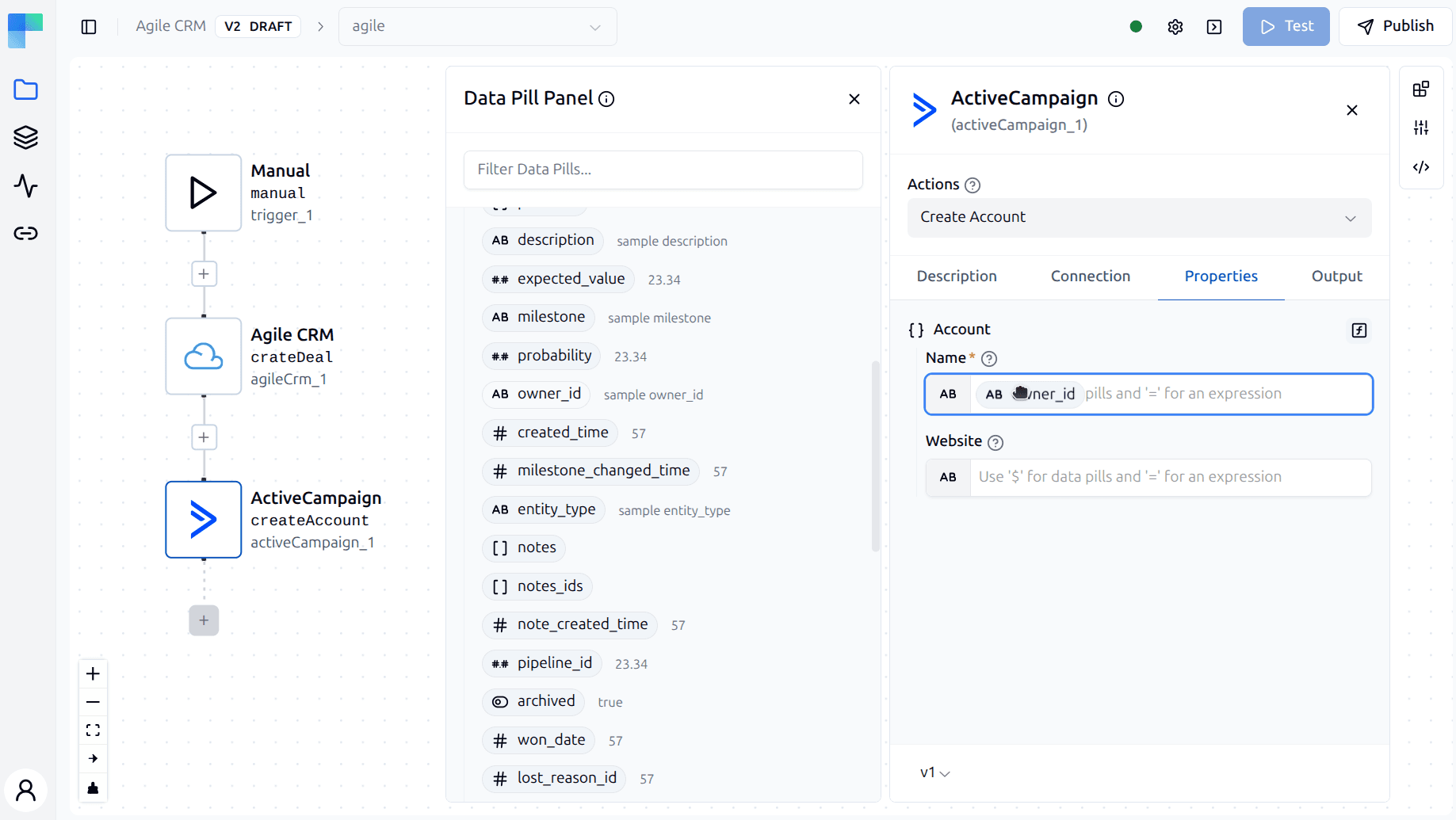
Communication between them required a shared Zustand store - specifically, a
single isDraggingDataPill boolean that the pill sets on dragStart and clears
on dragEnd.
// useDataPillPanelStore.ts
interface DataPillPanelStateI {
    dataPillPanelOpen: boolean;
    isDraggingDataPill: boolean;
    setDataPillPanelOpen: (dataPillPanelOpen: boolean) => void;
    setIsDraggingDataPill: (isDraggingDataPill: boolean) => void;
}
This single flag is what allows the property inputs to react to a drag in progress, showing drop affordances, without any direct coupling to the pill components.
The first deliberate design decision was not using text/plain to carry the drag payload. Instead, a custom MIME type was registered:
event.dataTransfer.setData(
    'application/bytechef-datapill',
    JSON.stringify(payload)
);
Where the payload is typed as:
export type DataPillDragPayloadType = {
    mentionId: string;
};
The mentionId is a constructed path string, built from the workflow node name, property name, and nested path, that the TipTap editor later uses to insert a mention node.
Using a custom MIME type means drop zones can check event.dataTransfer.types before doing anything else:
const handleDragOver = useCallback((event: DragEvent<HTMLDivElement>) => {
    if (event.dataTransfer.types.includes('application/bytechef-datapill')) {
        event.preventDefault();
        event.dataTransfer.dropEffect = 'copy';
    }
}, []);
If the dragged item isn't a data pill, the drop zone doesn't activate. A user dragging a file or text from outside the builder can't accidentally trigger workflow property changes.
This was the most visually obvious bug discovered during testing, and the fix is non-obvious enough to be worth its own section.
When the browser renders the drag ghost (the floating preview image the user sees while dragging) it takes a bitmap of the element's full bounding box. That bounding box is always a rectangle. Tailwind's rounded-full class rounds the pill visually with CSS, but the bounding box stays rectangular. The result: a visible rectangular shadow trailing behind a rounded pill during drag.
The fix was cloneNode:
const handleDragStart = (
    event: DragEvent<HTMLDivElement>,
    props: HandleDataPillClickProps
) => {
    const target = event.currentTarget;
    const clone = target.cloneNode(true) as HTMLDivElement;

    clone.style.position = 'absolute';
    clone.style.top = '-9999px';
    clone.style.left = '-9999px';
    document.body.appendChild(clone);

    event.dataTransfer.setDragImage(
        clone,
        clone.offsetWidth / 2,
        clone.offsetHeight / 2
    );

    requestAnimationFrame(() => {
        document.body.removeChild(clone);
    });
};
The clone is appended to the document body at an off-screen position so the browser can measure it and use it as the drag image source. requestAnimationFrame defers its removal until immediately after the browser has captured the ghost, at which point the clone is no longer needed and is cleaned up. The result is a rounded pill ghost that matches the actual component.
pointer-events-noneA subtle source of drag event noise: child elements inside the draggable pill (the type icon and the label text) were firing their own mouseenter and mouseleave events as the cursor moved across them during a drag. This caused flickering in hover states and, in some configurations, interfered with drag event propagation.
The fix was pointer-events-none on every child span:
<span className="pointer-events-none mr-2" title={property?.type}>
    {TYPE_ICONS[property?.type as keyof typeof TYPE_ICONS]}
</span>

<span className="pointer-events-none">{property?.name || '[index]'}</span>
With pointer events disabled on children, all drag and mouse events route directly to the parent pill element. The drag lifecycle stays clean, and hover states behave predictably throughout the interaction.
Property inputs in ByteChef use TipTap, a rich text editor framework, to support mixed content - plain text alongside inline mention nodes that represent data pill references. Dropping a pill into the input needs to insert a mention node at the exact cursor position, not appended to the end.
TipTap exposes a handleDrop hook on the editor instance that receives the native DragEvent alongside the editor's internal view. From there, view.posAtCoords maps the cursor's screen coordinates to a document position:
const handleDrop = useCallback(
    (
        view: EditorView,
        event: DragEvent,
        _slice: unknown,
        moved: boolean
    ): boolean => {
        if (moved) return false;
        if (isFromAi) return false;

        const rawPayload = event.dataTransfer?.getData(
            'application/bytechef-datapill'
        );
        if (!rawPayload) return false;

        event.preventDefault();

        let payload: DataPillDragPayloadType;
        try {
            payload = JSON.parse(rawPayload);
        } catch {
            return false;
        }

        if (!payload?.mentionId) return false;

        const attributes = view.props.attributes as Record<string, string>;
        const parameters = currentComponent?.parameters || {};

        if (
            !canInsertMentionForProperty(
                attributes.type,
                parameters,
                attributes.path
            )
        ) {
            return true;
        }

        const coordinates = view.posAtCoords({
            left: event.clientX,
            top: event.clientY,
        });

        const insertPosition = coordinates?.pos ?? view.state.doc.content.size;

        editorRef.current
            ?.chain()
            .insertContentAt(insertPosition, {
                attrs: {id: payload.mentionId},
                type: 'mention',
            })
            .focus()
            .run();

        return true;
    },
    [currentComponent?.parameters, isFromAi]
);
A few guards run before insertion. If moved is true, the event is an internal TipTap text reorder - not a data pill drop. If the input type is not STRING and the field already has a non-expression value, insertion is blocked:
export const canInsertMentionForProperty = (
    propertyType: string,
    parameters: Record<string, unknown>,
    path: string
): boolean => {
    if (propertyType === 'STRING') return true;

    const existingValue = resolvePath(
        parameters,
        transformPathForObjectAccess(encodePath(path))
    );
    return !existingValue || String(existingValue).startsWith('=');
};
A numeric or boolean field can only hold one expression. If something is already there, the drop is silently rejected - no error, no disruption.
What the user experiences is a fluid, frictionless interaction: pick up a data pill, carry it to an input, drop it exactly where the cursor points. The variable reference inserts inline, the editor refocuses, and the workflow configuration panel stays in the same state it was in before.
The feature took one PR, but the browser made sure it wasn't a simple one.
Try it yourself in ByteChef or book a demo to see the full workflow editor in action.
Get the latest guides on complex automation, AI agents, and visual workflow best practices delivered to your inbox.