4 min read
Marija Horvat
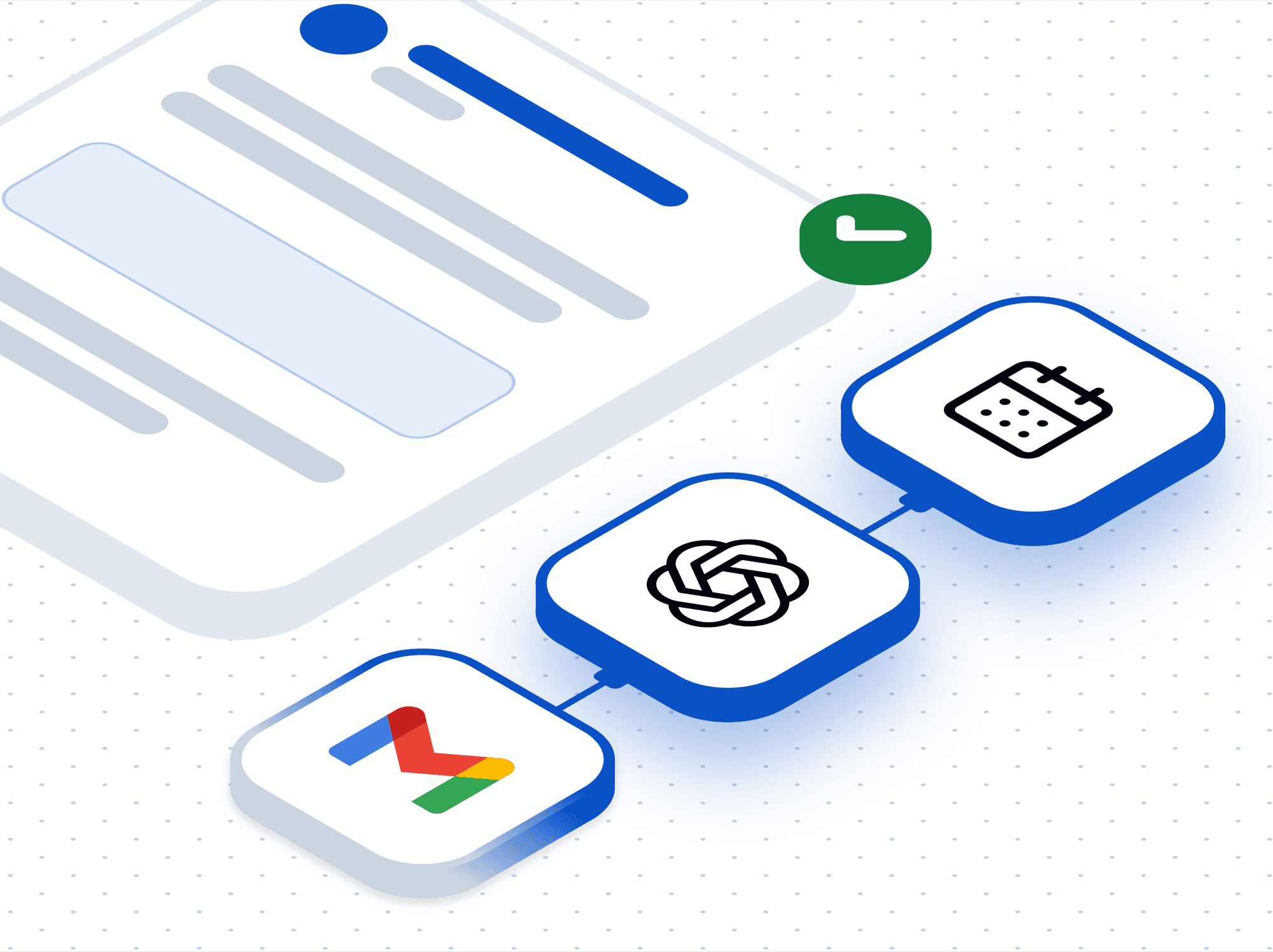
TL;DR: You can automatically handle emails received outside of working hours by combining Gmail, AI and workflow automation. This setup classifies urgency, logs emails, notifies your team and sends appropriate responses-so nothing gets missed even when you’re offline.
Bottom line: You can automate after-hours email handling while still ensuring urgent issues get immediate attention from your team.
Handling customer emails outside of working hours is a common challenge for many teams. Important messages can arrive at any time, but without someone actively monitoring the inbox, urgent issues may go unnoticed until the next business day. This creates two key problems:
At the same time, having someone available 24/7 is not always practical or cost-effective. This is where automation can help. By combining AI with workflow automation in ByteChef, you can automatically process incoming emails outside working hours, detect urgency, notify your team when needed and send appropriate responses to customers. In this guide, we’ll show you how to build a workflow that ensures no important email is missed-even when your team is offline.
The workflow consists of four key components:
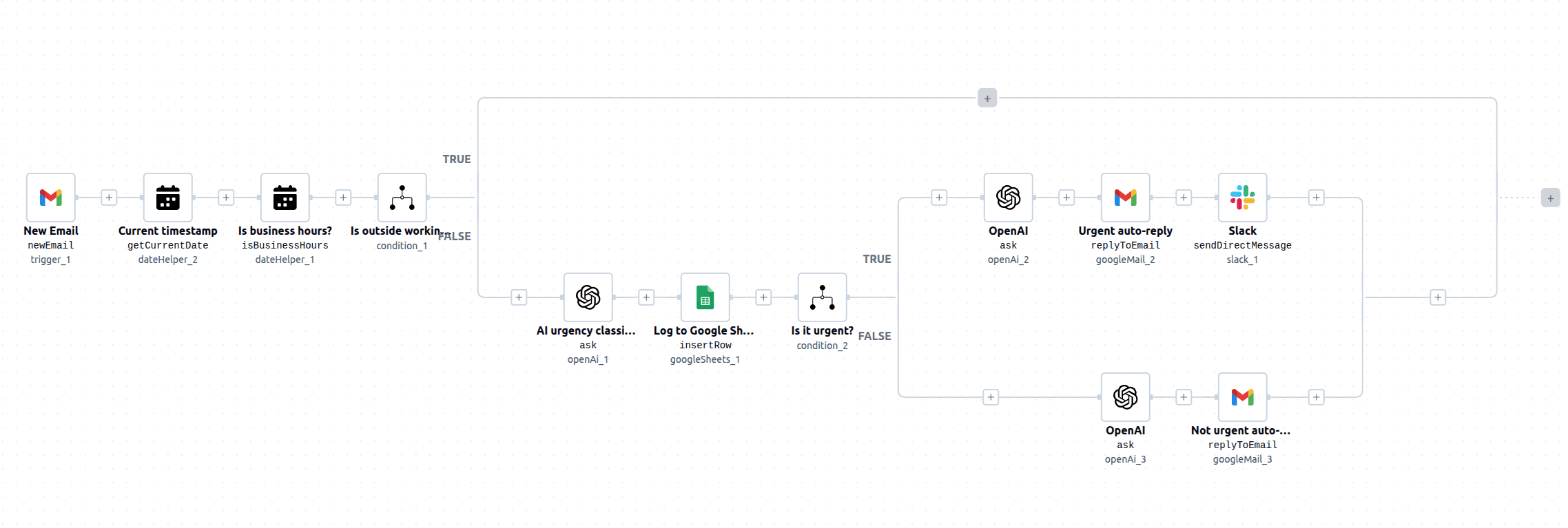
The workflow begins with a Gmail trigger that listens for new incoming emails in your inbox. Within the Gmail component in ByteChef, there are two types of triggers available: a polling trigger and a static webhook. In this workflow, the static webhook is used because it responds instantly when a new email arrives. In contrast, the polling trigger checks for new emails at regular intervals (e.g., every five minutes), which can introduce delays before an automatic response is sent.
In addition to providing real-time responses, static webhooks are more efficient and scalable than polling triggers. Unlike polling, which continuously checks for new emails, webhooks are event-driven and only execute when a new email arrives. This reduces unnecessary API calls, improves performance and ensures a more reliable and responsive workflow.
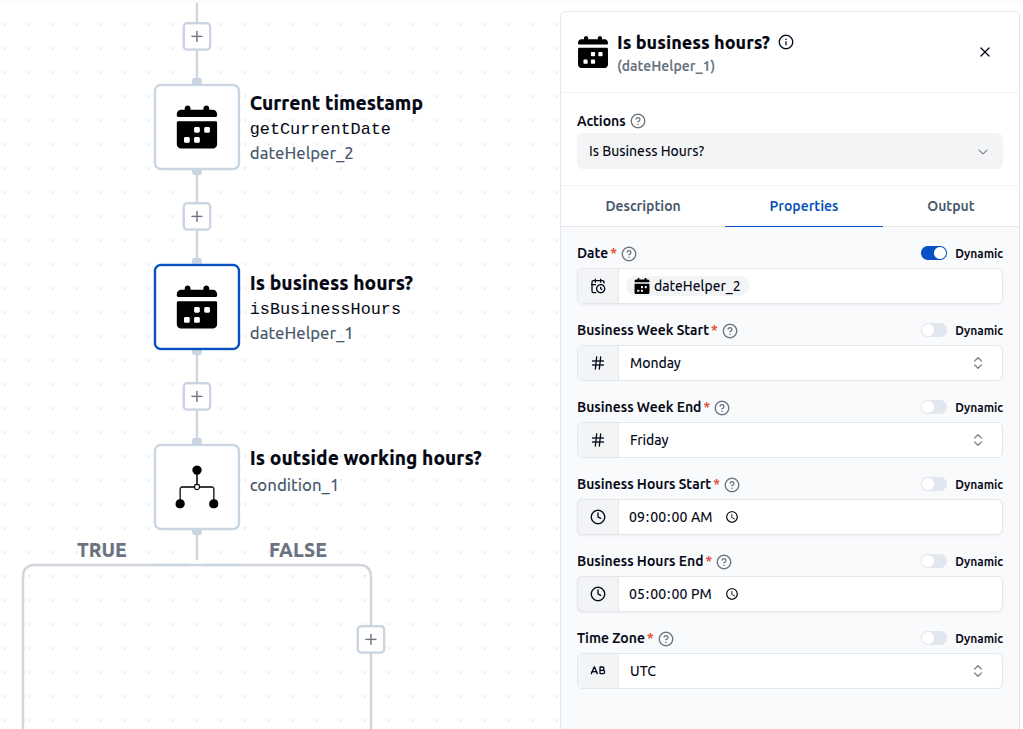
Next, the workflow determines whether the email was received during business hours.
Using a date helper, working days are defined as Monday to Friday with business hours set from 9:00 AM to 5:00 PM. If an email arrives during this time, the workflow ends without taking further action. However, if the email is received outside working hours, the automation continues.
For emails received outside working hours, the workflow uses OpenAI to classify urgency. The model analyzes the email’s subject, sender and body to determine whether the message requires immediate attention. To ensure consistent and structured output, the Response Format is set to Structured data and a Response Schema is defined. This schema enforces a response containing a boolean field (urgent) and a string field (reason).
The classification result is then logged in Google Sheets, allowing the team to review all after-hours activity. The urgent value is also used as the condition for branching in the next step.
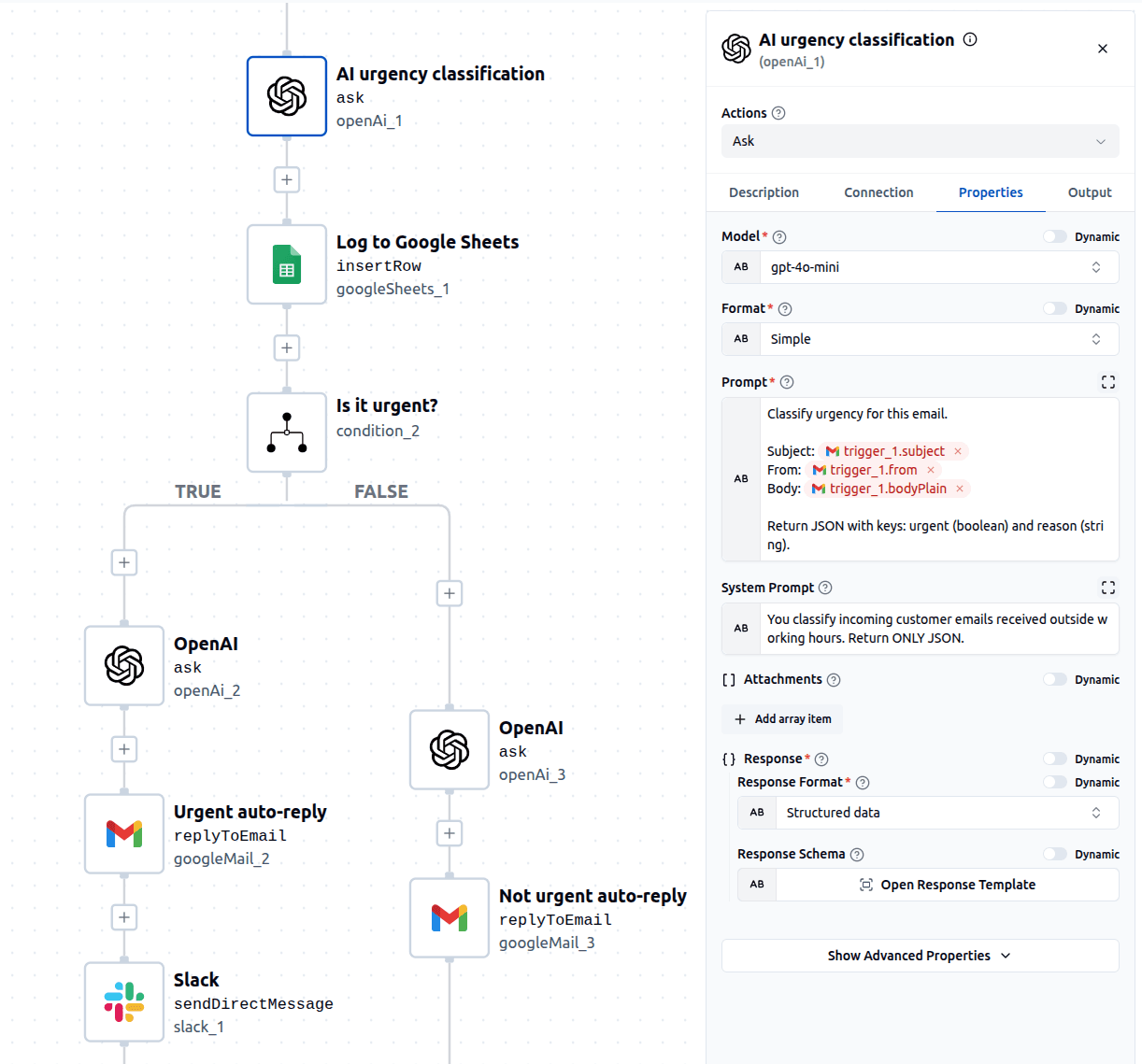
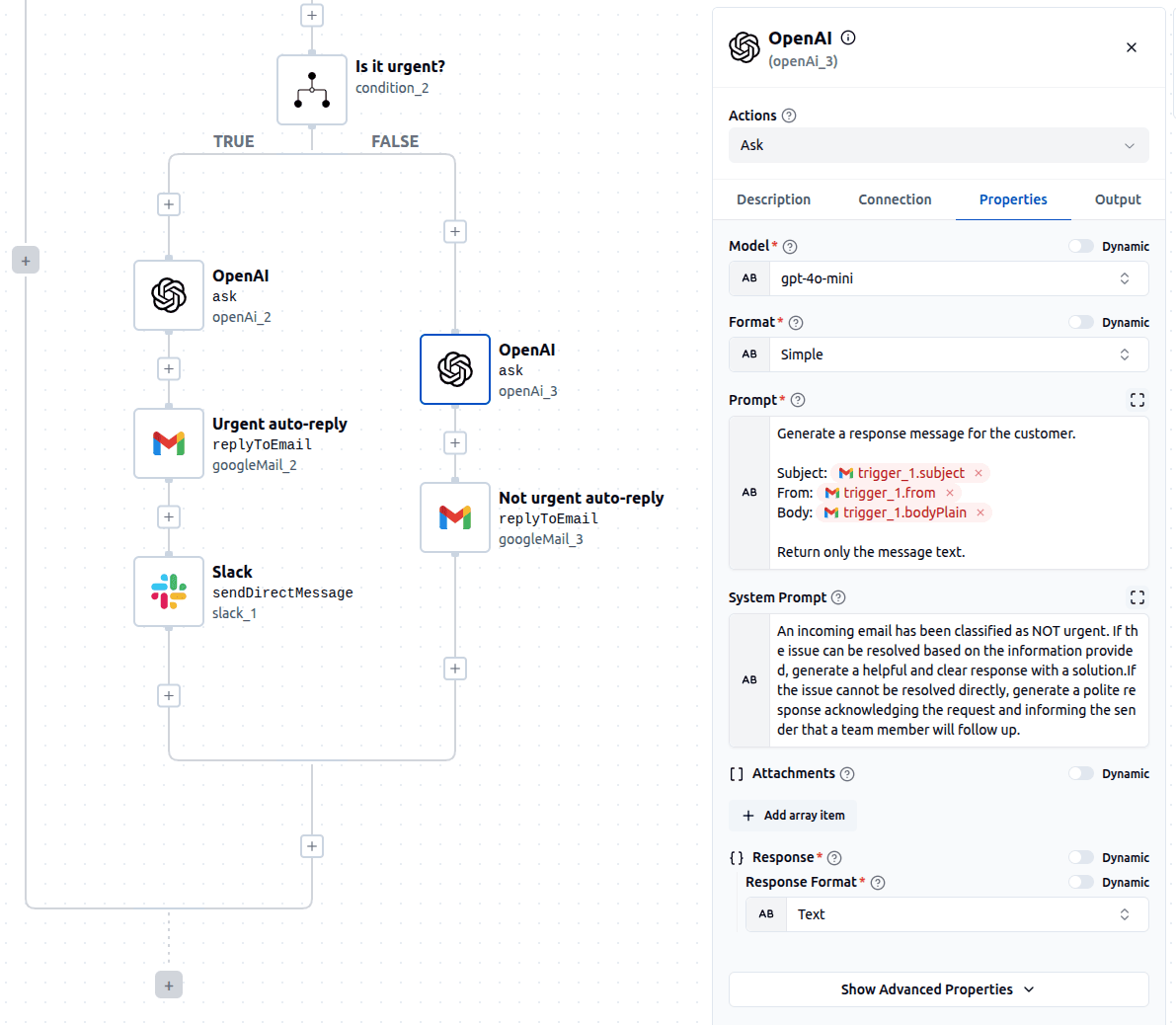
The workflow then branches into two paths based on the urgency classification.
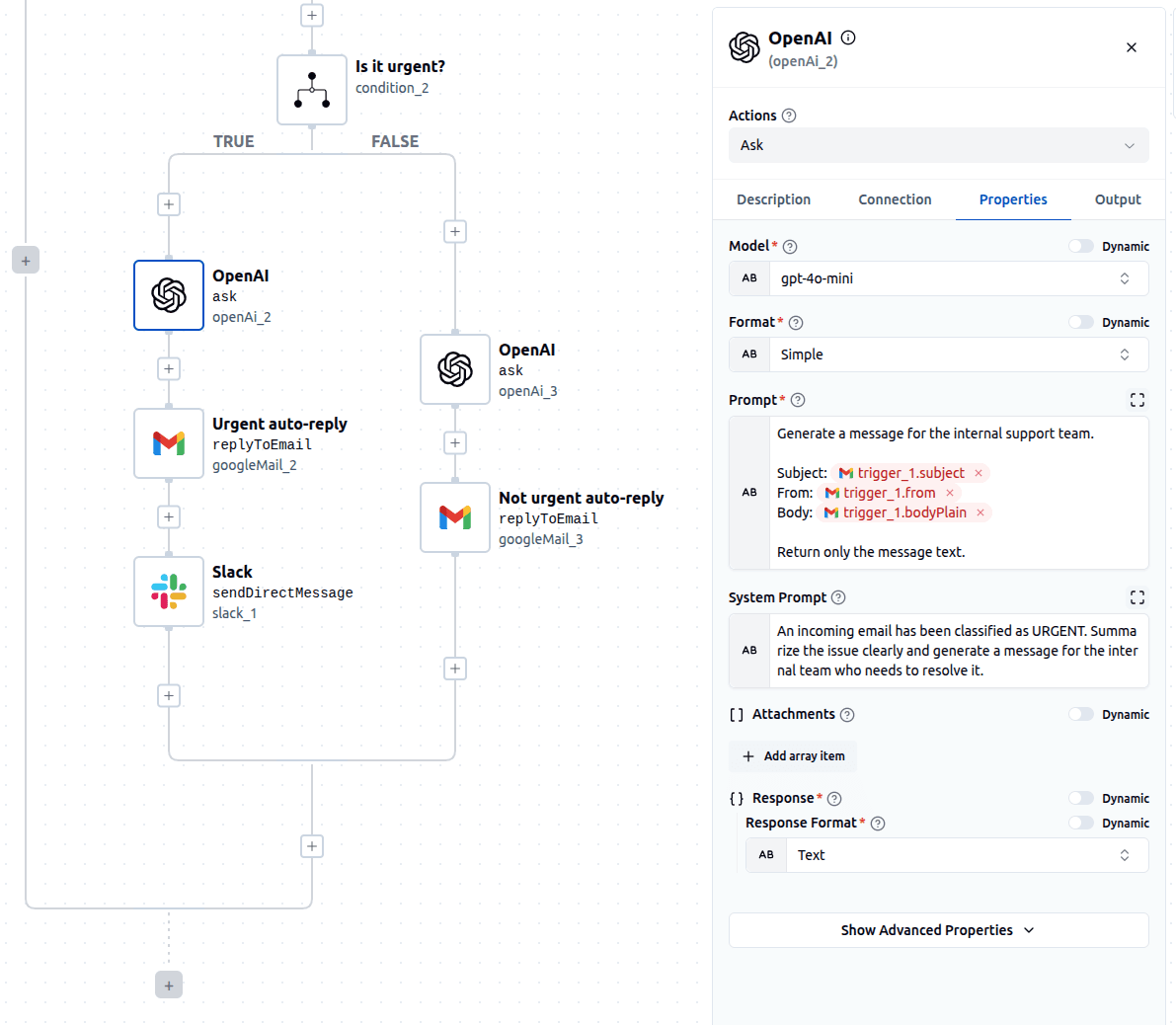
If the email is classified as urgent, AI generates a message for the internal support team. This message is sent via Slack, either to a channel or directly to a designated team member. At the same time, the customer receives an automatic reply informing them that their message was received outside working hours and has been identified as urgent and that the support team has been notified.
If email is classified as non-urgent, AI generates a response for the customer. This response can either provide a solution (if the issue can be resolved immediately) or acknowledge the request and inform the sender that a team member will follow up during working hours. This ensures that every message receives a timely and appropriate response.
Automating out-of-working-hours email handling allows you to stay responsive without needing to be constantly available. By combining AI with workflow automation, you can ensure that urgent issues are escalated immediately while routine emails are handled efficiently.
With this setup, you reduce manual work, improve response times and maintain a high level of customer support-even outside working hours.
Get the latest guides on complex automation, AI agents, and visual workflow best practices delivered to your inbox.