3 min read
Petra Pažanin
TL;DR: Cluttered hover icons were replaced with a robust right-click context menu. Centralizing node actions and adding clear text labels eliminated “icon guesswork” and made the workflow builder significantly faster and more intuitive for all users.
When building a visual tool, there’s a constant tension between minimalism and functionality. The goal is a clean canvas without sacrificing accessibility and power.
Initially, the approach relied on hover-based interactions. As workflows grew more complex, that “clean” design became a UX bottleneck. Here’s how it was fixed.
Early on, our workflow builder relied on hover states. You’d hover over a node, and a few small icons would pop up on the side as well as information card that would lay over too much content. It looks sleek on paper, but in practice, it's a real usability obstacle:
text + icon combinations over just a floating icon are better solution.For a professional automation tool, clarity beats minimalism every time.
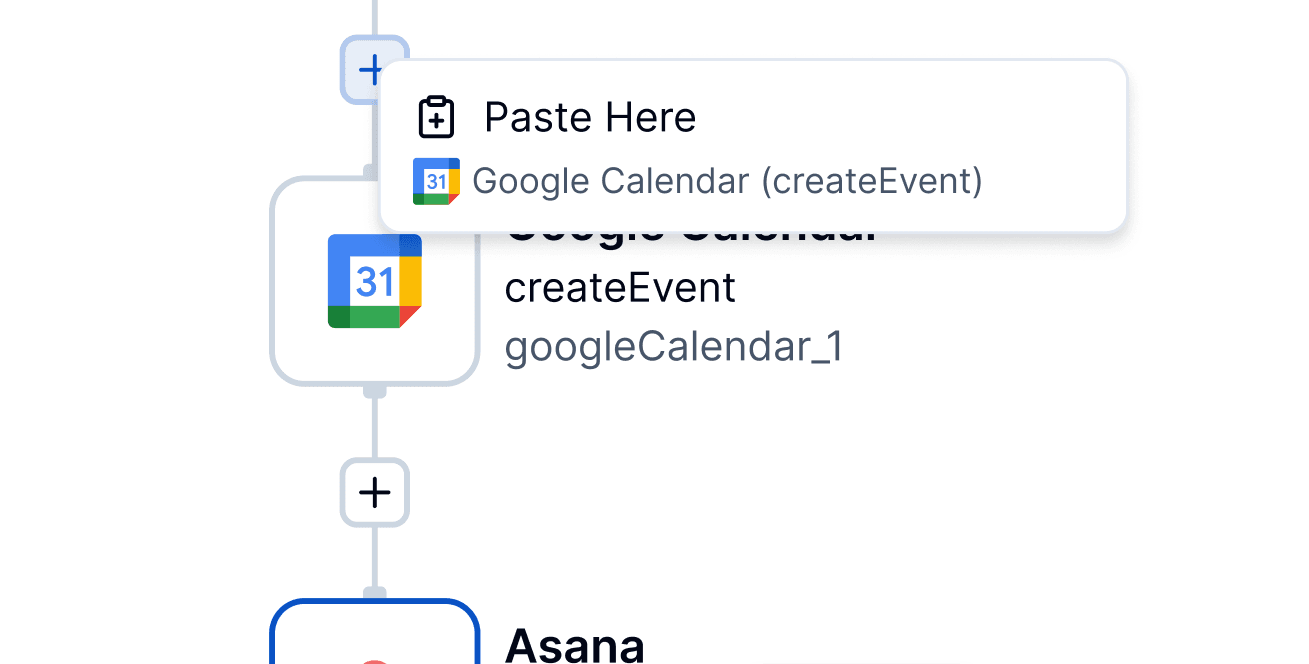
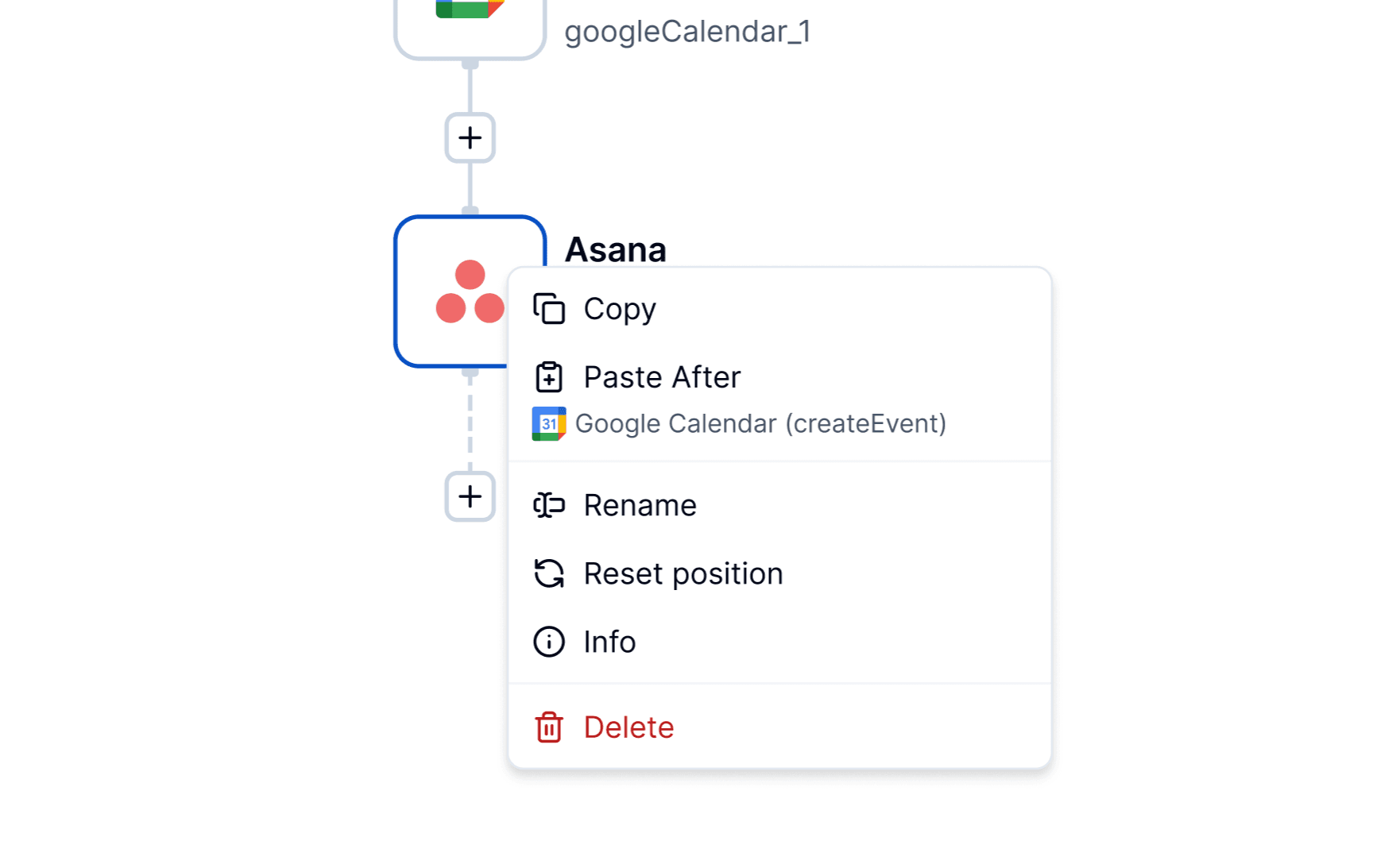
Moved away from ‘guessing games’ by centralizing every action into a right-click context menu. Features are categorized to keep the UI smart and context-aware.
Triggers are the entry point of your workflow logic, with dedicated functionality to support them:

The essential tasks are now streamlined into a single, reliable list:
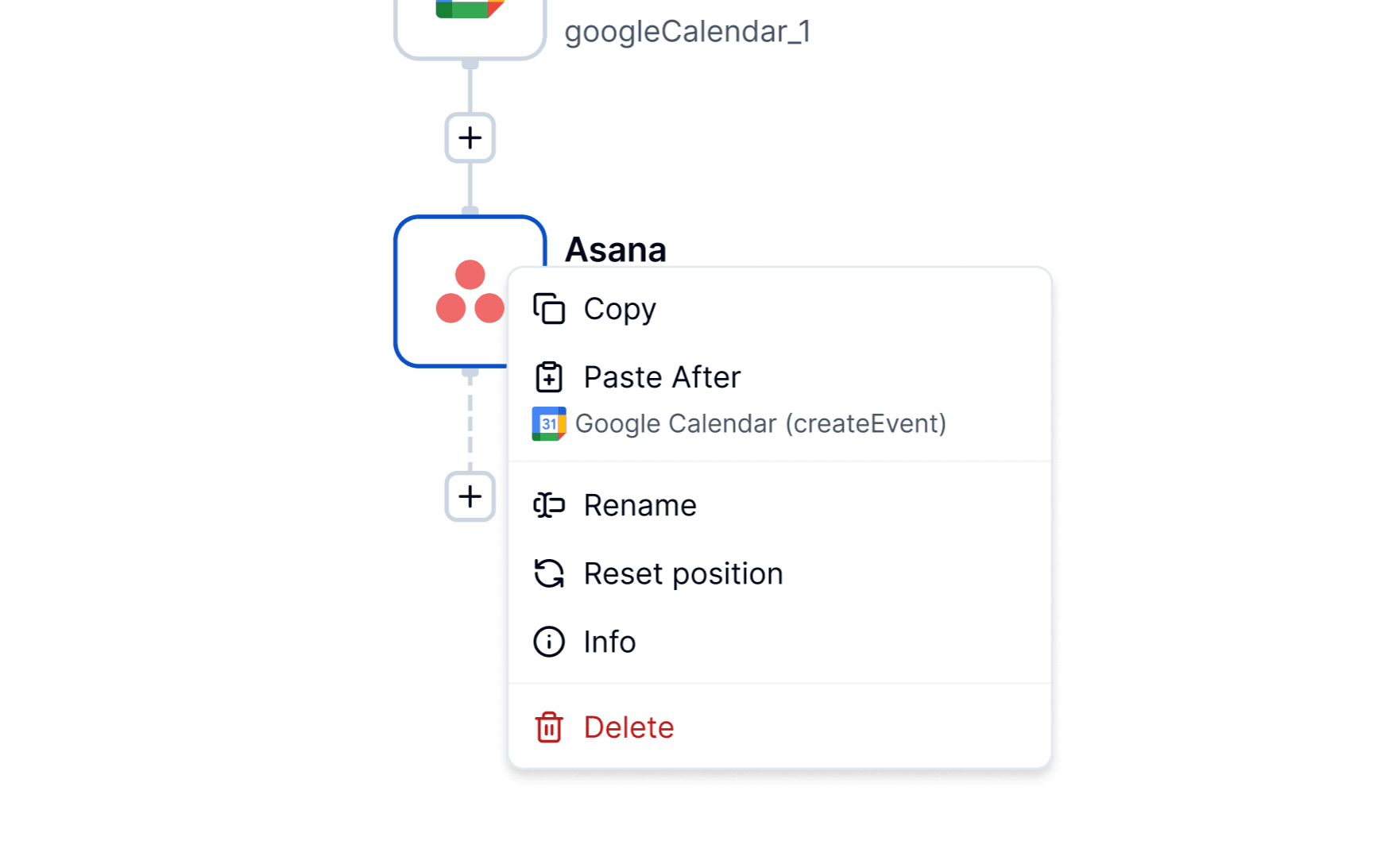
Speed isn’t just a performance metric. It directly shapes how intuitive and efficient a tool feels in everyday use. Introducing the context menu delivers three key improvements:
To summarize, the move to a context-based UI was about professionalizing the build experience. Sometimes, the best "innovation" isn't a flashy one, but taking a classic UI pattern and making it work flawlessly in a complex environment.
Ready to see how fast you can build? Give the right-click menu a spin in the ByteChef Builder and see the difference for yourself.
Get the latest guides on complex automation, AI agents, and visual workflow best practices delivered to your inbox.