17 min read
Opemipo Disu
In banks, finance teams, and legal firms, Know Your Customer (KYC) compliance isn't just a requirement, it's a manual process that slows everything down and can break the customer experience. Every day, compliance teams manually review users' data, calculate risk scores, send templated emails, and update multiple systems with the same data.
So the question is: "What if the entire process could happen automatically instead of spending too many hours or days?"
In this blog post, we will answer that question by building a complete KYC automation workflow in ByteChef that solves four pain points in financial teams:
By the end of this tutorial, you'll have a workflow that automatically sorts applications into low, medium, and high risk categories, sends emails based on the risk level, and maintains a complete audit trail with only a simple risk calculation script. You can alternatively use your favorite LLMs such as Claude, OpenAI, or DeepSeek to implement the logic.
This automation workflow is designed for finance teams or companies that process client applications for brokerage accounts, loans, or investment services. It can also be used by fintech startups that need help with processing users' KYC verification, and by compliance teams struggling with reviewing applications manually.
The workflow we're building can process hundreds or thousands of applications per day with accuracy, instant low-risk approvals, and routing based on risk level.
The manual or traditional approach for KYC onboarding involves manual risk calculation, sending templated emails, updating data with inconsistent information, and manually sorting out risk levels - this approach creates errors, wastes time, and frustrates customers.
By creating an automated workflow in ByteChef, you can capture data instantly from forms, calculate risks automatically using clear rules, sort applications by risk level, and create audit trails in both spreadsheets and databases. Everything happens instantly instead of taking hours.
Now, let's go ahead and create our KYC Compliance demo!
Firstly, to get started with this demo, you need to create a ByteChef account via the Cloud's instance or use the Docker Self-hosted instance.
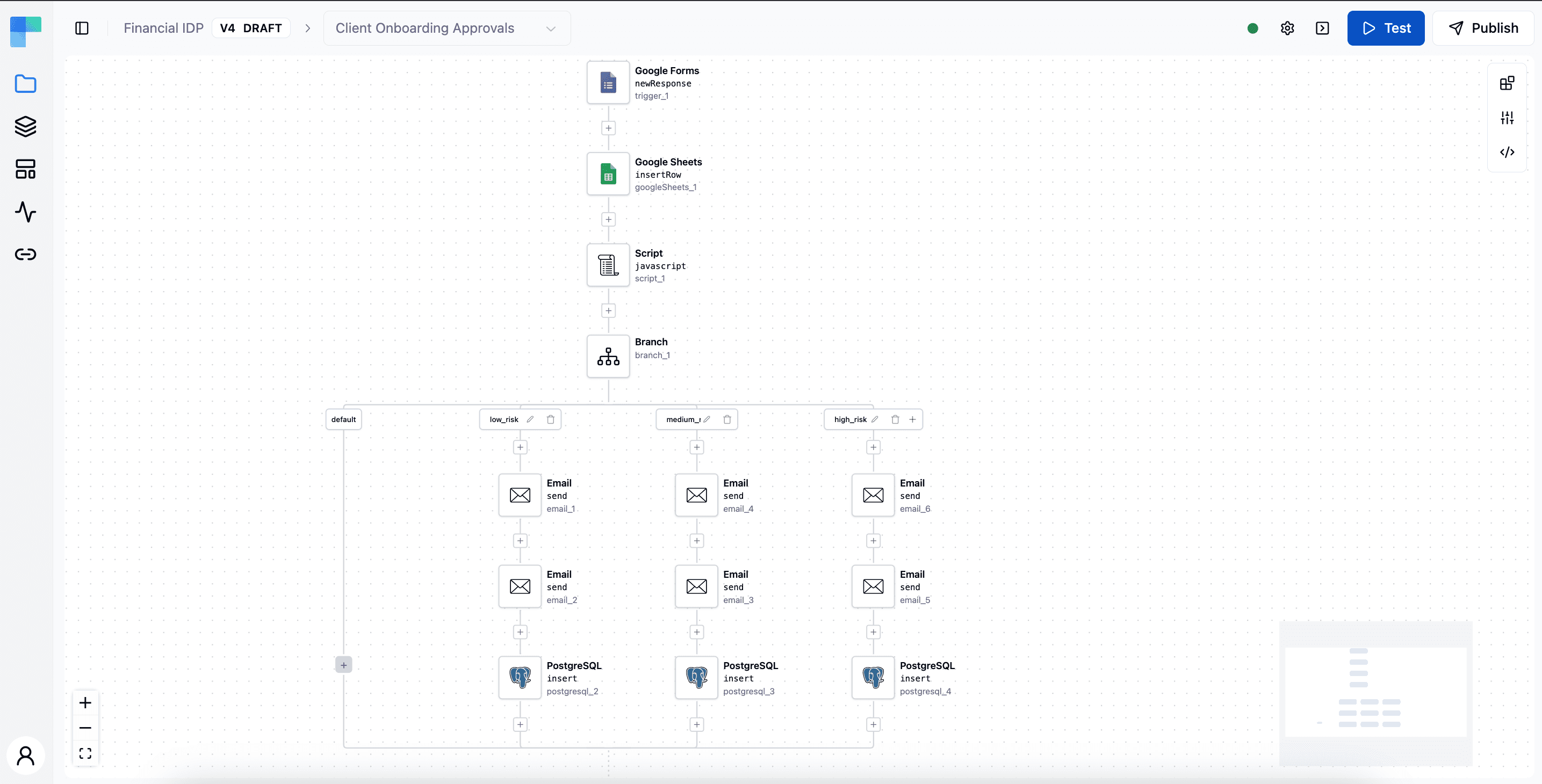
Before going in-depth, here's what the workflow will entail:
Final result: Automatic approval/review/rejection with notifications to email and database records.
The workflow uses intelligent branching to handle three paths:
To start with, create a new project and a new workflow within the project.
Head over to the newly created workflow to get things started!
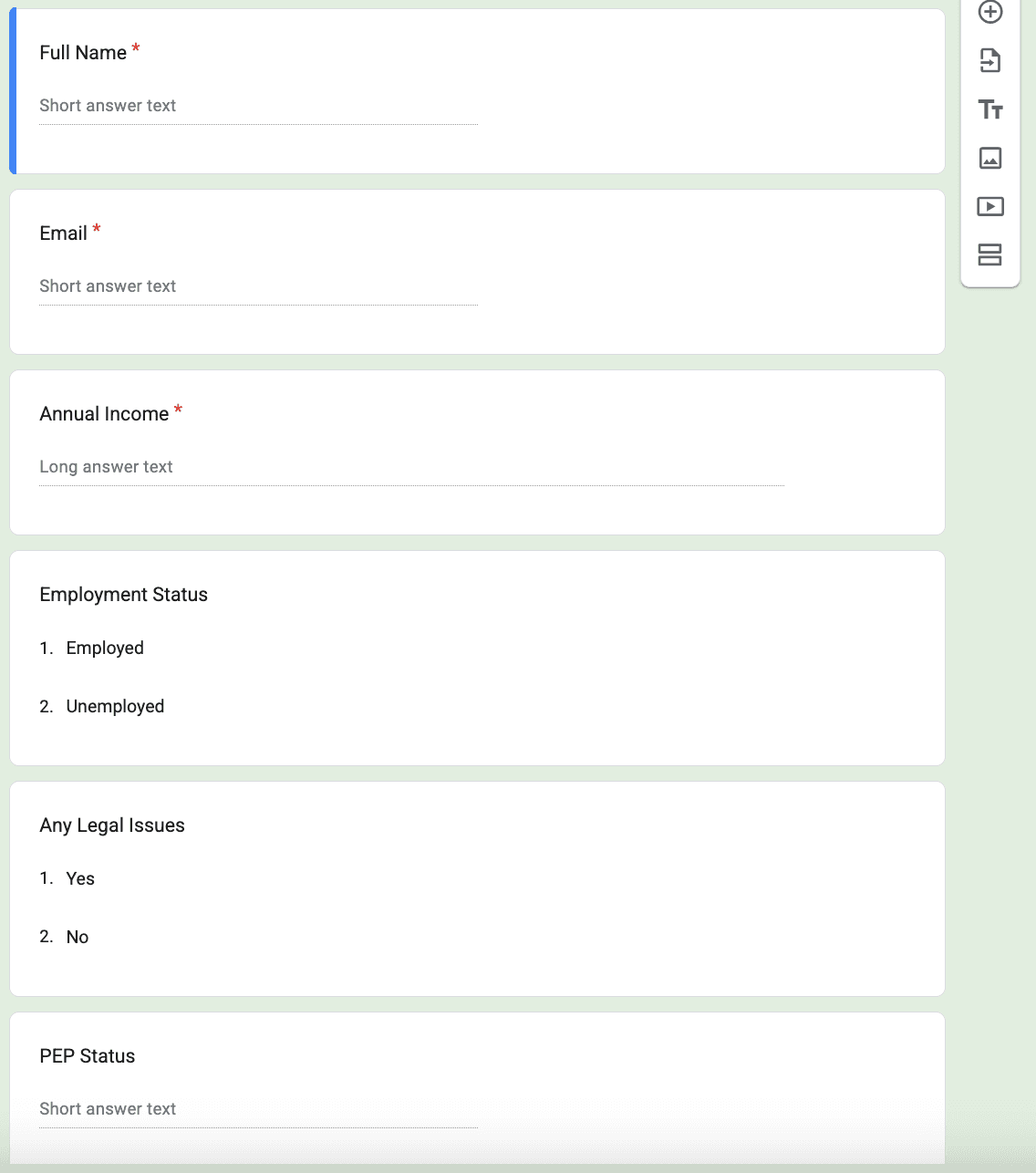
In ByteChef, every automation begins with a trigger, and for KYC applications, Google Forms is an excellent choice. It's familiar to users, easy to share, and integrates seamlessly with ByteChef just like other components such as Typeform. Before making any configuration, you need to create a form to work with.
Start by creating a Google Form; it can either be blank or from one of the available templates. Make sure the form has these five data points:
When you're done creating the form, head over to your ByteChef Visual workflow and add a Google Forms trigger:
{
    "formId": "1vFJQOAjhI-bn13iNbjXf5bQ79Y23CWfXOLxqeNWJVs",
    "responseId": "ACYDBNhcpZCEhbJ8dUa3RGHAM_et_x0IruzlXbWHTHvTiDKYqGqsaqC3wrjPc9s0G4wg",
    "respondentEmail": null,
    "question_1": {
        "questionId": "778b574a",
        "title": "Full Name",
        "answers": ["Greg Walter"]
    },
    "question_2": {
        "questionId": "3e555b2b",
        "title": "Email",
        "answers": ["gregwalter@gmail.com"]
    },
    "question_3": {
        "questionId": "3f7b522a",
        "title": "Annual Income",
        "answers": ["120000"]
    },
    "question_4": {
        "questionId": "458e9ec2",
        "title": "Employment Status",
        "answers": ["Employed"]
    },
    "question_5": {
        "questionId": "320744c8",
        "title": "Any Legal Issues",
        "answers": ["No"]
    },
    "question_6": {
        "questionId": "78ec68f3",
        "title": "PEP Status",
        "answers": ["Yes"]
    }
}
We need this json as it helps generate some data pills to work with in the other components.
The trigger automatically provides access to form responses through data pills like ${trigger_1.question_1.answers[0]}, which we'll use throughout the workflow.
The moment a user submits their information, ByteChef receives it and begins processing. No inbox monitoring, no manual data entry, no delays.
Compliance requires complete trails. Our second step is to add a Google Sheets component that logs every application to a Google Sheets spreadsheet, creating permanent, searchable records.
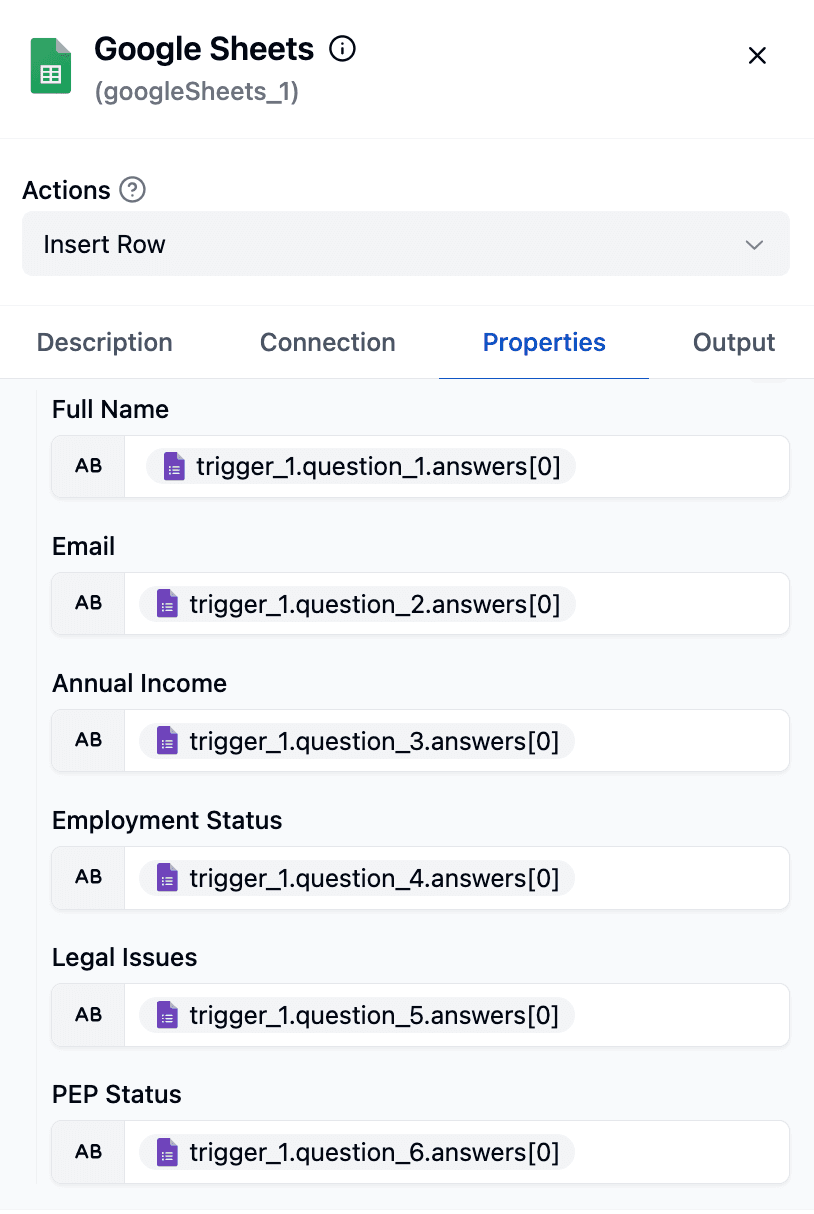
In this workflow, use the "Insert Row" action to ensure each form submission creates a new record. The configuration is easy, however, you need to create a Google Spreadsheet before working with this component.
Firstly, connect with the Google Sheets component as done in the Google Forms trigger. Refer to this guide to learn how to connect with the Google Sheets component. Head over to the Properties tab to make a configuration and configure the following:
Each form field maps to a sheet column using data pills that point to the data points:
Full Name: ${trigger_1.question_1.answers[0]}
Email: ${trigger_1.question_2.answers[0]}
Annual Income: ${trigger_1.question_3.answers[0]}
Employment Status: ${trigger_1.question_4.answers[0]}
Legal Issues: ${trigger_1.question_5.answers[0]}
PEP Status: ${trigger_1.question_6.answers[0]}
Here is how it should be in the workflow builder:
Here's where our workflow gets very intelligent. Instead of relying on human-based decisions, we use a transparent, consistent risk calculation script to determine risk levels. Note that for this step, you can use your favorite LLMs such as OpenAI, Claude, etc., for risk calculation (as mentioned earlier).
After the Google Sheets component configuration, add a new component and select the Script component - select JavaScript as the action of the Script component. Configure script inputs to know the data to pass to our function. But in this workflow configure three inputs:
${trigger_1.question_3.answers[0]} data pill based on the user's annual income from the configured Google Form${trigger_1.question_5.answers[0]} data pill based on the legal issues field from the configured Google Form${trigger_1.question_6.answers[0]} data pill based on the PEP status field from the configured Google Form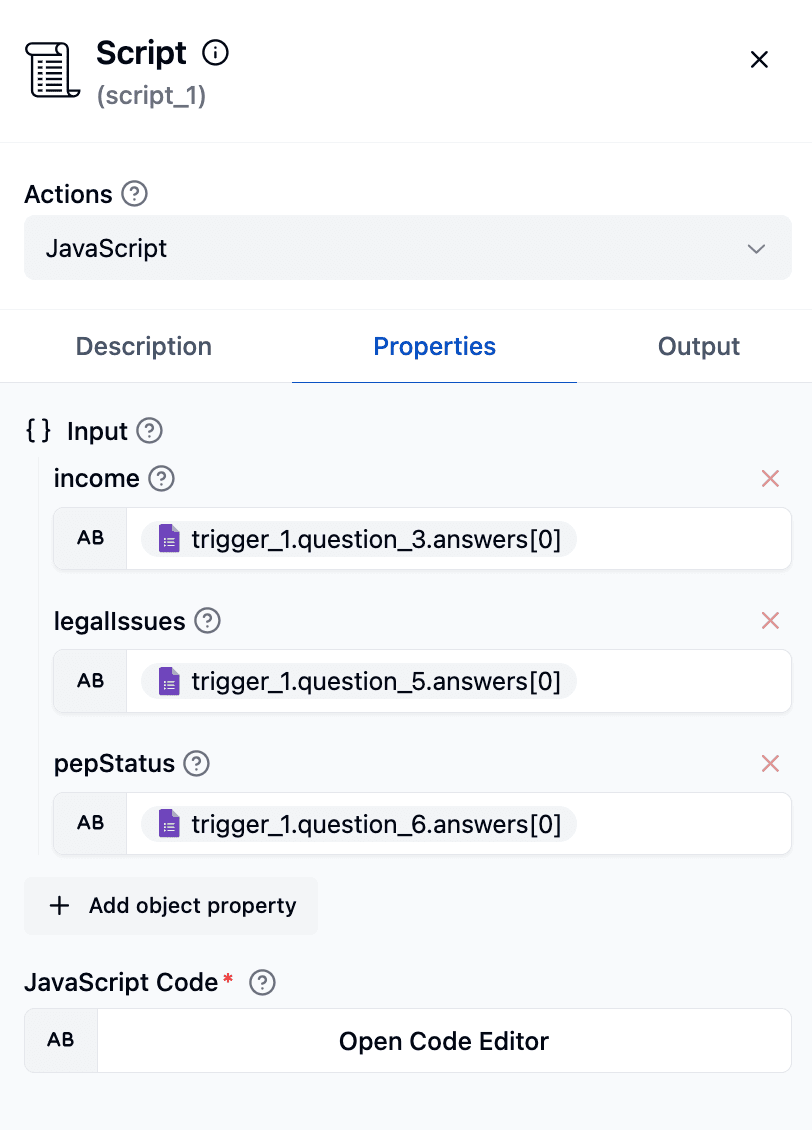
To work on the risk calculator script, open the Code Editor and put this code in the code editor that you can find under the Properties tab of the Script component:
function perform(input, context) {
    const income = parseFloat(input.income.replace(/,/g, ''));
    const legalIssues = input.legalIssues;
    const pepStatus = input.pepStatus;

    let riskLevel = 'low_risk';

    if (legalIssues === 'Yes' || pepStatus === 'Yes') {
        riskLevel = 'high_risk';
    } else if (income < 50000) {
        riskLevel = 'medium_risk';
    }

    return riskLevel;
}
This script basically removes commas from currency formatting (e.g., "75,000" becomes 75000); in this use-case, the only place where currency formatting is needed is in the annual income column.
With risk level calculation, this script states that disclosed legal problems triggers high-risk classification. Secondly, annual income below $50,000 triggers medium-risk level and lastly, clean applications with sufficient income are approved automatically as low risk.
For finance teams or companies handling thousands of applications, consistency is invaluable, as there's no double standard or miscalculation of risks.
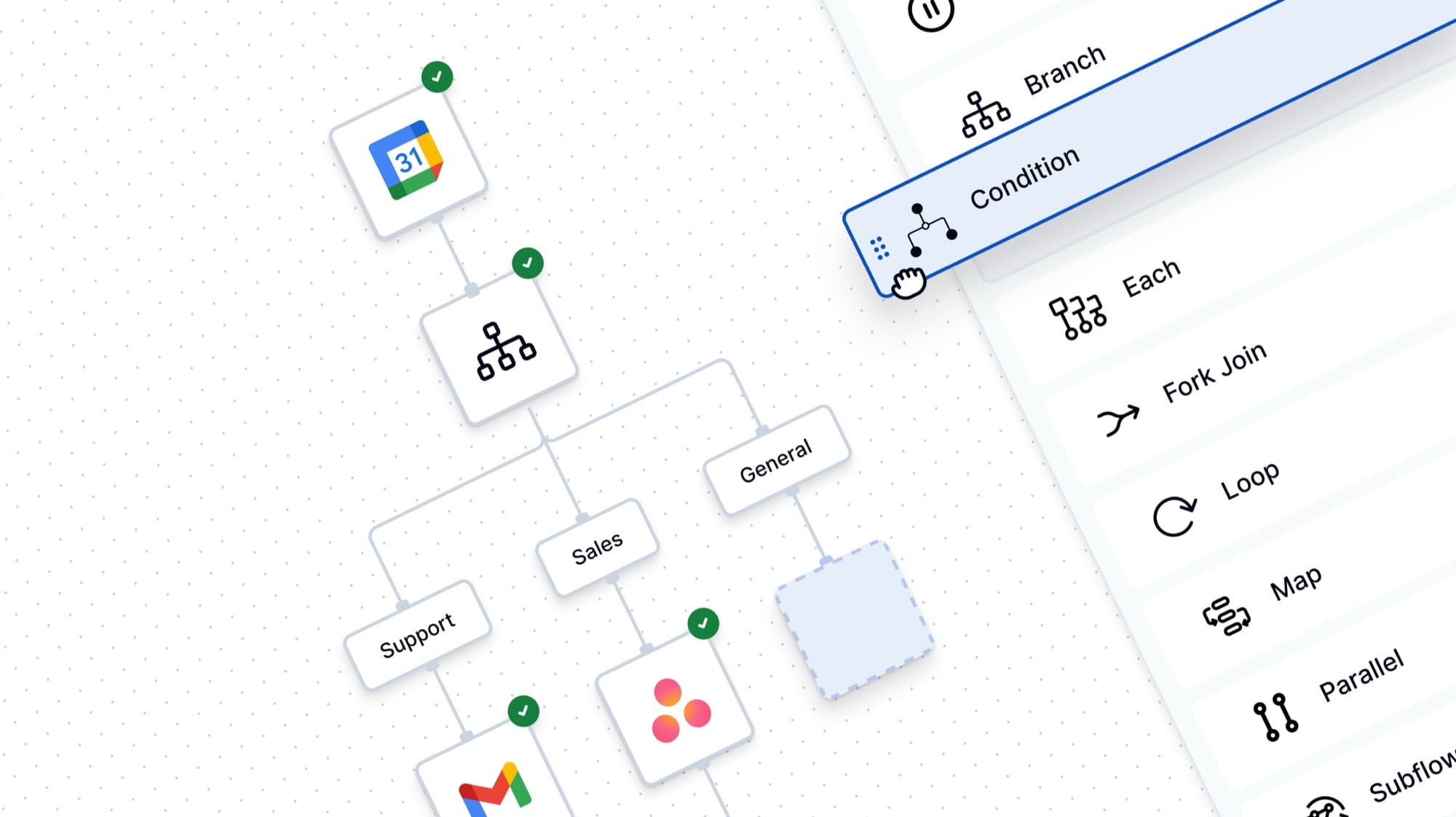
After the risk level is calculated, our workflow splits into three paths with the Branch flow. This is where ByteChef's Branch component shines, it allows completely different handling for each risk category.
To get started with this, add a new flow to the component and select the Branch flow. The Branch component will work with our script output: ${script_1}.
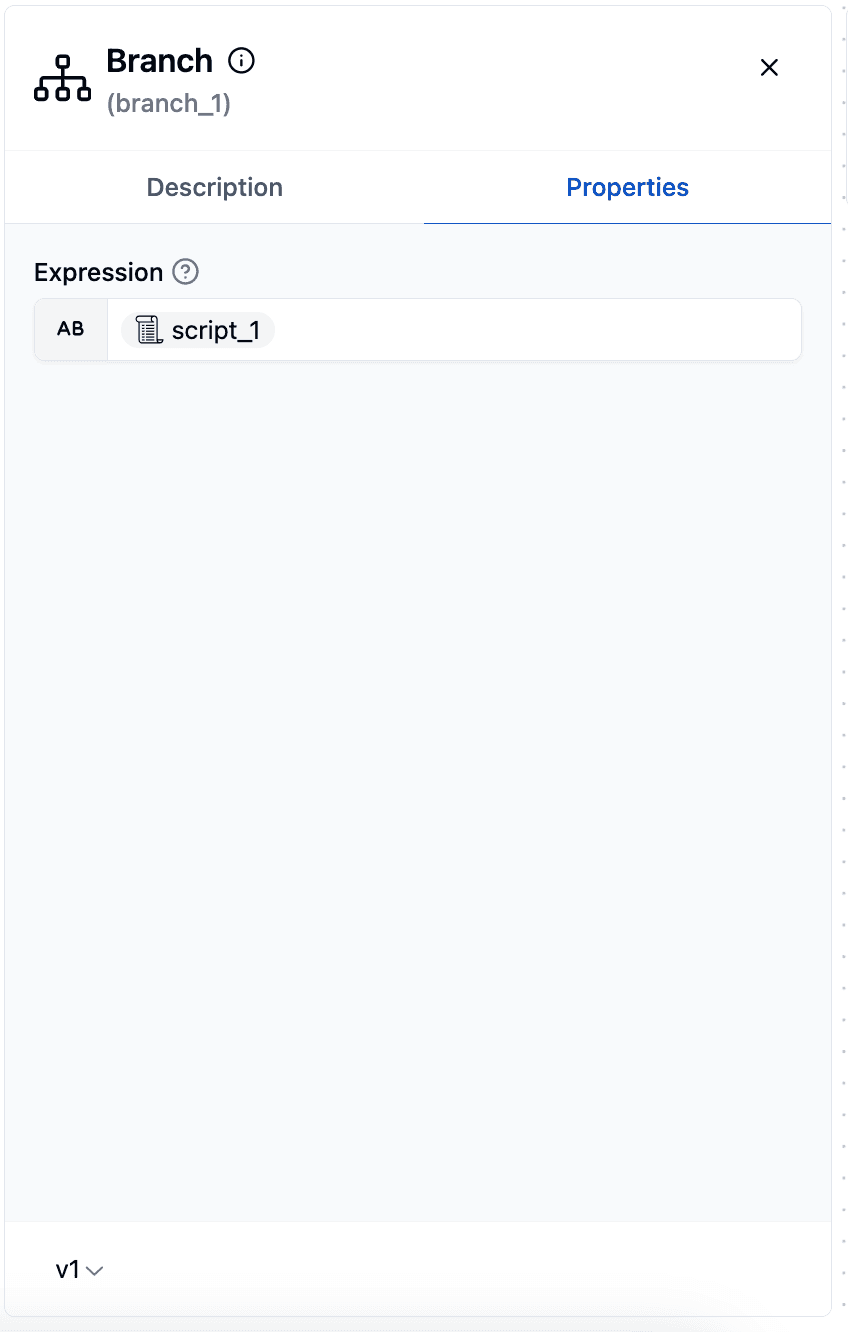
Configure the Branch component to create three separate paths based on risk level. The Branch component automatically gives a default path, which we'll leave empty. You can then add three other branches and name them low_risk, medium_risk, and high_risk.
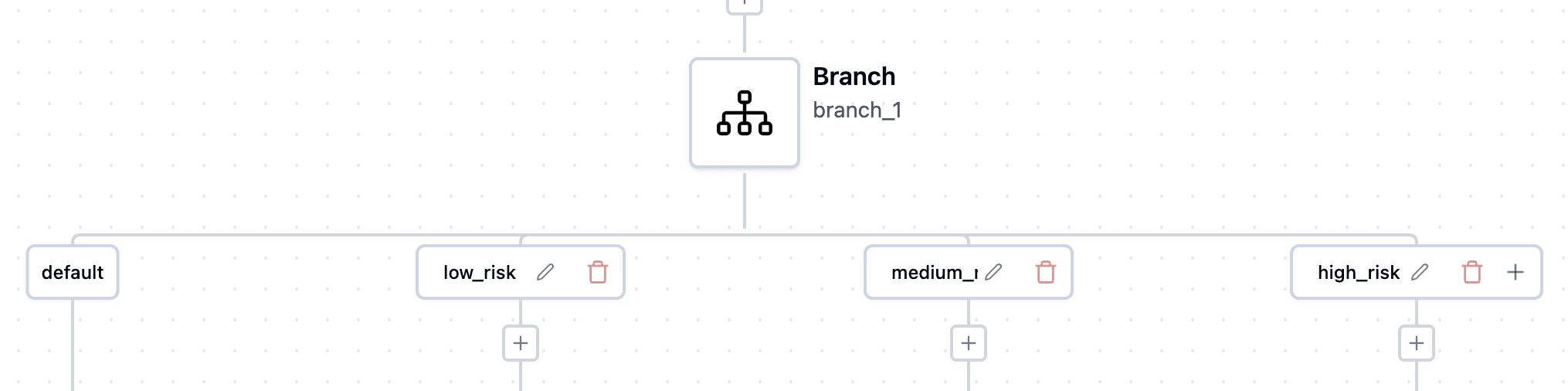
Based on the returned value (low_risk, medium_risk, or high_risk), the workflow follows one of three paths. Each path has its own set of actions tailored to its risk level.
Add the Email and PostgreSQL components in the low_risk route. In the Email component, use the Send action, create a new connection by providing the relevant credentials such as the name of the connection, host, if you want to use TLS or not, and connection security.
In the Properties section of the Email component - configure the following:
In the low_risk branch, add another Email component and use the same Send Action. Configure properties such as port, email from, to email, email subject. But you can change the content of the second email in the low_risk branch to: ${trigger_1.question_1.answers[0]} - Approved as LOW RISK .
For applicants with clean records and sufficient income, we can approve instantly. So here's what we just did:
Email to Applicant
To: ${trigger_1.question_2.answers[0]}
Subject: Your Application - Approved
Body: Congratulations! Your KYC application has been approved.
This immediate communication creates an excellent customer experience. Instead of waiting days for review, low-risk applicants receive approval in seconds.
Email to Compliance Team
To: noreply@yourcompany.com
Subject: KYC Approval: Low Risk
Body: ${trigger_1.question_1.answers[0]} - Approved as LOW RISK
Even automated approvals need oversight. This notification ensures the compliance team maintains visibility without requiring their active involvement in routine cases.
For Database, add the PostgreSQL component, make a connection by providing the required credentials based on your local PostgreSQL configuration, and select the Insert action. In the properties section:
kyc_approvalsapplicant_name: Stringemail: Stringrisk_level: Stringstatus : Stringapplicant_name: ${trigger_1.question_1.answers[0]}email: ${trigger_1.question_2.answers[0]}risk_level: ${script_1}status : approved (in plain text).The PostgreSQL insert creates a permanent, queryable record. Unlike spreadsheets, this database storage enables complex reporting, integration with other systems, and long-term compliance tracking.
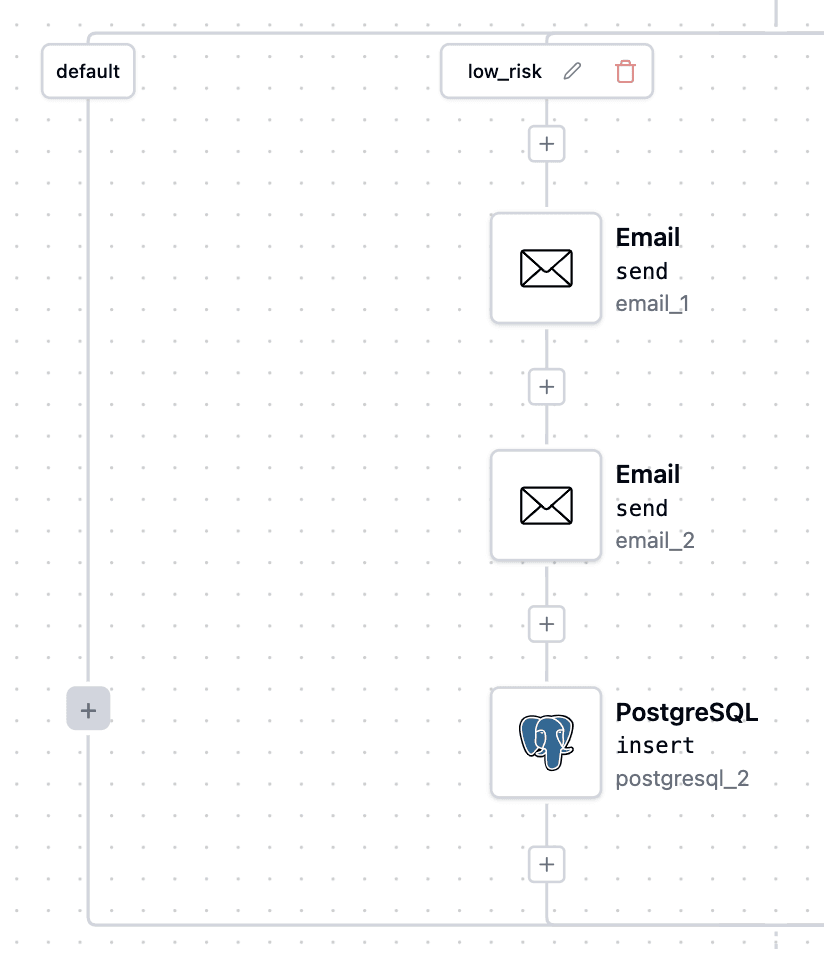
Add the Email and PostgreSQL components in the medium_risk route. In the Email component, use the Send action, create a new connection by providing the relevant credentials such as the name of the connection, host, if you want to use TLS or not, and connection security.
In the Properties section of the Email component - configure the following:
${trigger_1.question_2.answers[0]}In the medium_risk branch, add another Email component and use the same Send Action. Configure properties such as port, email from, to email, email subject. But you can change the content of the second email in the medium_risk branch to:
${trigger_1.question_1.answers[0]} - Flagged as MEDIUM RISK. Manual review needed.For applications with lower income or a few other issues, manual review is needed. So here's what we just did:
Email to Applicant:
To: ${trigger_1.question_2.answers[0]}
Subject: Your Application - Under Review
Body: Your KYC application is under review. We'll contact you within 3 days.
Setting clear expectations prevents follow-up inquiries and keeps customers notified during the review period.
Email to Compliance Team:
To: compliance@yourcompany.com
Subject: Manual Review Required: Medium Risk
Body: ${trigger_1.question_1.answers[0]} - Flagged as MEDIUM RISK. Manual review needed.
This alert gives the compliance team enough context to prioritize the application without the stress of hunting for data.
Database Record
For Database, add the PostgreSQL component, make a connection by providing the required credentials based on your local PostgreSQL configuration, and select the Insert action. In the Properties section:
kyc_approvalsapplicant_name: Stringemail: Stringrisk_level: Stringstatus: Stringapplicant_name: ${trigger_1.question_1.answers[0]}email: ${trigger_1.question_2.answers[0]}risk_level: ${script_1}status: pending (in plain text).The pending status allows compliance dashboards to show all applications awaiting review, creating a clear workflow queue.
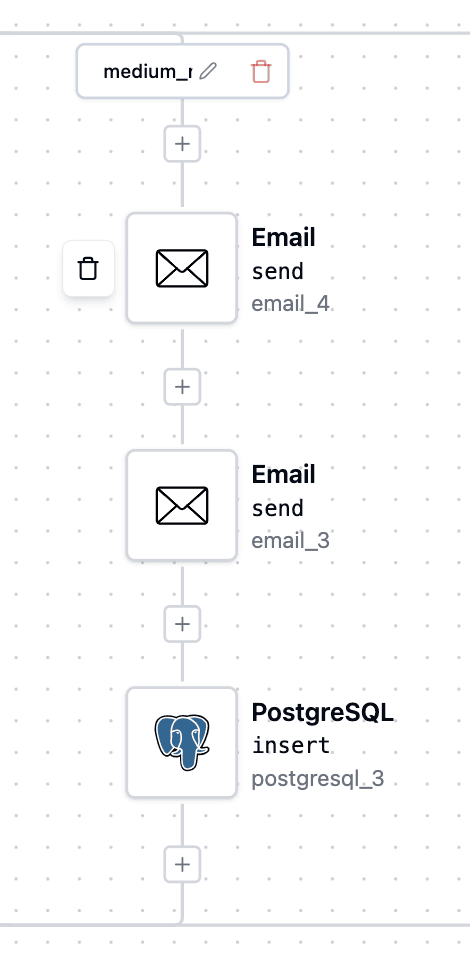
Add the Email and PostgreSQL components in the high_risk route. In the Email component, use the Send action, create a new connection by providing the relevant credentials such as the name of the connection, host, if you want to use TLS or not, and connection security.
In the Properties section of the Email component - configure the following:
${trigger_1.question_2.answers[0]}In the high_risk branch, add another Email component and use the same Send Action. Configure properties such as port, email from, to email, email subject. But you can change the content of the second email in the high_risk branch to:
${trigger_1.question_1.answers[0]} - HIGH RISK. Requires senior review.For applications with disclosed legal issues or serious concerns, senior attention is required. So here's what we just did:
Email to Applicant
To: ${trigger_1.question_2.answers[0]}
Subject: Your Application - Additional Information Needed
Body: We need additional documents to proceed. Please reply with the requested information.
Rather than an outright rejection, this approach maintains the relationship while gathering necessary information for proper due diligence.
Email to Senior Compliance
To: senior-compliance@yourcompany.com
Subject: KYC Alert: High Risk
Body: ${trigger_1.question_1.answers[0]} - HIGH RISK. Requires senior review.
High-risk cases bypass routine review queues and go directly to experienced officers who can make complex judgments.
Database Record
For Database, add the PostgreSQL component, make a connection by providing the required credentials based on your local PostgreSQL configuration, and select the Insert action. In the properties section:
kyc_approvalsapplicant_name: Stringemail: Stringrisk_level: Stringstatus: Stringapplicant_name: ${trigger_1.question_1.answers[0]}email: ${trigger_1.question_2.answers[0]}risk_level: ${script_1}status: rejected (in plain text).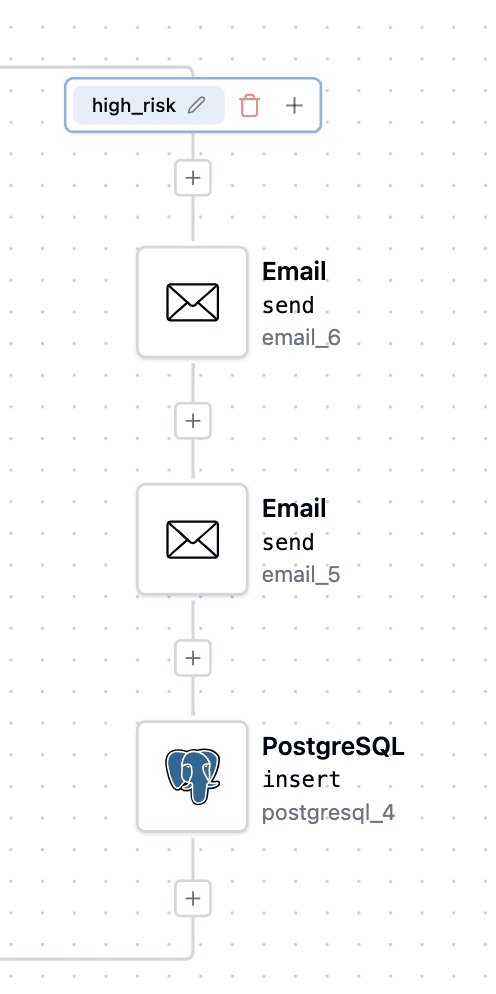
While the email requests more information, the initial database status is 'rejected' pending successful document submission and senior review.
After building the workflow, it's time to test all the components to ensure everything works correctly.
With all components configured, it's time to test. ByteChef's test feature allows us to simulate form submissions without actually triggering the real form.
This test data represents a low-risk applicant: good income, employed, no legal issues. So note that in this case, the test will be based on the input provided as Test Data from the form.
Hit the Test button at the top right corner of the workflow builder and see how the workflow is executed:
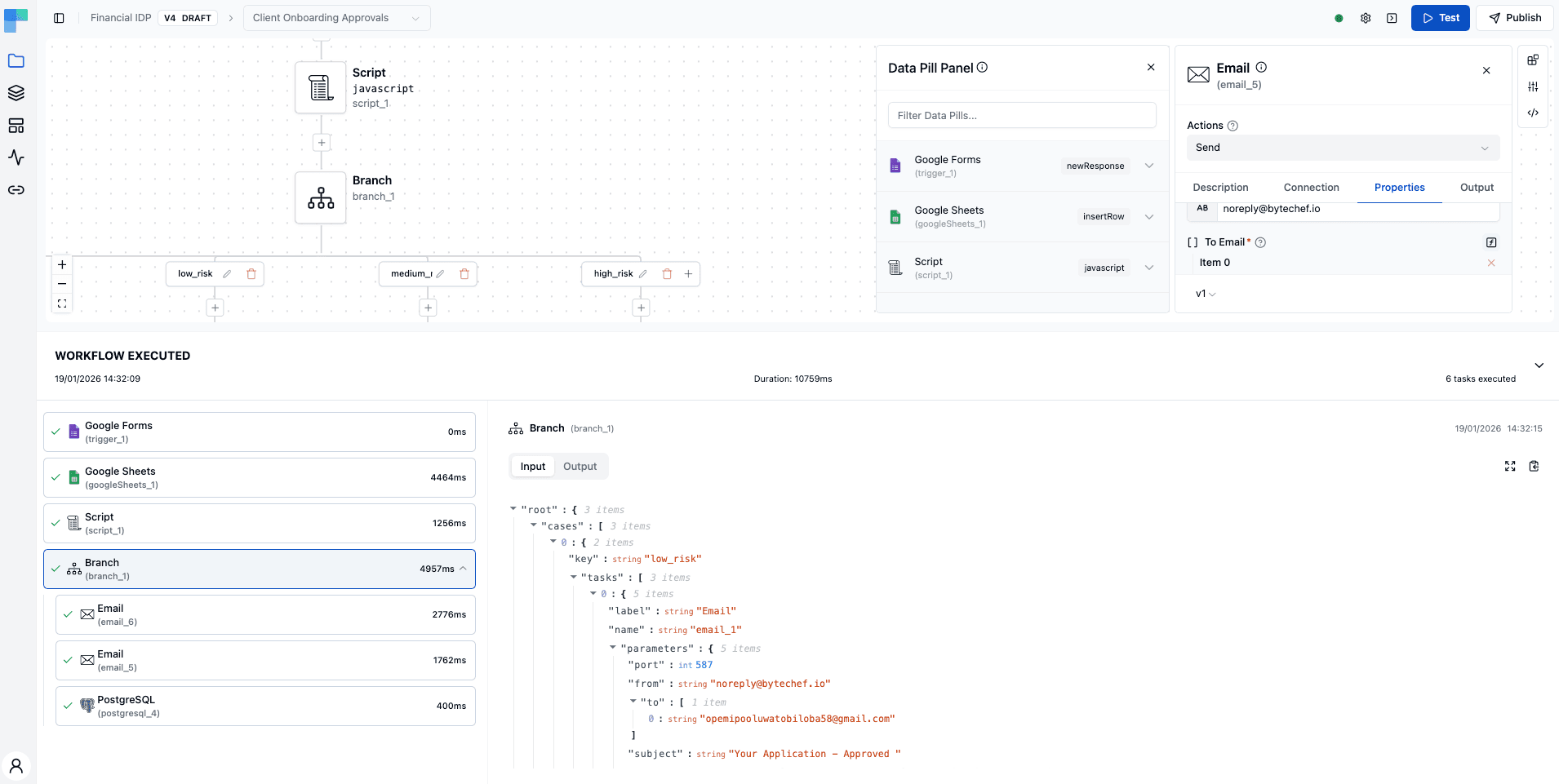
This visibility is important during development and invaluable for debugging production issues.
As soon as the test is executed, the administrator should receive an email based on the risk like this:
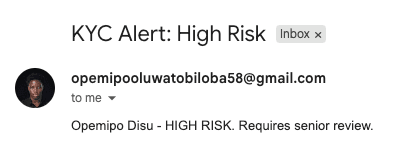
While the user receives this email:

Other than that, the user's data automatically logs into the configured sheets in this format:
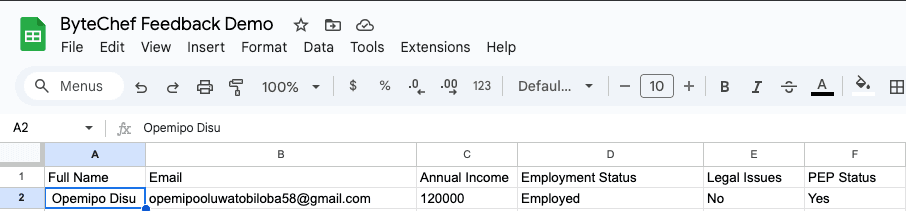
That's all with the testing - now we can go ahead and deploy without making any changes.
Follow these instructions to deploy your workflow:
After deploying the workflow, make a new submission to the configured form. When you're done with your application, it should log the results into your spreadsheet and send the risk levels via email.
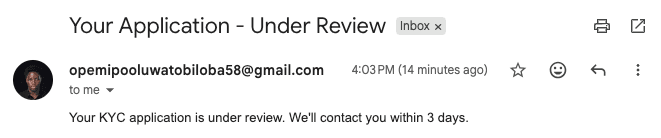
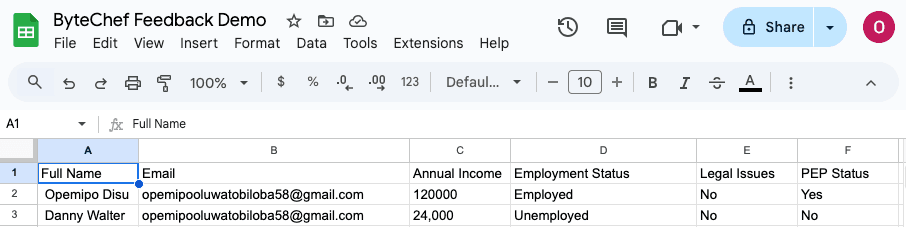
In this test, I entered a low annual income (24,000), so it should return a "medium" risk level.
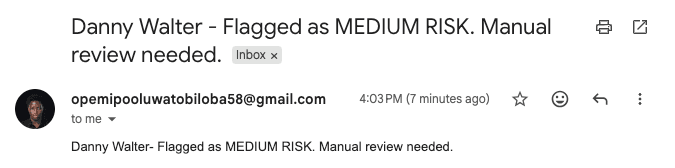
In this case, the user receives this:
It should also log successfully in the spreadsheet:
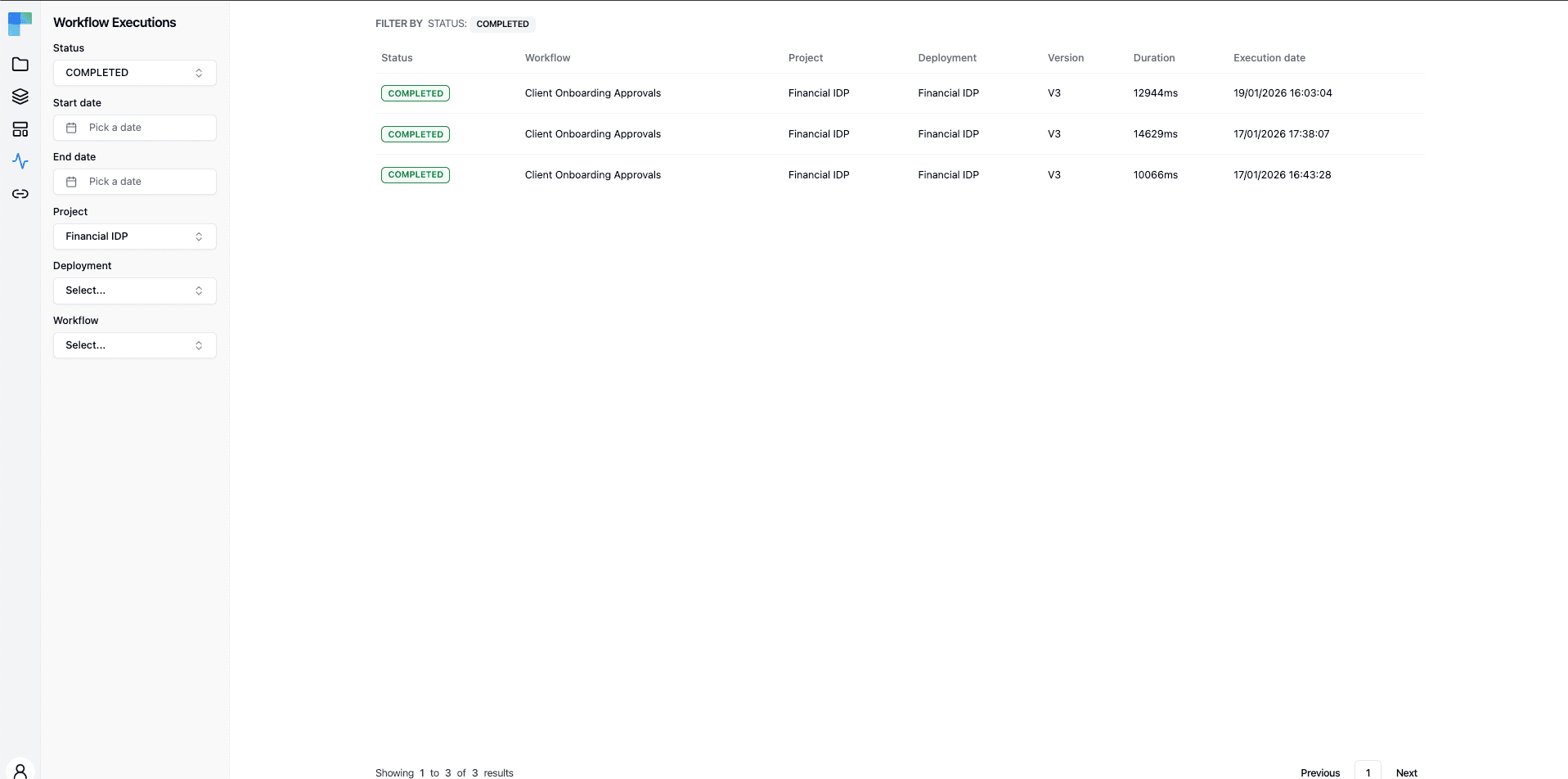
To check if your workflow works without any hassle, you can look at the Workflow Executions panel within the dashboard.
After implementing this workflow, finance teams will see improvements in their workflows. here we'll look at the results based on real-world cases.
For operations, processing time drops from 30 minutes down to just 5 seconds; that's a 99.7% reduction. Mistakes that happened about 5% of the time don't happen anymore because the system handles everything the same way every time. The manual delays disappear, and your compliance team can spend time on hard cases instead of copying data around.
For customers, the experience improves dramatically. For example, low-risk applicants get quick approval with no waiting period. All applicants receive clear status communication so they know exactly where they stand. And every single application gets judged by identical criteria, so there's no inconsistency.
For compliance, the benefits are just as strong. You get complete, timestamped records creating a solid audit trail. The risk calculation logic is visible and transparent for administrators. Querying risk patterns becomes easy instead of painful. And the system scales perfectly. So, whether you're handling 10 applications or 10,000, it works the same way without any stress.
With this workflow automation, both the customers and compliance teams have positive experiences.
While this workflow is ready for production right now, real-world use often calls for customization.
You can easily add more risk factors to the JavaScript calculation. Think geographic location checks for different risk profiles by country, politically exposed person (PEP) checks to flag government connections, age verification to ensure legal capacity, credit score integration pulling from external APIs, or document verification integrating with ID verification services.
Instead of just logging to databases and spreadsheets, you can also integrate with your CRM systems such as Salesforce to create leads for approved applicants, add them to HubSpot for marketing automation, create Zendesk support tickets for edge cases, or even trigger your internal APIs for account provisioning workflows.
KYC compliance doesn't have to be a painful process that slows down your operations. With ByteChef's visual workflow builder, we've built an automation that eliminates manual data entry through form integration, calculates risk consistently with clear logic, routes based on risk profile, communicates automatically with stakeholders, and creates complete audit trails for compliance.
This workflow takes less than an hour to set up and needs no traditional coding beyond one simple JavaScript function for risk calculation. You get measurable operational changes immediately.
If you're stuck or want to use the exact workflow we built in this blog post, you can copy this JSON data and paste it in your Workflow Code Editor in the workflow builder.
For financial services companies processing dozens or hundreds of KYC applications every week, this automation pays for itself within days. The workflow reduces manual work, errors, and processing time.
Get the latest guides on complex automation, AI agents, and visual workflow best practices delivered to your inbox.