5 min read
Krešimir Čoko
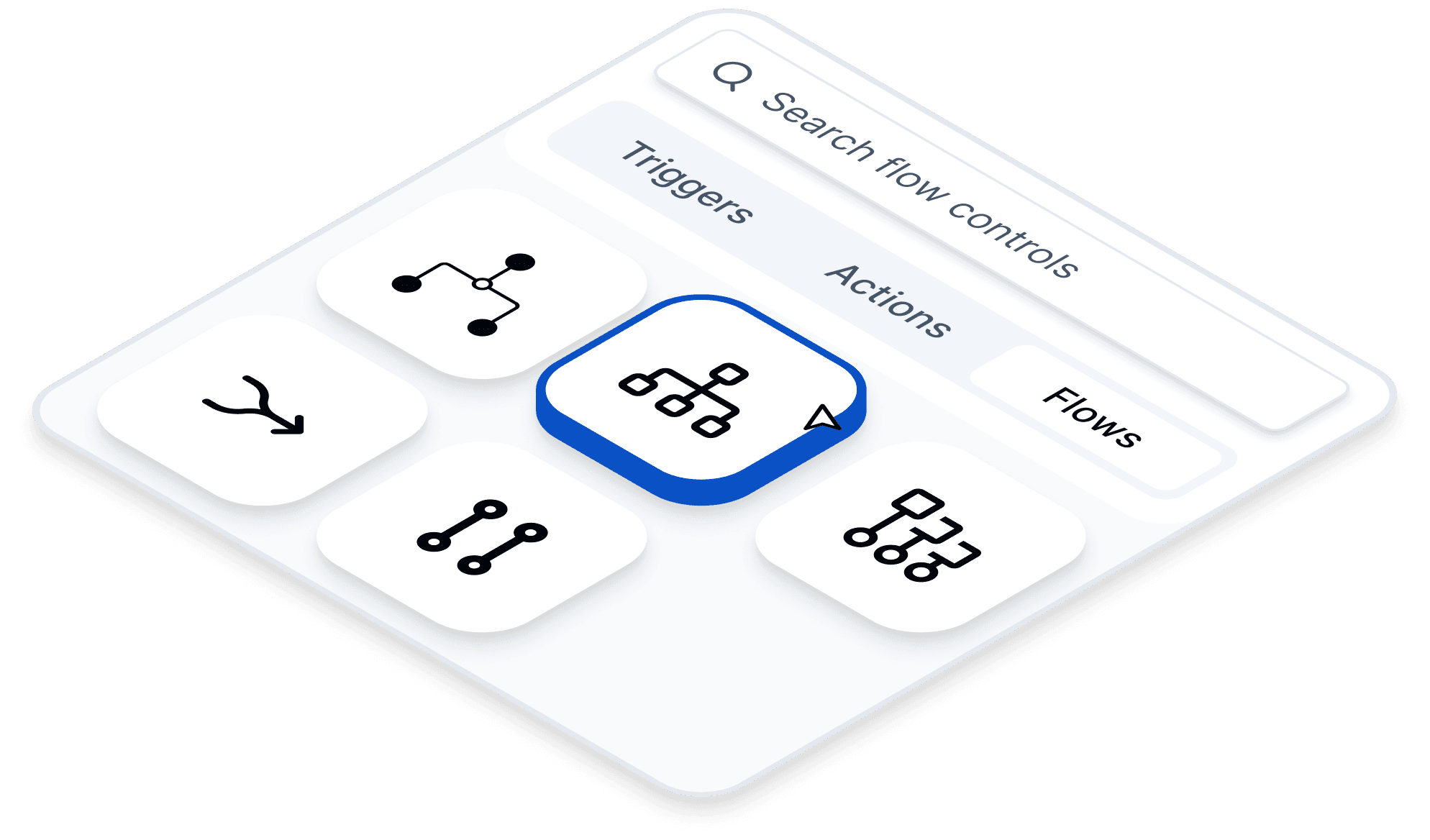
TL;DR: ByteChef’s Flow Controls make advanced no-code business logic easy to build visually. With conditions, loops, and branches, teams can create complex automation, AI automation, and scalable business process automation without writing custom code. Built on React Flow and optimized with custom nodes, workflows stay fast, clean, and reliable even at scale.
Most automation tools do a great job with simple “if this, then that” workflows. But the moment your process needs multi-step conditions, loop automation, or workflow branching, many no-code builders hit a wall.
That’s where teams often end up doing something they wanted to avoid in the first place: calling a developer, writing custom scripts, or stitching together fragile workarounds just to support what should be basic complex automation.
With ByteChef’s Flow Controls, that gap disappears. Instead of forcing users into code, ByteChef brings no-code business logic into a visual workflow automation experience that feels intuitive, scalable, and fast.
For no-code builders, operations teams, SMBs, and even developers designing internal automations, this means you can create sophisticated AI automation and business process automation without sacrificing clarity.
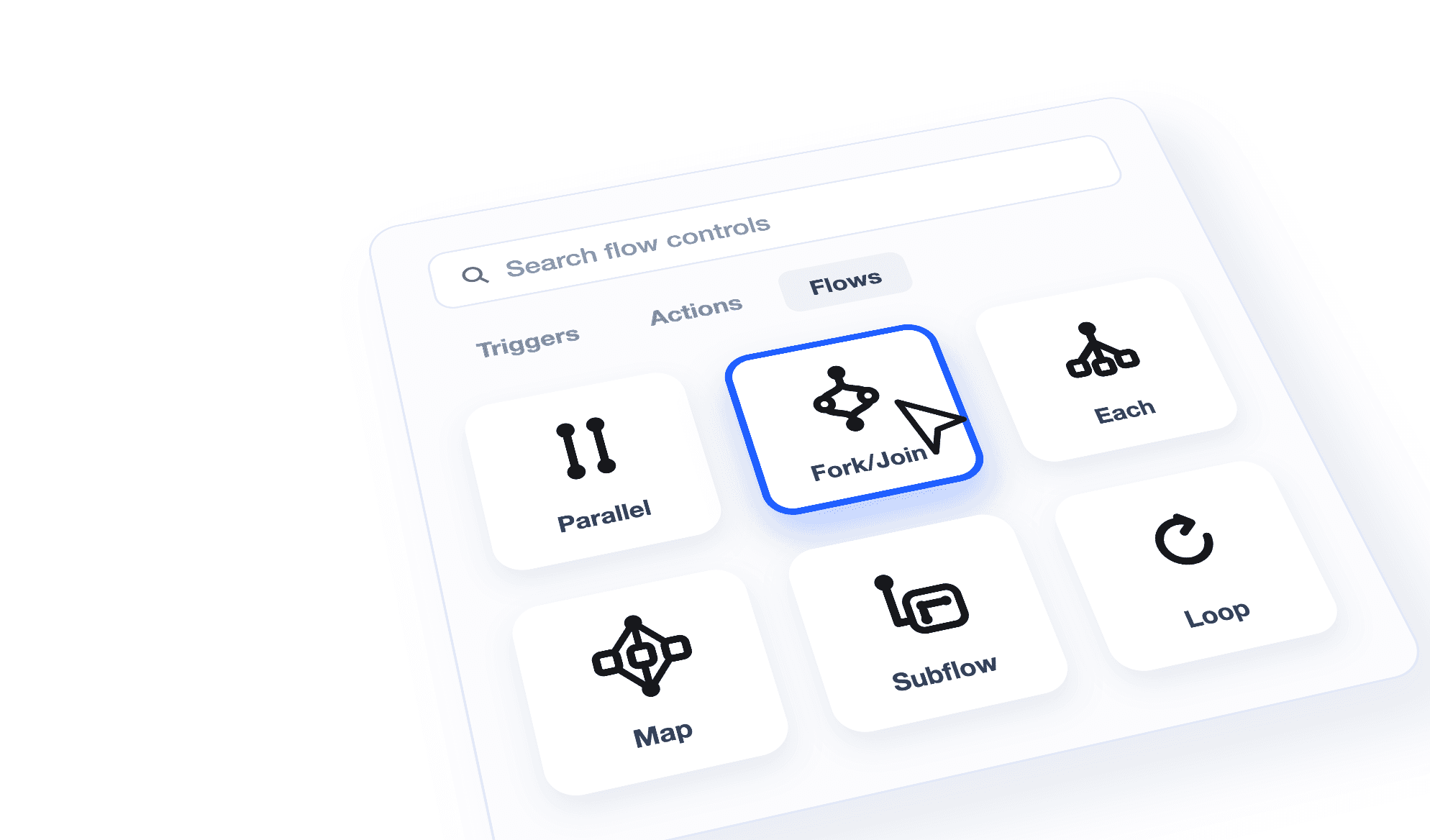
Flow Controls are special nodes in ByteChef that act like traffic directors for your workflow data.
Instead of every automation step running in a straight line, Flow Controls let your workflow make decisions, repeat actions, or split into multiple paths based on live data.
Because these controls are built with React Flow, the experience stays smooth and visual. You can drag, connect, and reorganize logic blocks without losing sight of the bigger process.
This is especially powerful when combined with ByteChef’s cluster elements, which allow granular configuration for advanced components like AI Agents, Data Streams, and various vector stores. Rather than cluttering the canvas, related automation logic stays visually organized and easy to manage.
The result is visual workflow automation that behaves like real programming logic, but remains accessible to non-developers.
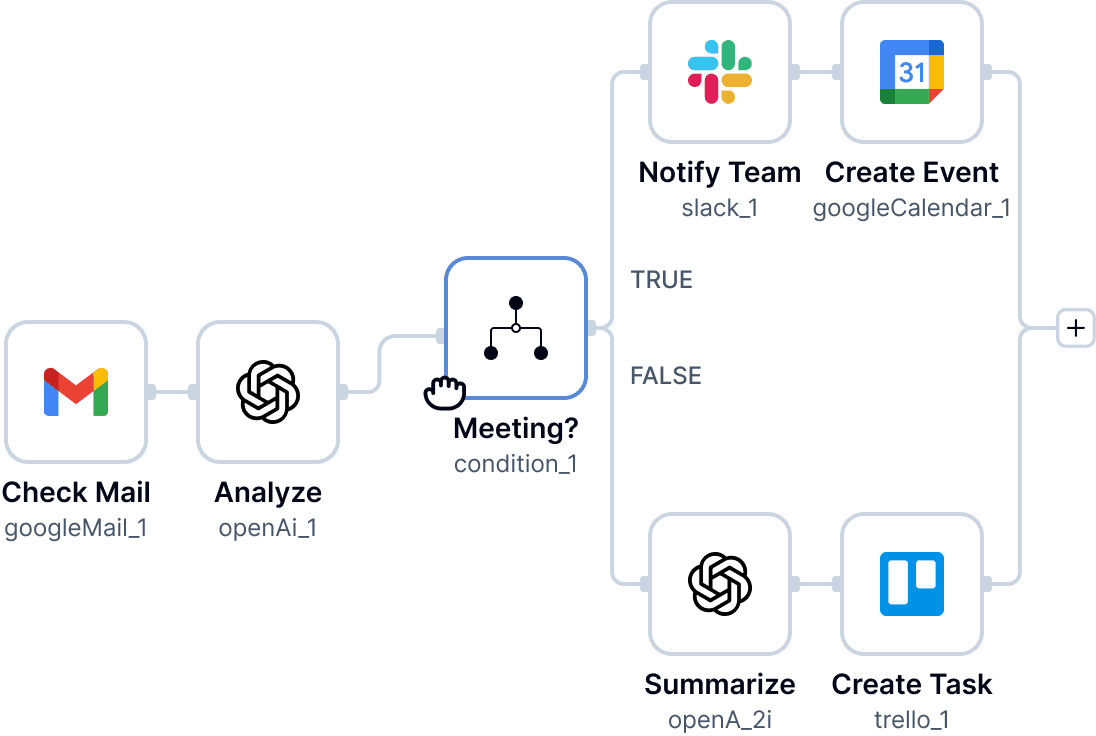
Conditions allow workflows to branch based on data values.
For example, imagine a lead intake workflow:
This kind of workflow branching is essential for real-world business process automation, where not every customer, invoice, ticket, or AI output should follow the same path.
Instead of writing conditional statements in code, ByteChef lets users configure logic visually with simple node settings. (Check out an example of security condition logic in the WhatsApp Shopify Bot use case.)
Loops are one of the most important features for complex automation.
Let’s say your Google Sheet receives 100 new rows overnight. Rather than manually building 100 repeated steps, a Loop processes each row one by one.
This makes loop automation practical for tasks like:
For no-code builders, loops are often the difference between a toy workflow and a production-ready system.
Branches let multiple paths run at the same time.
For example, after a new support ticket arrives, you may want to:
Running these in parallel reduces latency and improves overall workflow performance. (For a deep dive, see how intelligent branching is used in the KYC Compliance Automation tutorial.)
Compared fairly with tools like Zapier, Make, n8n, ByteChef’s advantage is not simply that it supports branching, but that it keeps complex no-code automation logic visually maintainable at scale, especially when advanced logic clusters and AI-enabled components are involved.

A visual builder only works if it stays fast as workflows grow.
Because ByteChef implements Flow Controls as custom React Flow nodes, even large automation maps remain responsive. The interface avoids the lag, visual clutter, and node sprawl that often make large no-code systems hard to maintain.
This becomes even more important in AI automation use cases, where workflows may include multiple agents, retries, conditions, and parallel processing branches.
Reliability matters just as much as UX.
These logic paths have been tested with Playwright, helping ensure tasks consistently move through conditions, loops, and branches without dropped executions. For teams building production-grade visual workflow automation, that reliability is critical.
You don’t need to be a developer to build sophisticated no-code automation.
With ByteChef’s Flow Controls, no-code builders can design real business logic visually using conditions, loops, and branches; all while keeping workflows clean, fast, and scalable. If you're just getting started, read how to build your first scalable automation workflow.
Whether you’re building AI automation, customer operations workflows, or internal business process automation, the right visual tools make advanced logic accessible.
Ready to build your first conditional workflow? Sign up for a free ByteChef account at app.bytechef.io/register and start creating smarter automations today.
If you’re exploring advanced no-code patterns, subscribe to the ByteChef newsletter for more guides on complex automation, AI agents, and visual workflow best practices.
Get the latest guides on complex automation, AI agents, and visual workflow best practices delivered to your inbox.