8 min read
Ivica Cardic
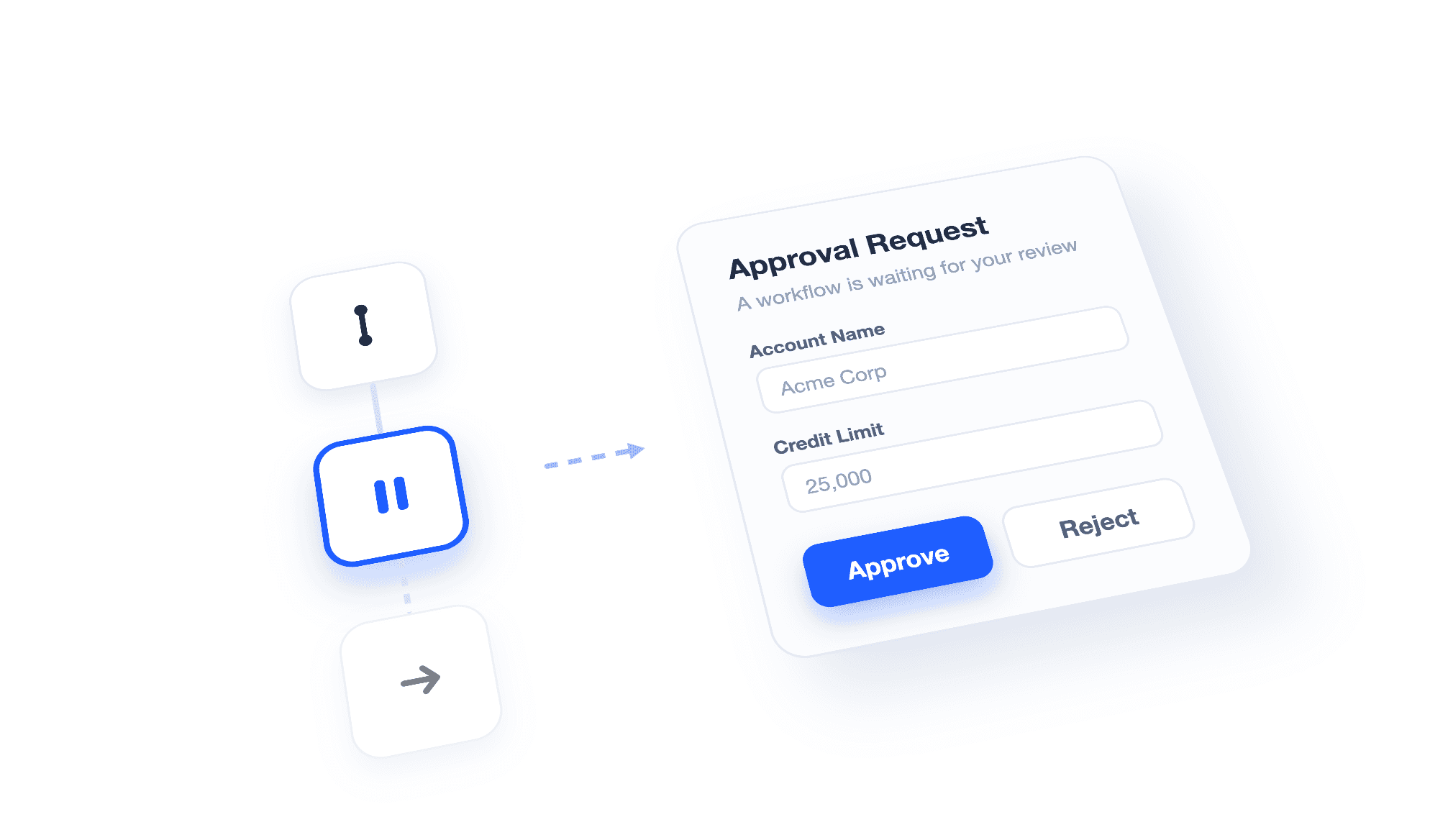
TL;DR: ByteChef's Approval component pauses a running workflow until a person approves or rejects - optionally filling in a form whose answers flow straight into the next steps. Delivery is pluggable: Slack (with inline Approve/Discard buttons), Gmail, Outlook, Discord, Telegram, WhatsApp and more - or ByteChef's new in-app Approval Tasks inbox. The approver clicks a signed link and needs no ByteChef account, and the workflow waits up to 60 days without holding a thread - human-in-the-loop (HITL), with no infrastructure of your own.
You build a workflow, and it runs beautifully - right up to the step you don't actually want it to run on its own. Issue the refund? Create the customer account? Book the leave?
Some steps shouldn't happen without a human's yes. What you want is simple to say: the workflow pauses, the right person gets pinged where they already work, they approve - maybe fill in a couple of fields - and the workflow picks up exactly where it stopped, with their answer in hand.
That pattern has a name - human-in-the-loop (HITL) - and in ByteChef it's the Approval component.
If you've read our use-case tutorials, you've already met it without an introduction. The KYC compliance workflow gates onboarding on a compliance officer's review. The Liferay onboarding workflow waits for a manager to fill in account details. PTO Elf holds leave requests for sign-off.
In each of those, approval was a supporting actor: "add an approval task here" and the tutorial moved on. This post is the missing introduction - what you configure, what your approver sees, and what the platform quietly does for you in between.
In the workflow editor, Approval is one component with one action: Request Approval. The minimal setup is no setup at all - leave everything blank and your approver simply gets Approve and Reject buttons.
Usually you'll give it a form title, a description, and a list of form inputs. The form builder supports thirteen field types: text, textarea, number, email, password, checkbox, radio, select, date and datetime pickers, file upload, hidden fields, and raw custom HTML for anything else.
Each field carries the knobs you'd expect from a form builder: a label and description, a placeholder, a default value, and a required flag. Radio and select fields take label/value options, and a select can allow multiple choices with a minimum and maximum selection count.
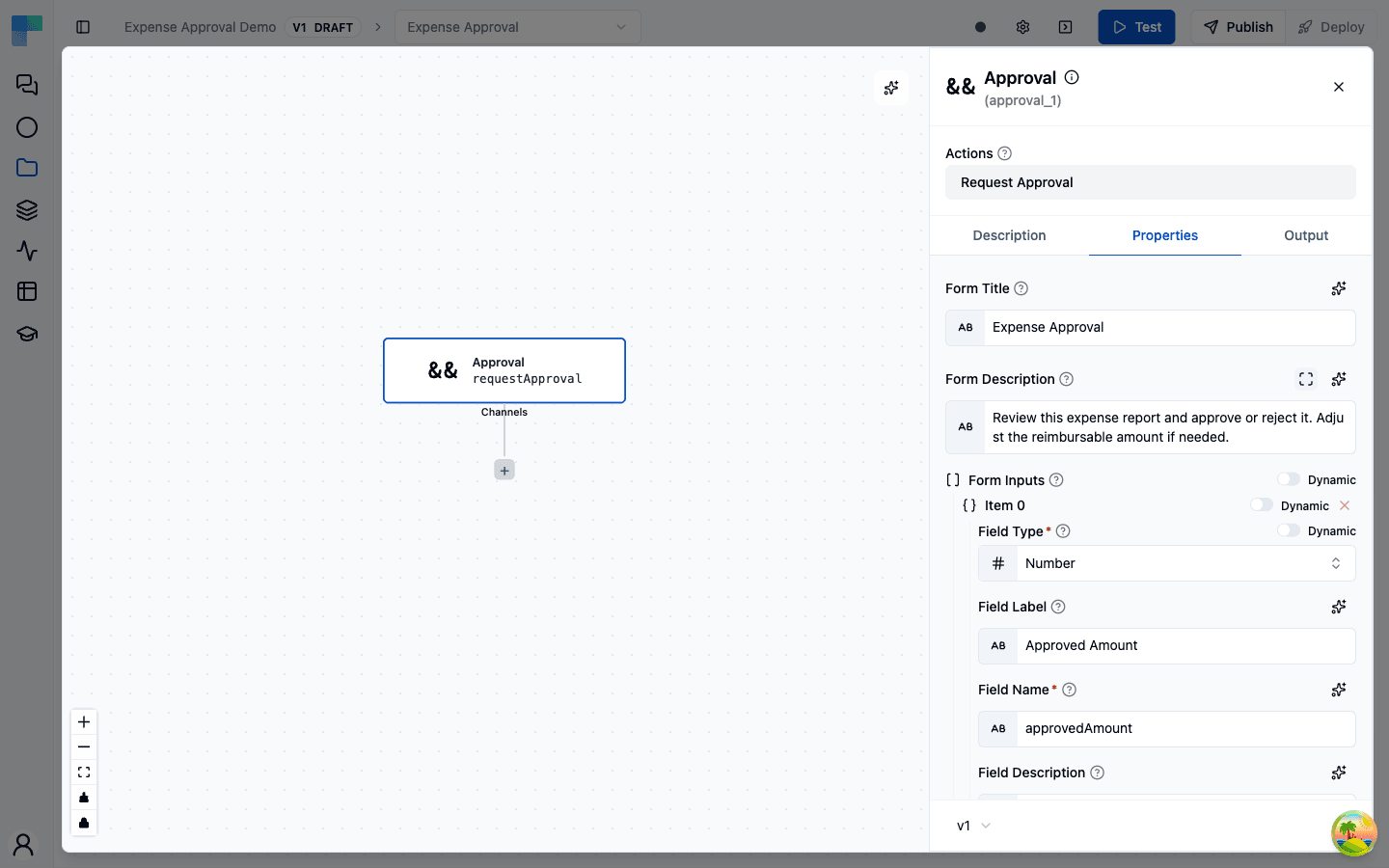
Here's the part that makes forms genuinely useful downstream: the approval step's output schema is generated from the fields you configure.
Add an accountName text field and a creditLimit number field, and the step's output is {approved: boolean, accountName: string, creditLimit: number}. Every one of those shows up as a data pill for the steps that follow.
That's how the Liferay tutorial creates an account "from the information received from the onboarding approval task" - the approver's answers are just the step's output, referenced like any other: ${approval_1.accountName}.
A paused workflow is useless if nobody knows it's waiting. That's what approval channels are for - delivery mechanisms you attach to the approval step, right under the node's Channels port.
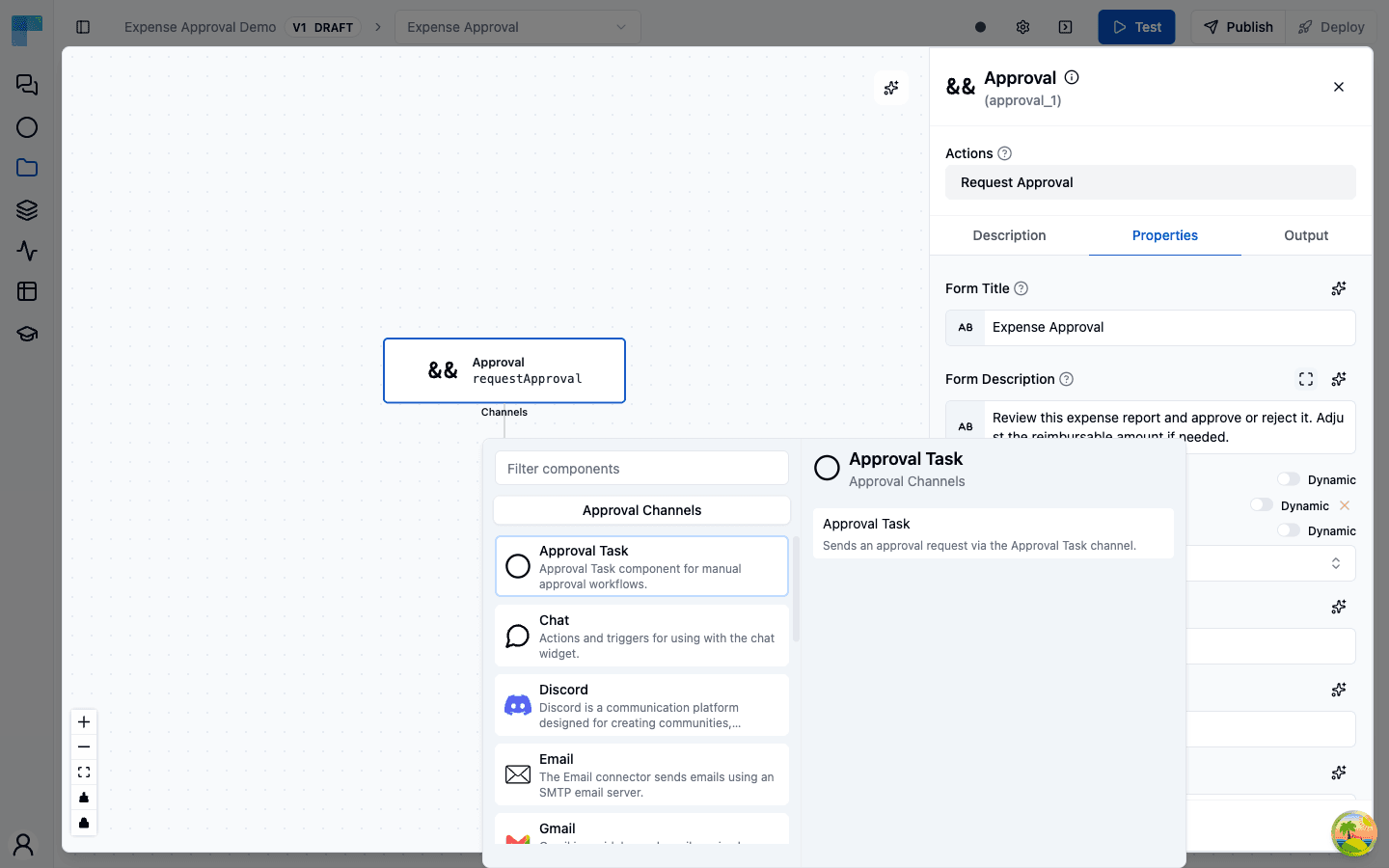
Most channels deliver the approval link to people outside ByteChef - a manager who has never opened the app and never will. Pick where your approvers already live: Slack, Gmail, Outlook 365, plain Email (SMTP), Discord, Telegram, WhatsApp, Twilio (SMS), Mattermost, Rocket.Chat, Infobip, or the embeddable Chat widget. Each uses its own connection.
The Slack channel has my favorite detail. If your approval has no form fields, there's no reason to send anyone to a web page - so it doesn't. Approvers get Approve and Discard buttons right in the Slack message, and the approval resolves without leaving the chat. If there is a form, the message carries a single "Open Approval Form" button instead.
One channel is different: Approval Task. Instead of sending the link out, it creates a task inside ByteChef, on the new Approval Tasks page - an approval inbox for teams that live in the app.
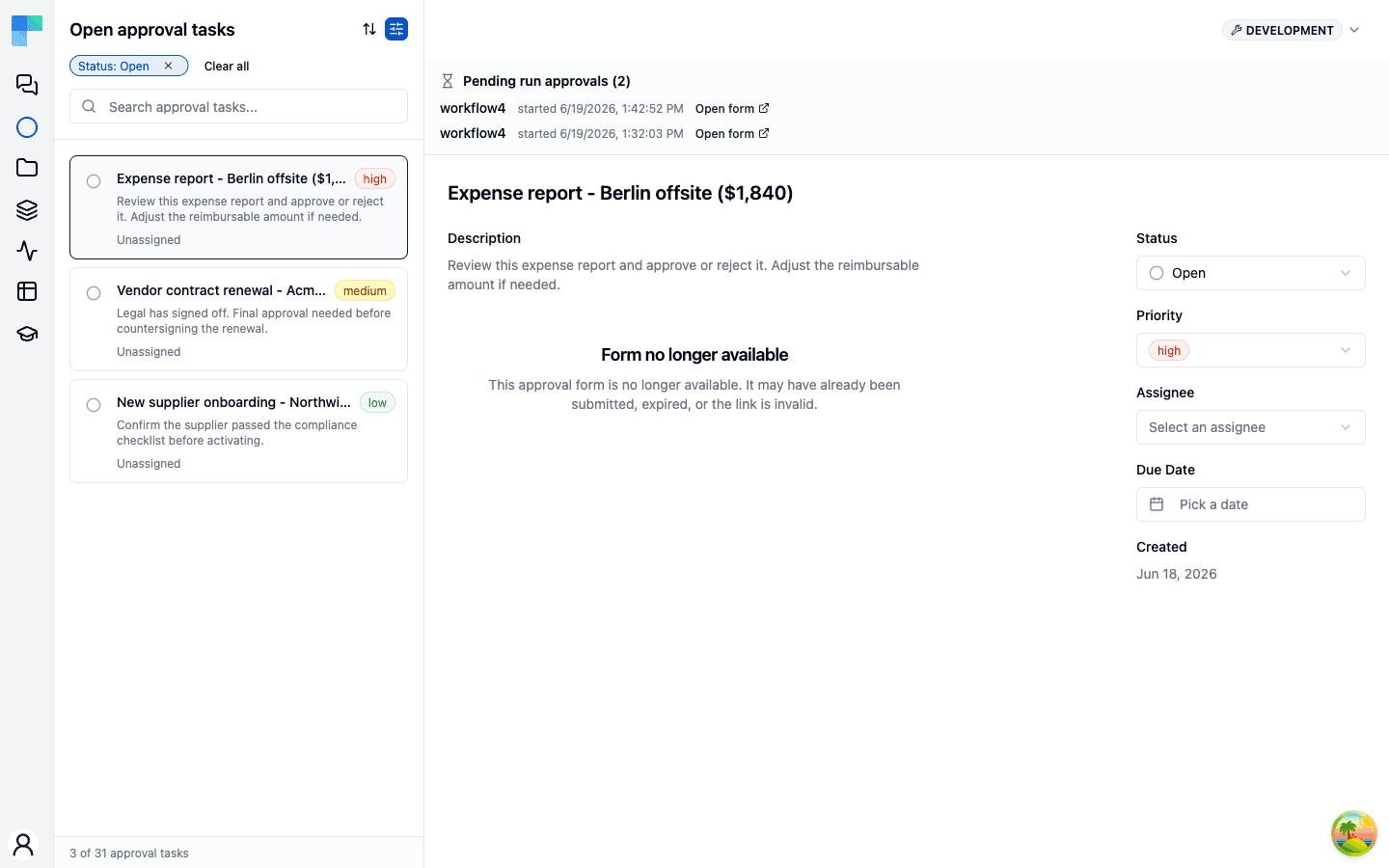
Each task has a status (open, in progress, completed), a priority, an assignee, and a due date, and the page supports filtering, search, and sorting. If your approvers are ByteChef users, their pending approvals queue up in one place instead of scattering across inboxes.
One small courtesy across all channels: they're skipped when the step runs inside the workflow editor's test mode, so testing a workflow doesn't spam your approvers.
And because channels are plug-ins (cluster elements) rather than baked-in integrations, the delivery list can grow without touching the Approval component itself.
Your approver clicks a link and lands on a form page: title, description, fields, an environment badge. No login, no account, no "first, install ByteChef" - which is the point, because the person approving is often exactly the person who'd never log in.
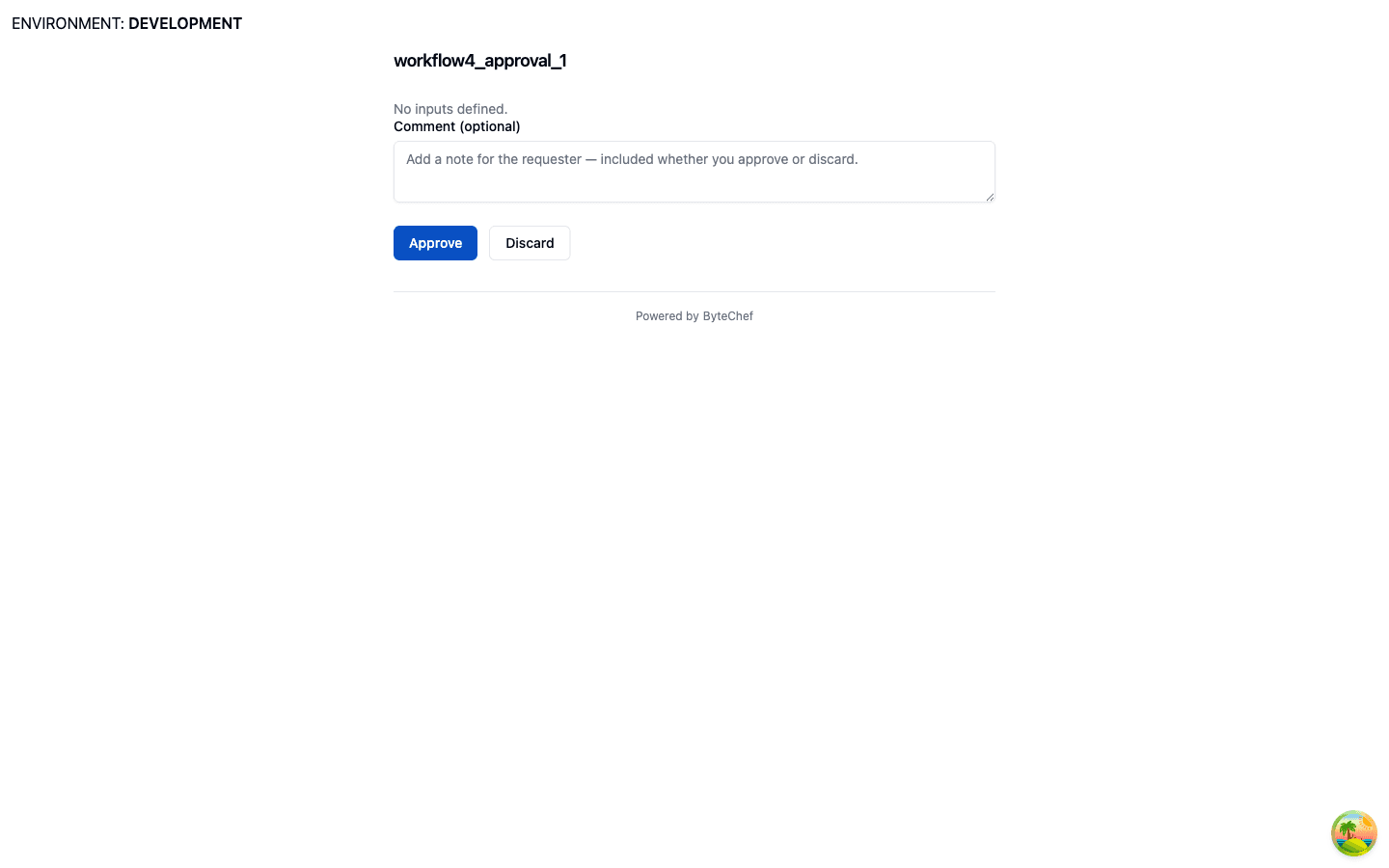
That works because the link itself is the credential. The token in the URL wraps the approval's identity in an HMAC signature, so it can't be guessed or forged - the same trust model as any webhook callback. Possessing the link is the authorization.
A link is good for exactly one decision. Once the approval is submitted - or the 60-day window passes - the link answers 410 Gone, so a stale email can't resurrect a settled question.
While your approver takes their time, what is the workflow doing? Nothing - and that's the engineering trick worth knowing about.
The approval action doesn't block a thread, poll a flag, or sleep. It registers a suspension with the engine and returns; the engine parks the execution, persists everything, and releases the worker. The workflow can stay parked for up to 60 days; the server can restart, redeploy, or scale to zero in the meantime. Nothing waits in memory.
When the approver submits, the engine re-enters the action through a second entry point with the submitted data, and the workflow resumes exactly where it stopped - the form answers flattened into the output schema those data pills promised.
Long-time users might remember the old ways of doing this: a dedicated wait-for-approval flow control, and a Create Approval Links action that handed out bare approve/reject URLs. Both are now deprecated, because a flow control can pause but it can't be a component - with a form builder, a typed output, delivery channels, and one more trick below.
Human-in-the-loop matters most where the human is easiest to lose: AI agents. An autonomous agent is exactly as trustworthy as its worst tool call, and "pause and ask a person" is the simplest guardrail there is.
The suspend-and-resume machinery above is exactly what an agent needs, so we're working on exposing Approval as a tool you can hand to a ByteChef AI agent: the agent decides it needs sign-off, composes the form, calls the tool, and the whole agent conversation parks until a human answers. From the model's perspective, it asked a tool a question and the tool answered - it just took a day and a half.
It's not in today's build - we'd rather ship it solid than early - but it's close, and it lands in one of the next releases.
The use-case posts each show one pattern, and they generalize:
If you want to see approval in a full workflow, the KYC compliance and Liferay onboarding posts both build one end to end - and now you know what's happening under the pause.