Building a Liferay Onboarding Workflow with ByteChef
On this page
TL;DR: In this tutorial, we'll build an onboarding workflow that starts in Liferay and continues in ByteChef.
When an applicant submits an onboarding request through a Liferay Object form, ByteChef automatically: receives the request through a webhook, checks whether the account already exists, creates an account when necessary, creates a user and associates the user with the account.
Using ByteChef's visual workflow builder, every step can be configured through clickable actions and data mappings without writing custom integration code.
Prerequisites
Before starting the workflow, you need to complete the following setup.
- Create a Liferay Custom Object
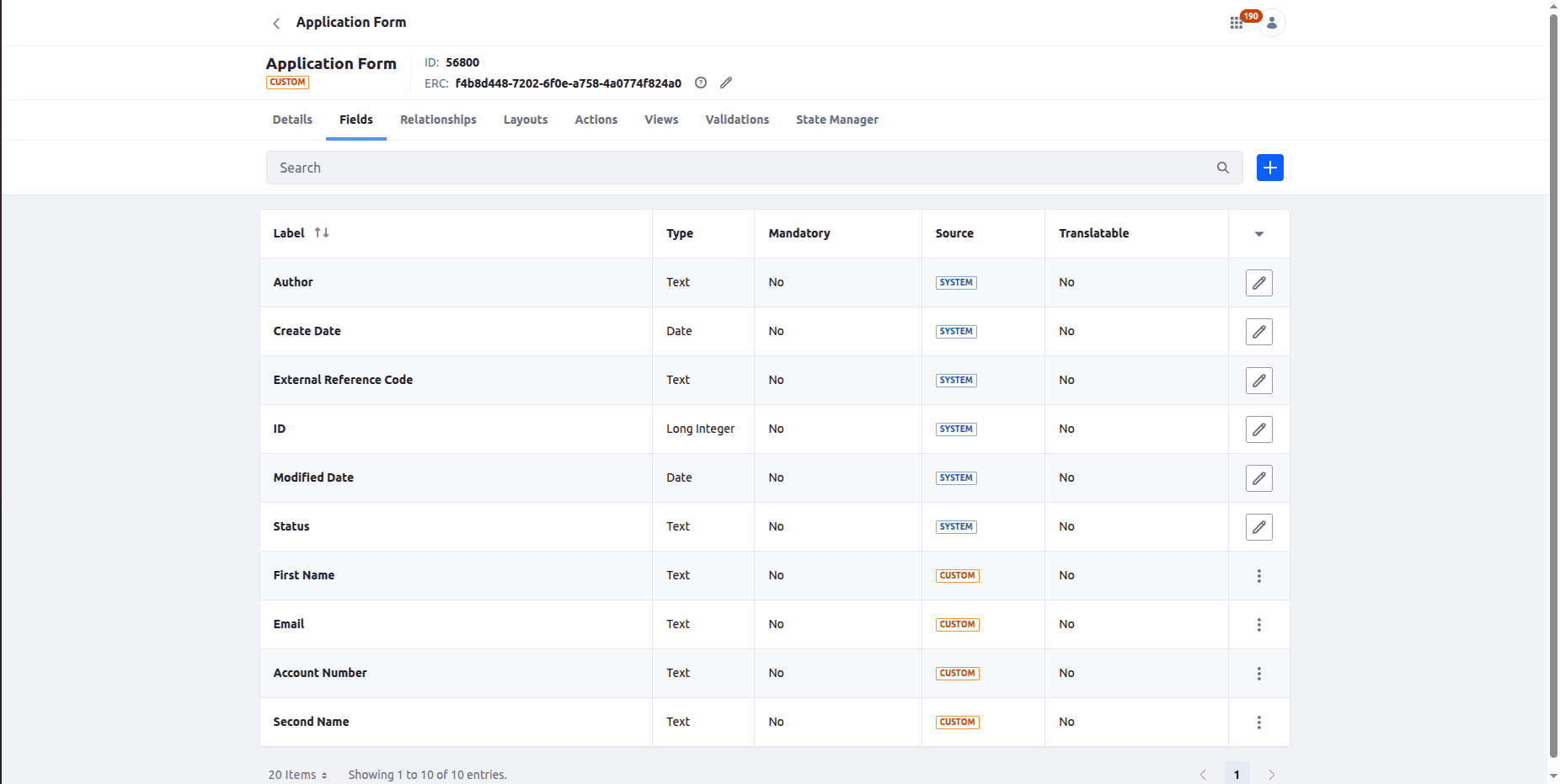
Create a custom object in Liferay called Application Form. The object should contain the following fields: First Name, Second Name, Email and Account Number. All fields have Text type.
Once all fields have been added, publish the object. You can also set the Panel Link to Users to be able to access the form.
- Configure an Object Action
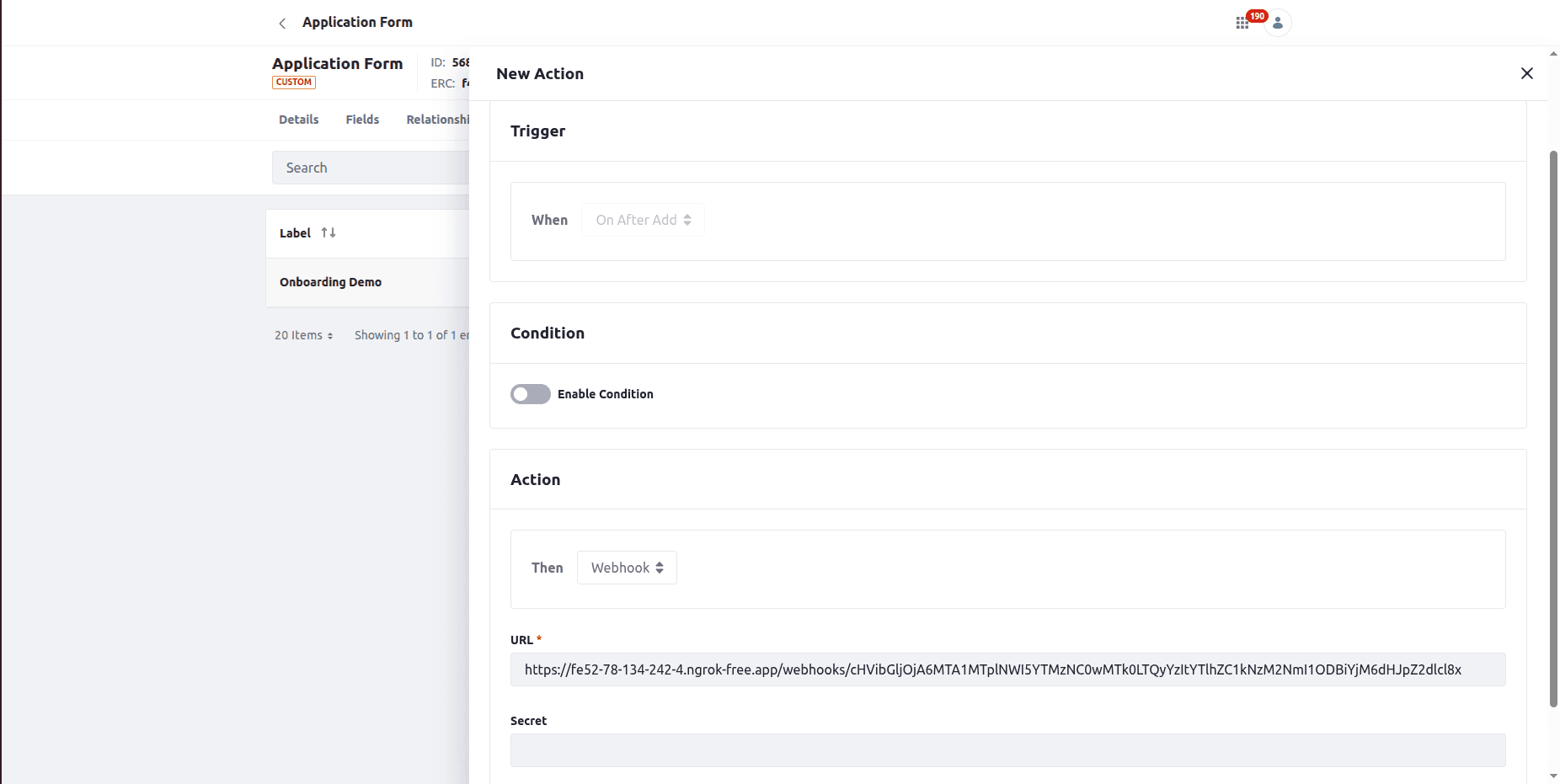
We need to connect the created object to a ByteChef webhook trigger. To do that, choose Actions in created object and click Add Object Action. Enter Action Label and Action Name and turn on the Activate button.
Move to Action Builder tab. Under Trigger -> When select "On After Add", under Action -> Then select "Webhook" and under URL, insert the Webhook URL provided by ByteChef. In this example I used ngrok and find Webhook URL in ByteChef, when deploying the workflow.
Now you are ready to start the workflow.
Workflow Overview
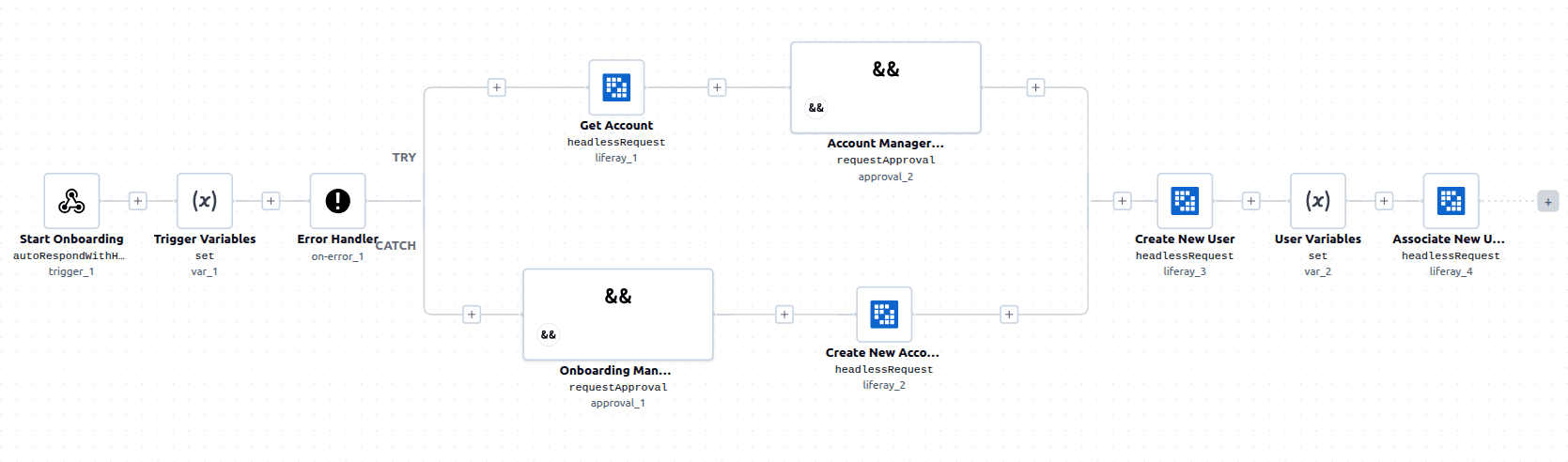
The workflow consists of four key components:
- Webhook Trigger
- Getting and Creating New Account
- Creating New User
- Associate New User With Account
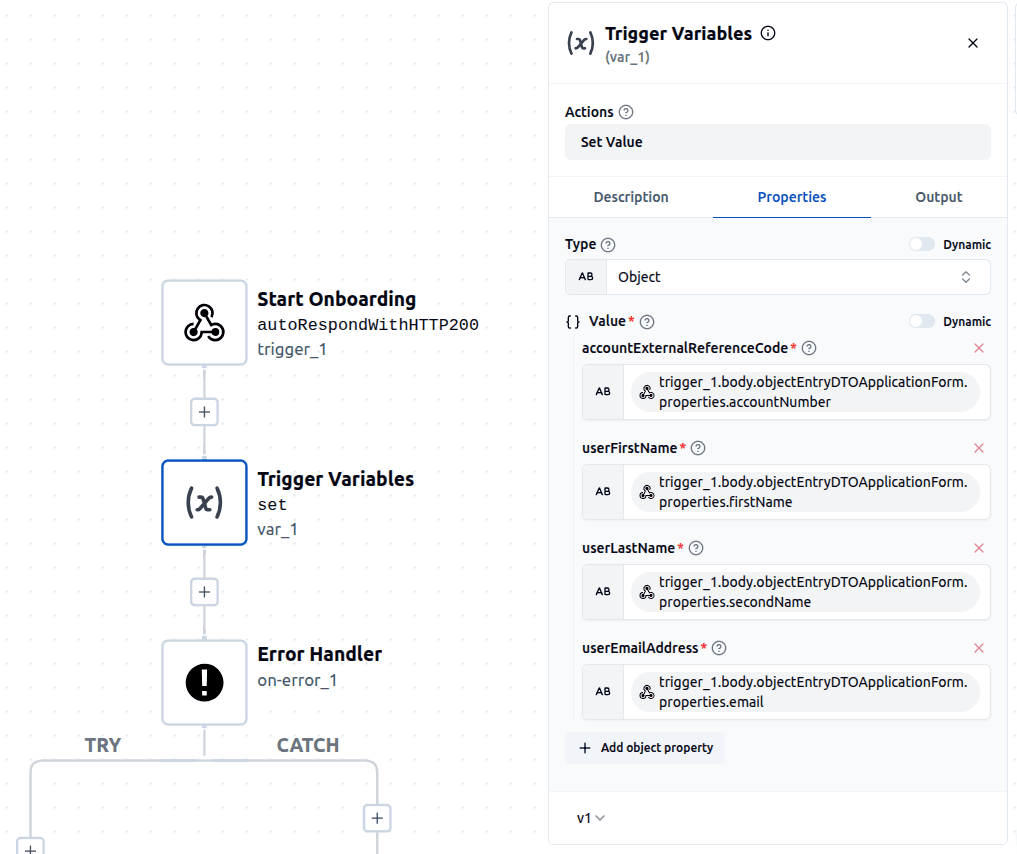
1. Webhook Trigger
The workflow starts when a new onboarding request is submitted through the Application Form object in Liferay.
Earlier, we configured an object action that sends the object data to ByteChef whenever a new entry is created. The webhook trigger receives this payload and makes all submitted fields available to the workflow.
One of the advantages of ByteChef is that incoming data can be inspected directly from the workflow. Instead of manually defining variables or payload structures, you can view the request and use the available data through clickable data pills when configuring subsequent actions.
At this point, the workflow has access to information such as the applicant's First Name, Second Name, Email and Account Number.
2. Getting and Creating New Account
The next step is to determine whether the account already exists in Liferay.
Using the account number, the workflow first performs a lookup against Liferay. This helps prevent duplicate accounts from being created when onboarding requests are submitted multiple times.
If an existing account is found, the workflow simply uses the account information returned by Liferay and proceeds to the next step where account manager approves this account and workflow can continue.
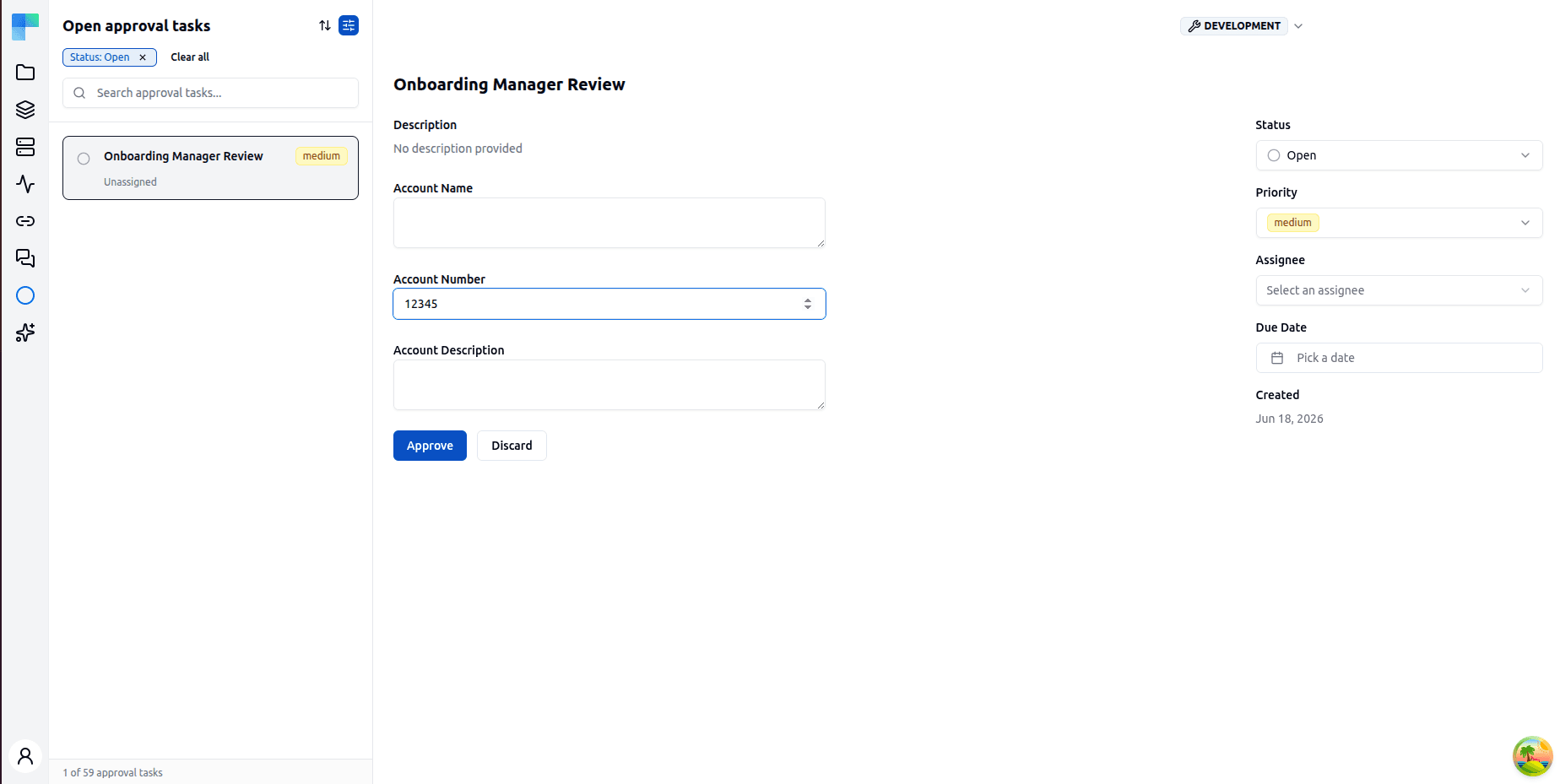
If no account exists, ByteChef creates approval task for onboarding manager. The task consists of three input fields: Account Name, Account Number and Account Description. The workflow is stopped until the onboarding manager does the approval task.
Once the task is finished, ByteChef creates a new account using the information received from the onboarding approval task. At the end of this step, the workflow has a valid Liferay account regardless of whether it was newly created or already existed.
3. Creating New User
Once the account has been identified, the workflow creates a new Liferay user.
The user information comes directly from the onboarding request submitted through the Application Form object. Fields such as first name, last name and email address are mapped into the Create User action.
After the action completes successfully, Liferay returns the newly created user information, including the user external reference code that will be needed in the next step.
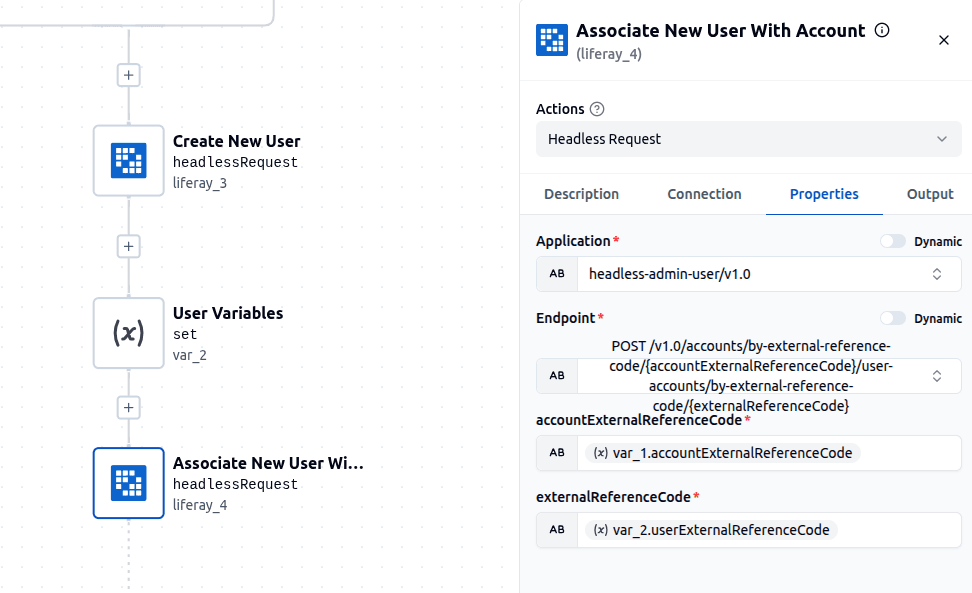
4. Associate New User With Account
The final step links the newly created user to the account.
Using the account external reference code obtained earlier and the user external reference code returned by the Create User action, the workflow associates the user with the appropriate Liferay account. This ensures that the user immediately gains access to the account and can begin interacting with account-specific resources within the portal.
Once this step completes, the onboarding process is finished and the applicant is fully provisioned in Liferay.
Conclusion
In this tutorial, we built an onboarding workflow that starts in Liferay and is orchestrated by ByteChef.
When a new onboarding request is submitted, ByteChef automatically receives the data, checks whether an account already exists, creates a new account when necessary, provisions a user and associates that user with the appropriate account.
By combining Liferay's account management capabilities with ByteChef's visual workflow builder, organizations can automate onboarding processes without maintaining custom integration code. With clickable actions, intuitive data mapping and built-in testing capabilities, ByteChef makes it easy to design, understand and evolve Liferay workflows as business requirements change.
Subscribe to the ByteChef Newsletter
Get the latest guides on complex automation, AI agents, and visual workflow best practices delivered to your inbox.