7 min read
Ivica Cardic
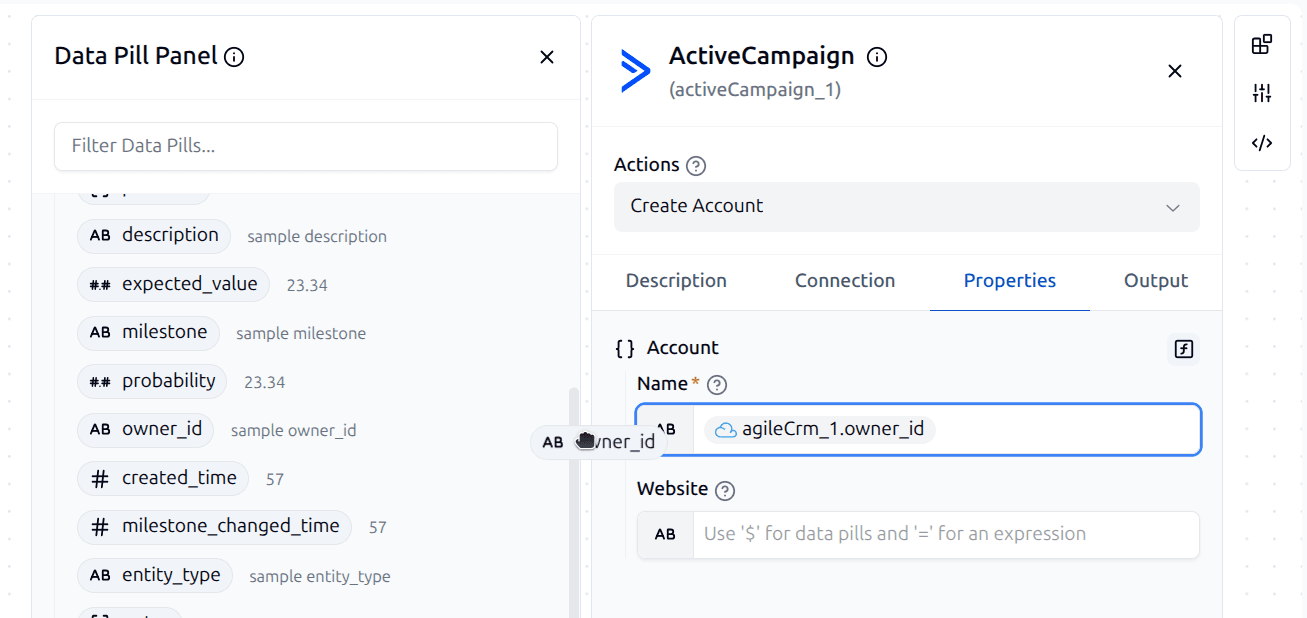
TL;DR: A data pill is a reference to something an earlier step produced - the trigger's payload or the output of a previous component. Instead of hard-coding a value, you drop in a pill and ByteChef fills in the real value at run time. This post covers how to add pills, mix them with plain text, transform them with formulas, and sidestep the mistakes that trip people up.
Almost every useful workflow does the same basic thing: take something one step produced and feed it into the next. A new row arrives, so you send an email about it. A form is submitted, so you create a record from it. The glue that carries that data from step to step in ByteChef is the data pill.
If you've ever wondered how to put "the customer's email from the webhook" into a Slack message, or how to build a subject line out of an order ID, this is the feature you're looking for. Here's how to use data pills well.
A data pill is a reference to a piece of data produced earlier in the workflow - the trigger's payload, or the output of a component that runs before the current step. Rather than typing a fixed value, you drop in a pill and ByteChef resolves it to the real value each time the workflow runs.
Under the hood a pill is saved as a ${...} reference, for example:
${webhook_1.body.email} - a nested field inside an earlier step's output.${mathHelper_1} - the entire output of the step named mathHelper_1.You never type this syntax by hand. The editor inserts it for you and renders it as a colored pill - the ${...} form is just what ends up in the workflow's JSON.
$When you click into a property field that accepts dynamic input, the Data Pill Panel opens on the left. It lists the trigger and every component that runs before the current step. Expand one to see the fields available in its output, then click a field to drop it in at the cursor.
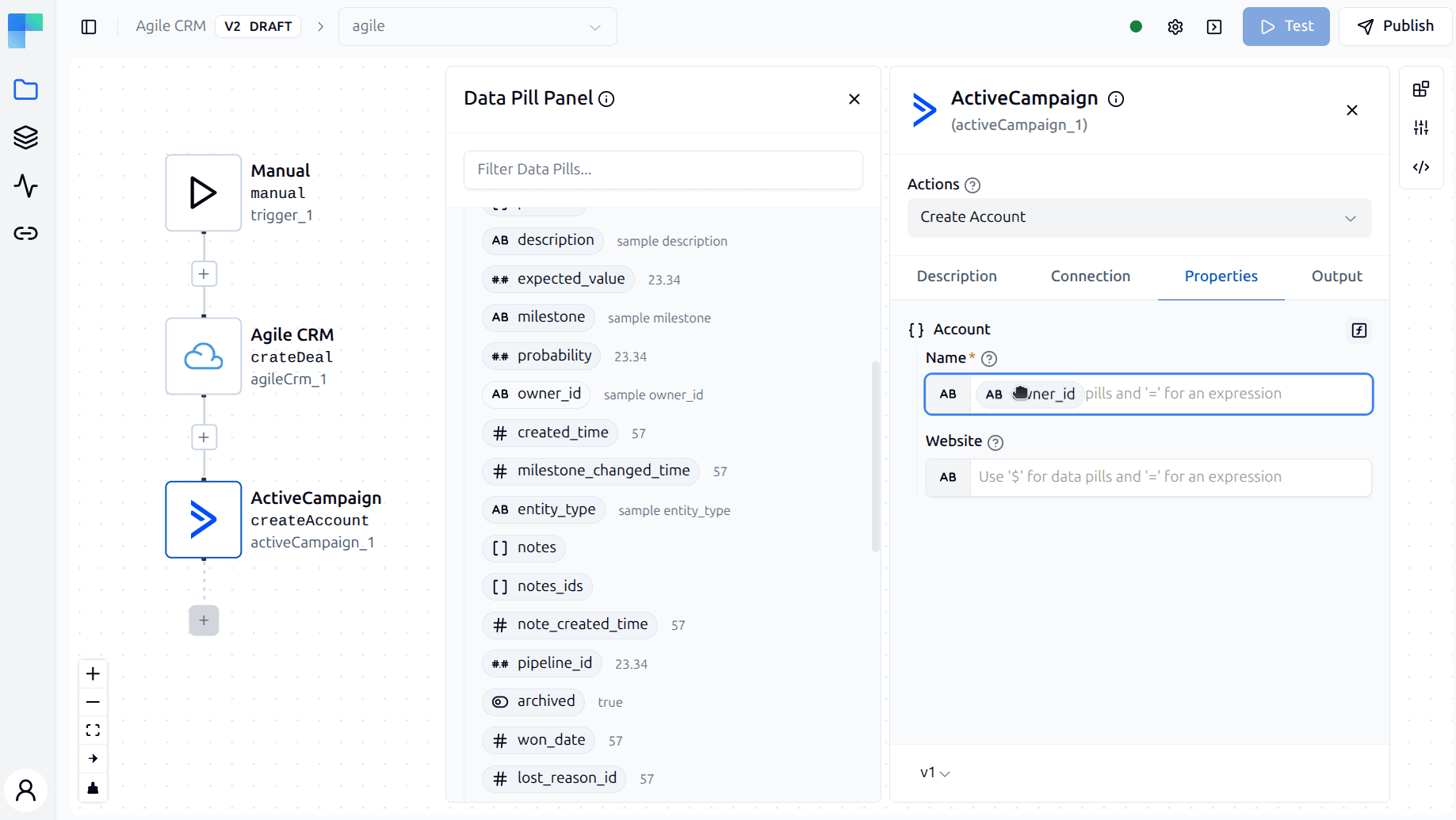
There's a faster path once you know it's there: type $ directly in the field to open an inline pill picker, without reaching for the panel at all. For a field you already know the shape of, this is the quickest way to work.
This is the single most common "why can't I find my field?" moment - and it has a simple cause.
Data pills are built from each step's output schema. If a component hasn't been run yet and has no predefined schema, ByteChef doesn't know what fields it produces, so nothing shows up for it in the panel. The fix is to give that step an output schema. Open the component's Output tab and use one of:
Once a step has an output schema, its fields become available as pills in every step that runs after it.
Every field in the Data Pill Panel carries a data type: string, number, integer, boolean, date, object, array, and so on. The panel shows it as a small icon next to each field name; hover over the icon to see the type spelled out.
Those icons are worth a glance before you drop a pill. A number field expects a number pill, a boolean toggle expects a boolean - and the editor won't stop you from inserting a mismatched pill, so a wrong type only surfaces later, as a failed or misbehaving run.
When the types don't line up, that's your cue for formula mode (Tip 5): convert or build the value you need instead of passing the raw pill through.
A string field doesn't have to be only a pill. Start typing $ and the field turns into a rich editor where pills and literal text live side by side.
That's how you build values like:
Hello ${webhook_1.body.firstName}, your order ${webhook_1.body.orderId} has shipped.The typed words stay fixed; the pills fill in per run. This is the everyday mode for message bodies, subject lines, and any text that's mostly words with a few live values sprinkled in.
Mixing is a string-only feature, though. For every other type - number, integer, boolean, date, object, array - a pill has to be the entire value. Flip the Dynamic toggle on the field, drop in one pill, and you're done; the editor blocks typing literal text around it.
That restriction is deliberate: "Hello 42" makes sense as a string, but there's no sensible number that's part pill, part typed digits. If a non-string value needs computing - say, an order total plus a fee - that's formula mode's job, coming up next.
=)Sometimes the raw value isn't quite what you need - you want to join two fields, format a date, or do a bit of arithmetic. Start the field with an equals sign (=) to enter formula mode. The leading icon switches to an f(x) marker to show you're now writing an expression.
Inside a formula you can reference pills and call built-in functions:
=concat(${webhook_1.body.firstName}, ' ', ${webhook_1.body.lastName})A few of the functions you'll reach for most:
| Function | Purpose | Example |
|---|---|---|
concat | Join values into one string | =concat('Order #', ${webhook_1.body.id}) |
join | Join a list with a separator | =join(', ', ${webhook_1.body.tags}) |
now | Current date/time | =now() |
plusDays | Shift a date forward | =plusDays(now(), 7) |
format | Format a value with a pattern | =format(now(), 'yyyy-MM-dd') |
To leave formula mode, clear the field and remove the leading =. To go back to a plain typed constant, turn the Dynamic switch off.
Coming soon: an upcoming release adds function autocomplete with signature tooltips - as you type a function name, the editor will suggest completions and show you the expected arguments.
The Data Pill Panel shows the trigger and every step that runs before the current one - and nothing else. A component can never reference the output of a step that runs after it, because that data doesn't exist yet when the current step runs.
If a field you expected is missing, this is worth checking before anything else: is the step you're referencing actually positioned earlier in the flow? Reordering steps changes which pills are available.
Component outputs are often nested objects, not flat lists of values. A webhook body might look like { "body": { "customer": { "email": "..." } } }. Expand the step in the panel and keep drilling down - you can pick the exact nested field you want, and it becomes a pill like ${webhook_1.body.customer.email} that points straight at that value.
Grab the most specific field you need rather than the whole object; it keeps your configuration readable and avoids passing along data the next step doesn't want.
A quick way to decide:
=.Data pills are the connective tissue of a ByteChef workflow. Once testing your steps is a habit - so their fields are always ready in the panel - passing data around becomes second nature: $ to reference, plain text to surround, = to transform.
Curious how drag-and-drop pills were built under the hood? Our engineering team wrote it up in Making Data Pills Stick.