5 min read
Ivica Čardić
TL;DR: Templates let you start from a working automation instead of a blank canvas - and let you share your own. Browse the gallery of pre-built project and workflow templates and import one into your workspace, or turn something you built into a private import link that you can disable at any time. Connections never travel with a template, so sharing an automation never shares your credentials.
The best automation you'll ever build is one you don't have to build - because someone already did, and shared it. We wrote about import and export as the foundation for this a while back, and promised template support on top of it. This is that.
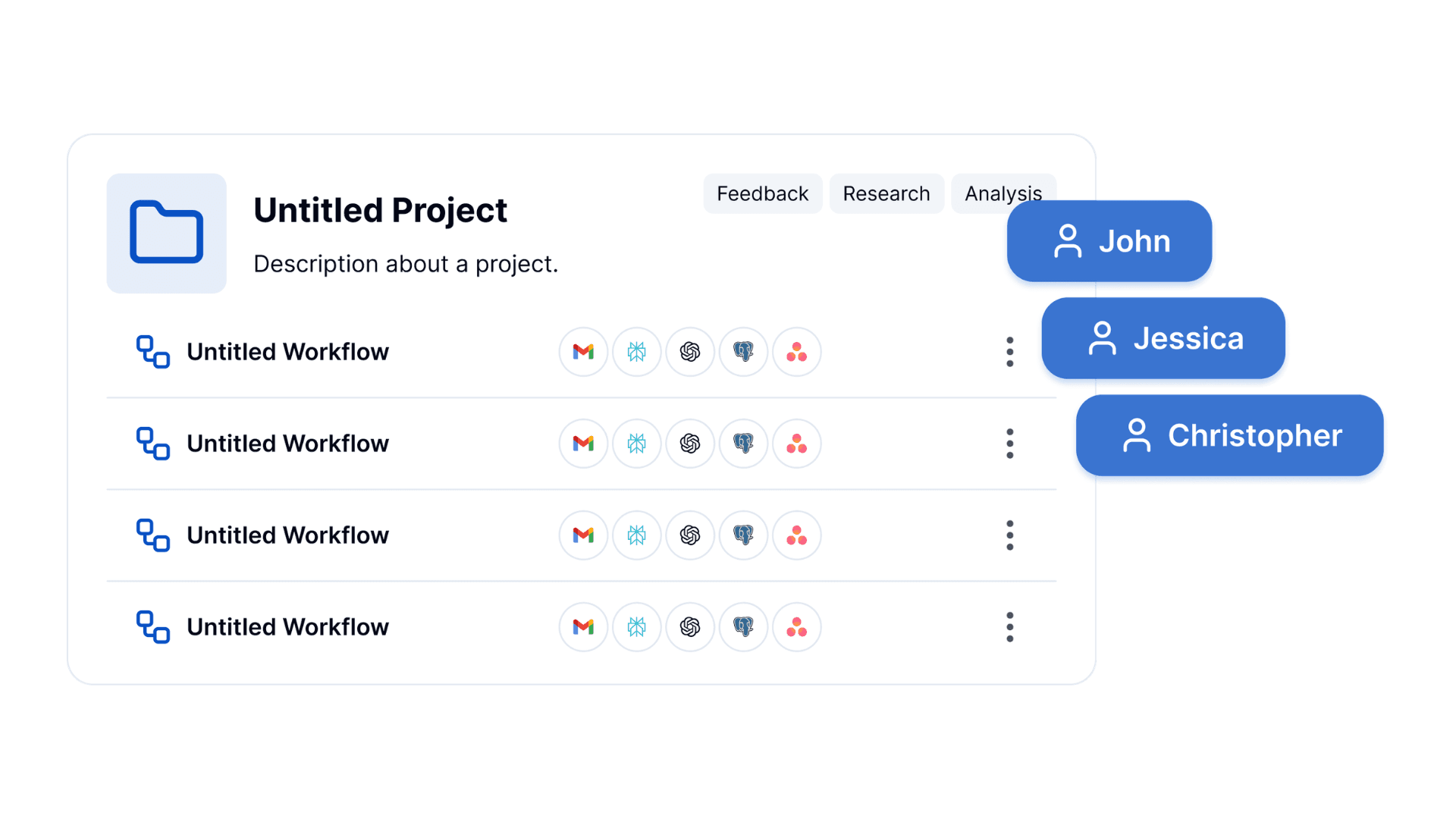
There are two granularities, and both live behind a gallery:
Each gallery has a search box and a category filter, and every card shows the components the template uses as icons - so you can tell at a glance whether a template touches Slack, Postgres, or an LLM before you commit to it.
Picking a card takes you to an import page rather than importing blind. That page lists every component the template contains, which is your shopping list: those are the apps you'll need connections for once the automation is in your workspace. When it looks right, Import now drops a copy into your current workspace.
The other half is publishing. Open the three-dot menu next to a project - or an individual workflow, from its own menu - and choose Share.
The dialog asks for one thing before it will do anything: a description. It's required, and the export button stays disabled until you write one. That constraint is doing real work - a template with no explanation is a template nobody imports.
Then click Export and generate template link. The dialog turns into a link card with a Copy link button, and the link looks like this:
https://your-instance/import/shared/projects/{uuid}
Workflows get the same shape at /import/shared/workflows/{uuid}. Anyone you hand that link to lands on the same import page described above - the component list, then Import now. They do need an account on a ByteChef instance and a workspace to import into; this is a link for colleagues and collaborators, not an anonymous public download.
Three details make this comfortable to actually use.
You can turn it off. A toggle at the top of the dialog disables the link at any time - the existing URL stops working immediately. Flip it back on later and ByteChef generates a fresh export.
It won't drift behind your project silently. Keep editing after you've shared, and the dialog tells you that an older version is the one being handed out, and offers Update template based on the current version. The link keeps pointing at whatever you last decided it should.
ByteChef doesn't distribute it for you. The dialog says so directly: template links are not distributed by the app. Generating a link does not list your project anywhere, does not surface it in the gallery, and does not make it discoverable. You decide who gets the URL.
A shared template is a small zip: a manifest with your description and the project version, the project metadata, and one JSON file per workflow definition. That's the whole payload.
What is conspicuously not in there: connections. No API keys, no OAuth tokens, no credentials of any kind. The importer wires up their own accounts against the component list on the import page. This is why sharing an automation is a low-stakes act - you're sharing the shape of the work, never the keys to your systems.
Private links are one route. If you want a template listed in ByteChef's official gallery for anyone to browse, that's a separate action: Share with Community, which opens the public template submission form. The two are genuinely different - one hands a URL to people you choose, the other proposes an addition to a curated catalog.
Self-hosted instances behind a firewall can point the gallery at a mirror rather than reaching ByteChef's catalog directly; the GitHub proxy configuration in the docs covers it.
A workflow you keep to yourself helps one team once. A workflow you template helps everyone who imports it - and they can adapt it, re-share it, and improve on it:
Every automation you build is either a one-off or a starting point, and the difference is a description and a click. Templates let the good ones travel - built once, imported wherever they're needed, improved by whoever needs them next - without ever putting your credentials on the move.
Built something worth reusing? Share it as a template - or browse the gallery and start from one instead of a blank canvas.
Get the latest guides on complex automation, AI agents, and visual workflow best practices delivered to your inbox.