6 min read
Ivica Čardić
TL;DR: Once your users have connected their apps, you can let an AI assistant use them. The embedded sample app's ComponentKit Chat is an assistant-ui chat whose backend route (
/api/chat-component-kit) fetches the user's tools from ByteChef, hands them to the model through the AI SDK, and sends every tool call back to ByteChef to run on that user's connection. Chat that does things, not just talks. This is part three of the series.
An AI chat that can only talk is a demo. An AI chat that can act - in your customer's real Slack, real inbox, real S3 bucket - is a feature. In part one your users connected their apps. This part turns those connections into tools a model can call, and the assistant becomes an agent.
The page is a standard assistant-ui thread over an AI SDK transport, plus a few welcome-screen suggestions:
const SUGGESTIONS: SuggestionConfig[] = [
  { title: "Send a Slack message", label: "to a channel", prompt: "Send a Slack message to a channel" },
  { title: "Draft and send an email", label: "with Gmail", prompt: "Draft and send an email with Gmail" },
  // Mailchimp subscriber, AWS S3 upload...
];

export default function ChatComponentKitPage() {
  const runtime = useChatRuntime({
    transport: new DefaultChatTransport({ api: "/api/chat-component-kit" }),
  });

  const aui = useAui({ suggestions: Suggestions(SUGGESTIONS) }, { parent: null });

  return (
    <AssistantRuntimeProvider aui={aui} runtime={runtime}>
      <Thread />
    </AssistantRuntimeProvider>
  );
}
The suggestions show users what the assistant can do before they type anything, so nobody has to read a manual.
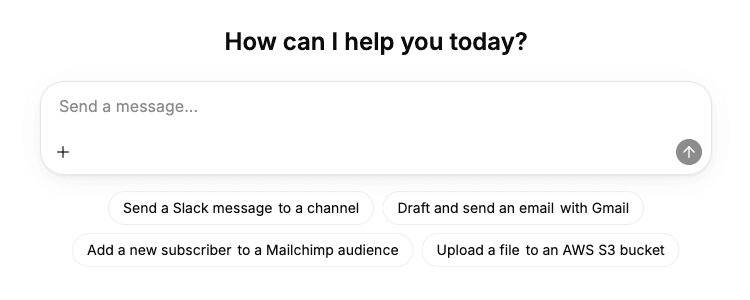
The chips are hard-coded in the page, so they don't change with what the user has connected. In your product, build them from the integrations the user actually has, or a "Send a Slack message" chip will lead to an assistant with no Slack tool.
The interesting half is the route. It doesn't hard-code any tools. It asks ByteChef which tools this connected user has:
const response = await fetch(
  `${BYTECHEF_APP_BASE_URL}/api/embedded/v1/${BYTECHEF_EXTERNAL_USER_ID}/tools`,
  { headers: { Authorization: `Bearer ${jwtToken}`, "X-Environment": BYTECHEF_ENVIRONMENT } }
);
ByteChef looks at the integrations the user has connected and returns the tools those components provide, grouped by component. Each tool comes with a name like SLACK_SEND_CHANNEL_MESSAGE, a description, and a JSON Schema for its inputs. That is everything a model needs, so the route turns each one into an AI SDK tool whose execute posts the call straight back:
defineTool({
  description: curTool.function.description,
  inputSchema: jsonSchema(JSON.parse(curTool.function.parameters)),
  execute: async (params) => {
    const res = await fetch(`${BYTECHEF_APP_BASE_URL}/api/embedded/v1/${BYTECHEF_EXTERNAL_USER_ID}/tools`, {
      method: "POST",
      headers: { Authorization: `Bearer ${jwtToken}`, "Content-Type": "application/json", "X-Environment": BYTECHEF_ENVIRONMENT },
      body: JSON.stringify({ name: curTool.function.name, parameters: params }),
    });
    // ...throw on error, return the output to the model
  },
});
Then it's one streamText call:
const result = streamText({
  model: openai.chat("gpt-5"),
  messages: await convertToModelMessages(messages),
  tools: { ...tools, ...frontendTools(clientTools ?? {}) },
  stopWhen: stepCountIs(8),
});
Here's a full turn:
SLACK_SEND_CHANNEL_MESSAGE with a channel and text.Here's a real turn against the demo user's Gmail. Expand the tool call and you see exactly what the model sent and what ByteChef returned:
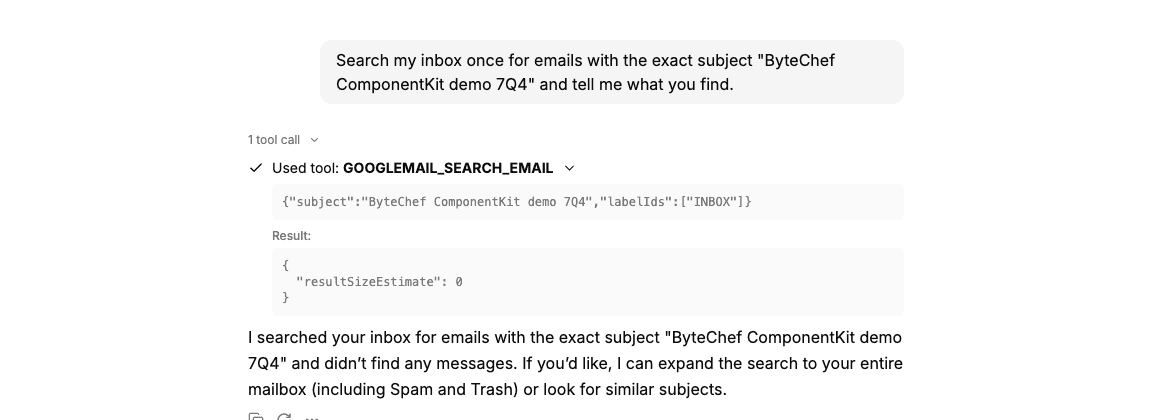
The tool name is the component and action in upper snake case, GOOGLEMAIL_SEARCH_EMAIL for Gmail's Search Email. The model chose the inputs itself, adding labelIds: ["INBOX"] because the prompt said "inbox".
stopWhen: stepCountIs(8) is what makes it an agent loop. Without it the AI SDK stops after the first tool call, and the model never sees the result. With it, the model can call a tool, read the output, call another, and answer, for up to eight steps. You'll see that loop at work with vaguer prompts. Ask "did anyone email me about the Q4 board deck?" and the model may search seven times with broader and broader subjects before it answers. That's useful, but it's also why the cap matters: every step is a real API call on the user's account.
The sample hands the model every tool the user has. In your product you'll usually want less, and there are two ways to get it:
GET .../tools accepts categories, components, and tools query parameters. Pass components=slack&components=gmail and those two apps are the whole toolbox, even if the user has connected ten. tools goes one level down and takes operation names, so tools=sendChannelMessage keeps a single Slack action.Be precise about what this limits. The model can't call a tool it was never given. But within the tools it has, it can do whatever the user's credentials allow: post to any channel, email anyone. If a tool is destructive or public-facing, either leave it out or add a confirmation step before it runs.
One more thing to notice in the route: frontendTools(clientTools) merges in tools the browser registers, and those run client-side. Drop that line if you want the server to be the only thing defining the toolbox.
POST .../tools.On top of the setup from part one:
openai.chat("gpt-5"), so set OPENAI_API_KEY in front-end/.env.local.The ComponentKit Chat adapts ByteChef's tools to the AI SDK in your own route. Next up is the sample app's MCP Chat, which reaches the same kind of tools through the Model Context Protocol instead - the open standard that clients like Claude and Cursor already speak.
Following along? Connect an integration, add your OpenAI key, and open ComponentKit Chat in the sample app - your assistant can now act in your users' apps.
Get the latest guides on complex automation, AI agents, and visual workflow best practices delivered to your inbox.