3 min read
Igor Bešlić

Have you ever approached the end of a project and realized you need an image? Whatever you do nowadays, you'll bump into an image issue. You are always in a hurry, and you usually end up digging through many stock image sites that promise free images. You hope you won't be bullied with adverts, requests for email, or digital watermarks, but hope is futile. The latest, but not free, solution is OpenAI. Even if it's not free, the price and time invested into the process of getting an original image is really not an issue here.
To use OpenAI, it is mandatory to pass the registration procedure. Once your account is activated, an API key can be created in the OpenAI Dashboard. Go to the OpenAI Platform. Locate the Dashboard and create an API Key following the steps in the guide below.
Remember to keep the key value somewhere you'll be able to access it again in upcoming steps.
Assuming you are familiar with the ByteChef project and workflow concepts, I'll immediately observe and describe the OpenAI component and its corresponding connection configuration. Here I have already created a Samples project and an AI Generated Image workflow.

The workflow consists of just one step represented by the OpenAI component, which is enough to get an image fast.
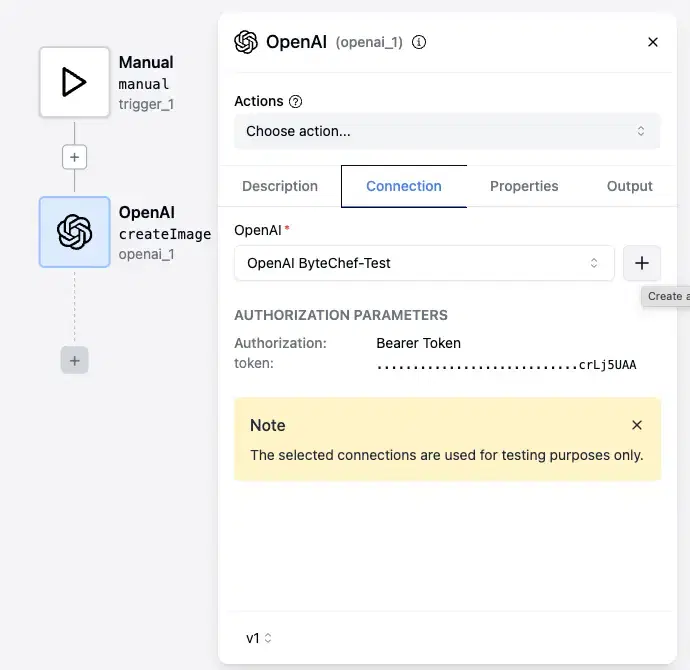
Click the OpenAI component box to open its properties. From the Actions menu, select the Create Image option. Click the Connection tab. Notice the Connection drop-down input box. Assuming you have no connection setup, click the + sign on the right to create one. Check the details in this guide:
Now configure a couple of parameters for the AI. Choose the dall-e-2 model, the quality should be set to Standard, and the response format to URL. In my example, I'll ask the AI to Create image of human being trying to paint image at table and I populate the Prompt field with that instruction.
Please don't forget to click Advanced properties and set Response Read Timeout to 30 seconds. Particular generations may take a long time, so this setting should be fine.
For more details, check this step-by-step guide:
At this moment, I'm still in design mode. As I mentioned, I'm in a hurry. I'll test the component immediately here with the goal to obtain the image. The only thing left is to click that green play button on the top of the ByteChef workspace. It will take ten to twenty seconds until the spinner disappears and the workflow output shows at the bottom of the workspace.
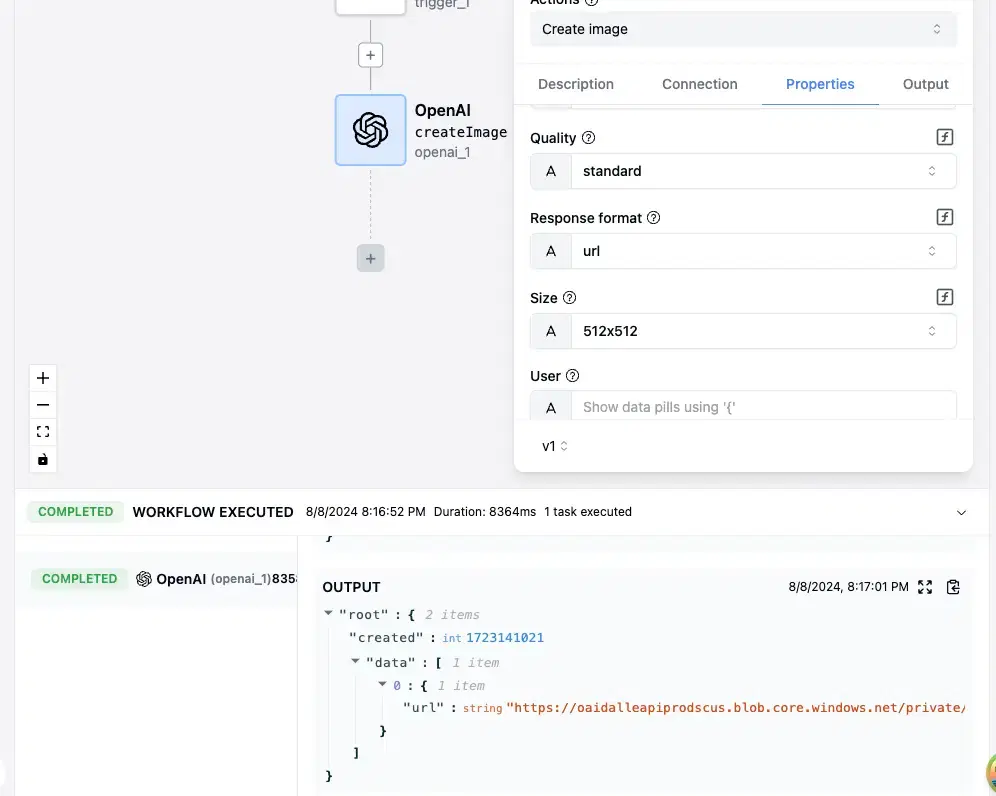
Scroll down until you locate the output section. Copy that super long image URL and paste it in your browser's address bar. I'm not happy with my image, but you might have more luck!
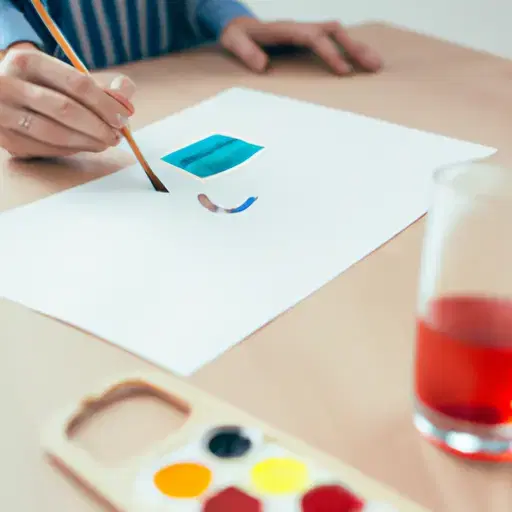
By following these tips, you can instruct the AI to create images for you. This example has no business value, but imagine a particular business requirement that expects you to populate a database with sample icons or thumbnails. A ByteChef loop can process other data and feed an OpenAI prompt and prepare your images while you are sleeping.
Get the latest guides on complex automation, AI agents, and visual workflow best practices delivered to your inbox.