6 min read
Krešimir Čoko
TL;DR: The workflow editor has a new Workflow Connections sheet. It groups every task that needs a connection by connector, so one pick sets the connection for all of them, and any single task can still use a different one. A badge in the right sidebar shows how many required connections are missing.
A real automation rarely touches an app just once. A lead-routing workflow might look up a contact in HubSpot, update the deal, add a note and post three Slack messages along the way. That's six tasks across two connectors, and until now it meant opening six task panels to pick the same two connections.
Workflow connections were set one task at a time. For a three-step demo that was fine. For anything bigger it was tedious, and it was easy to miss a task, which you discovered when a test run failed halfway through. So we gave connections a view of their own.
Each task in a ByteChef workflow stores its own connection. The model is right, because two Slack steps can legitimately post as two different workspaces, but it made the common case slow. Ten Gmail steps meant choosing the same Gmail account ten times. Nothing told you at a glance whether a workflow was ready to run, so a required connection left empty on step 7 stayed invisible until a run reached step 7.
AI agents added another layer. An agent's tools are cluster elements, each with its own connection, nested one level below regular tasks.
Open Workflow Connections from the workflow editor's right sidebar. If any required connection is missing, the sidebar icon shows a badge with the count, so you see the gap before you click Test.
At the top of the sheet, a progress bar reads "5 of 7 connected", with "2 missing" beside it when required connections are empty. Below that is a filter for connector and task names, then one card per connector (Slack, HubSpot and so on) showing how many tasks use it.
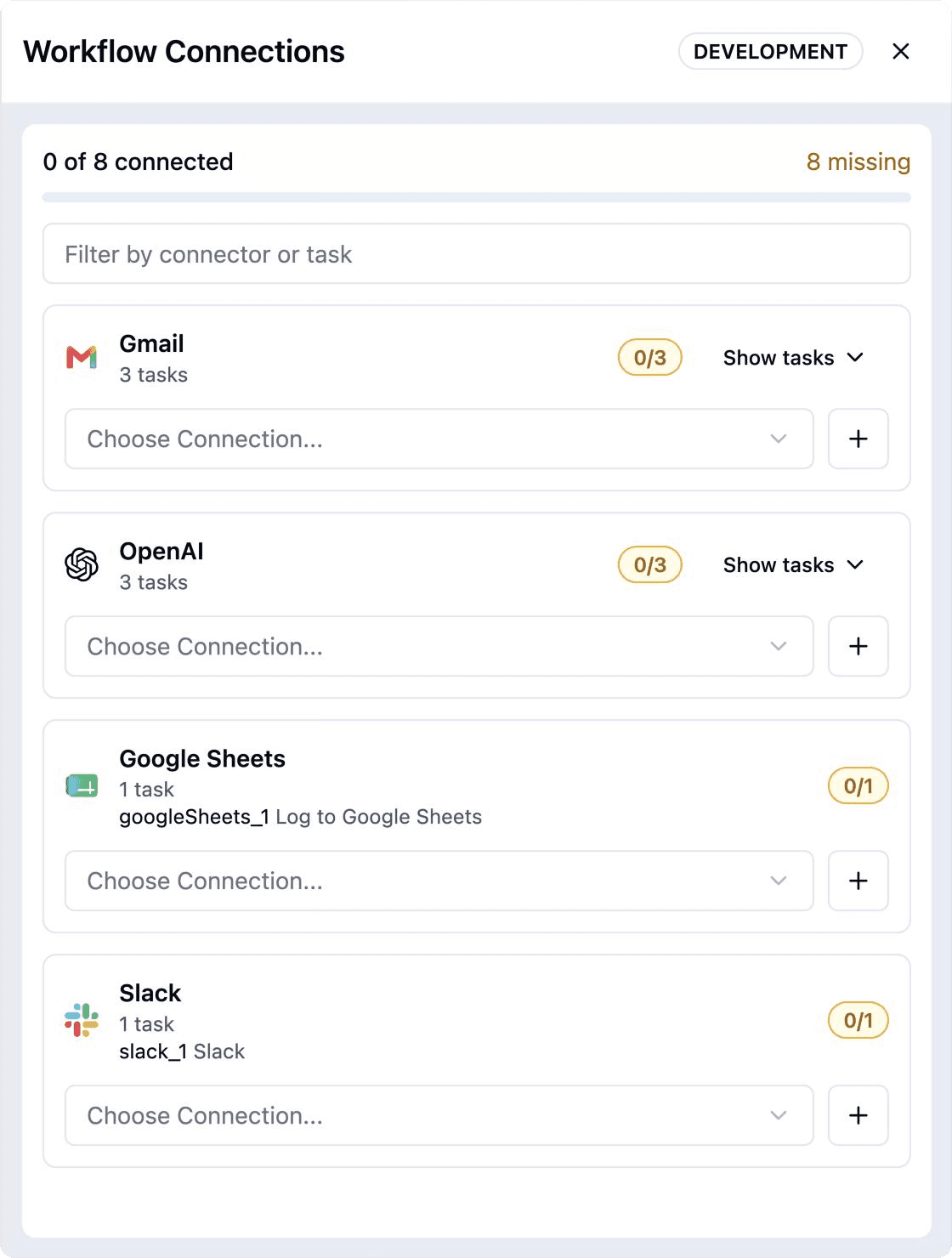
Each connector card has a single connection select. Choose a connection there and ByteChef applies it to every task of that connector. If the connection you need doesn't exist yet, the + button next to the select creates one without leaving the sheet and applies it as soon as it's saved.
When some tasks already have a connection and others don't, the card offers Use for all Slack tasks, which fills only the empty ones.
Expand a card to see a row per task, each with its own select.
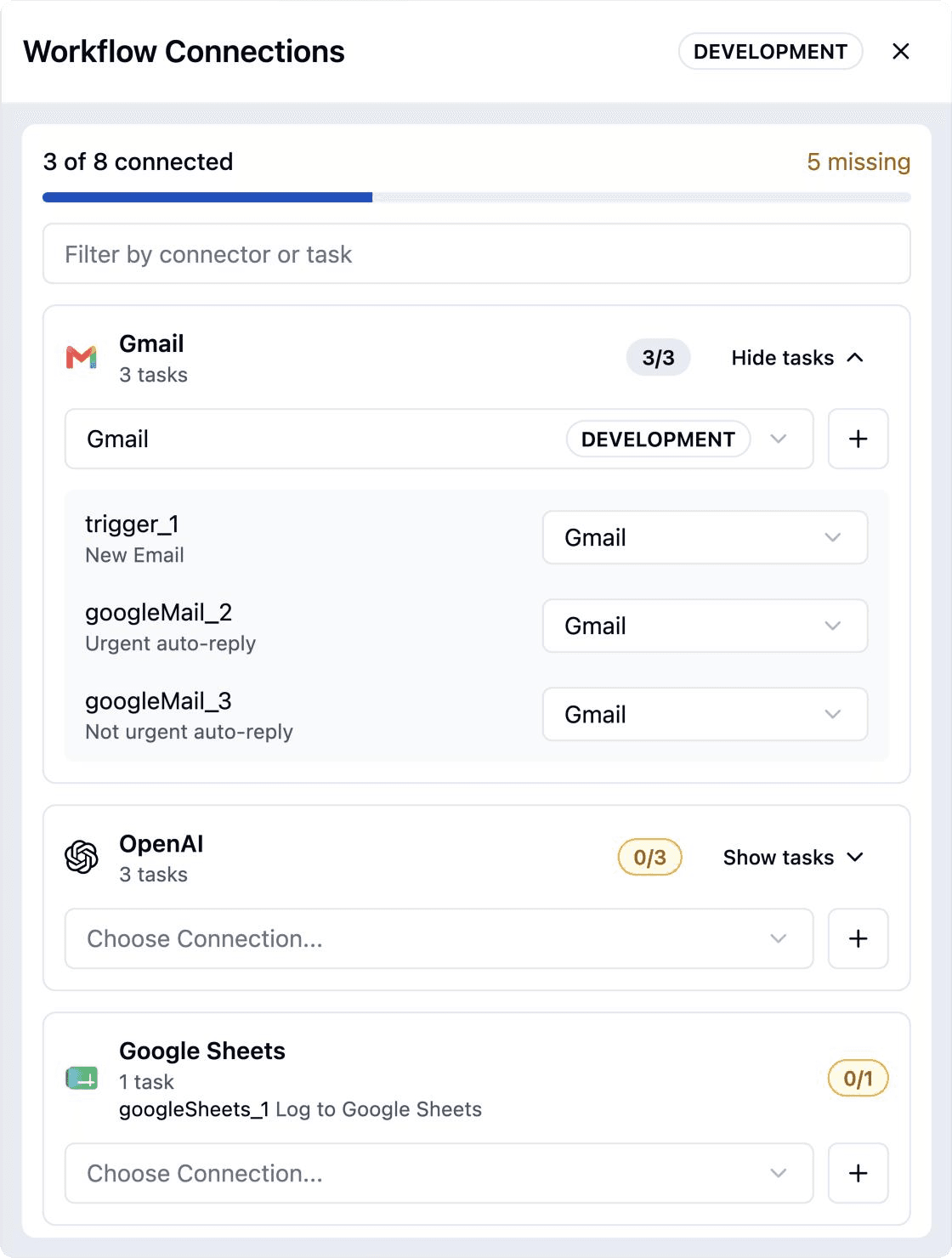
The one Slack step that posts to a customer workspace can keep a different connection. Its row gets an Override badge and a reset button that puts it back on the group's connection. A later pick on the card leaves overridden tasks alone, and the card says so: "Tasks marked Override keep their own connection."
Tasks that need a connection and don't have one get a Needs a connection badge, which makes them easy to spot in a long list.
The tools you attach to an AI agent appear in the same list, labeled with the agent they belong to ("in aiAgent_1"). Giving an agent's Gmail and Google Calendar tools the right accounts takes the same two clicks as any other step.
A card has to show one connection even when its tasks disagree. It shows the connection most of its tasks use, and any task on a different one counts as an override.
function getGroupConnectionId(entries: WorkflowConnectionEntryI[]): number | undefined {
    const usageCounts = new Map<number, number>();

    for (const entry of entries) {
        if (entry.connectionId !== undefined) {
            usageCounts.set(entry.connectionId, (usageCounts.get(entry.connectionId) ?? 0) + 1);
        }
    }

    let groupConnectionId: number | undefined;
    let highestUsageCount = 0;
    let tied = false;

    for (const [connectionId, usageCount] of usageCounts) {
        if (usageCount > highestUsageCount) {
            groupConnectionId = connectionId;
            highestUsageCount = usageCount;
            tied = false;
        } else if (usageCount === highestUsageCount) {
            tied = true;
        }
    }

    return tied ? undefined : groupConnectionId;
}
On a tie the card shows "Mixed: 2 connections" and explains that choosing one applies it to every task.
One click on a card can change a dozen tasks. The editor stores those connections together in the workflow's test configuration, which the server protects with optimistic locking, so twelve parallel updates would mostly collide.
Changes are saved one at a time instead, and each batch waits in a single queue behind the one before it:
let queueTail: Promise<unknown> = Promise.resolve();

const batch = queueTail.then(() => runBatch(changes));

queueTail = batch.catch(() => undefined);
The queue lives at module scope rather than inside the component, so if you close and reopen the sheet while a batch is still running, the next batch still waits for it. While a save is in flight the sheet won't close, which keeps a canvas edit from racing it.
If a save fails partway, the toast gives the count: "Updated 3 of 5 tasks. 2 tasks weren't changed."
Connecting a workflow now takes one decision per app instead of one per step. The badge and progress bar tell you whether a test run will fail on credentials before you start it, and overrides are labeled, so a different account on one step reads as a deliberate choice.
The sheet works per environment (the badge in its header shows which one) and covers the connections the editor uses when you build and test. Deployments still pick their connections when you deploy.
A workflow's connections used to be spread across its task panels. With the sheet grouping them by app, the lead-routing workflow from the start of this post needs two picks, one for HubSpot and one for Slack.
Open any workflow with more than one Slack, Gmail or HubSpot step, click Workflow Connections in the right sidebar, and tell us what you think on GitHub.