9 min read
Ivica Čardić
TL;DR: Chat memory keeps the current conversation. It does not help next week. Spring AI's
AutoMemoryToolsadd a second layer: the agent writes down facts worth keeping and reads them back later. ByteChef runs the same six memory tools as the Auto Memory Tool, stores the memories in its database, and keeps a separate memory for each project deployment and environment. To see it work, deploy the Remember coding preferences across chats template, tell it your build tool once, and start a new chat.
An agent that can't remember has to be taught again every day. You say you use Gradle. Next conversation, it writes a Maven pom.xml. You say you're on Java 25. A week later, it suggests a workaround for Java 17. As the Spring AI team puts it in their memory post: "Agents are only as useful as what they remember."
This happens because chat memory is a window. It holds the recent turns of one conversation, and when the window fills, the oldest messages go. That's right for the task at hand. It's no use for a fact you want the agent to know next month. For that you need a second layer: a place where the agent writes facts down on purpose and reads them back in later conversations.
This post shows that layer in ByteChef with one template, a coding buddy that remembers how you work.
The Remember coding preferences across chats template has three steps:
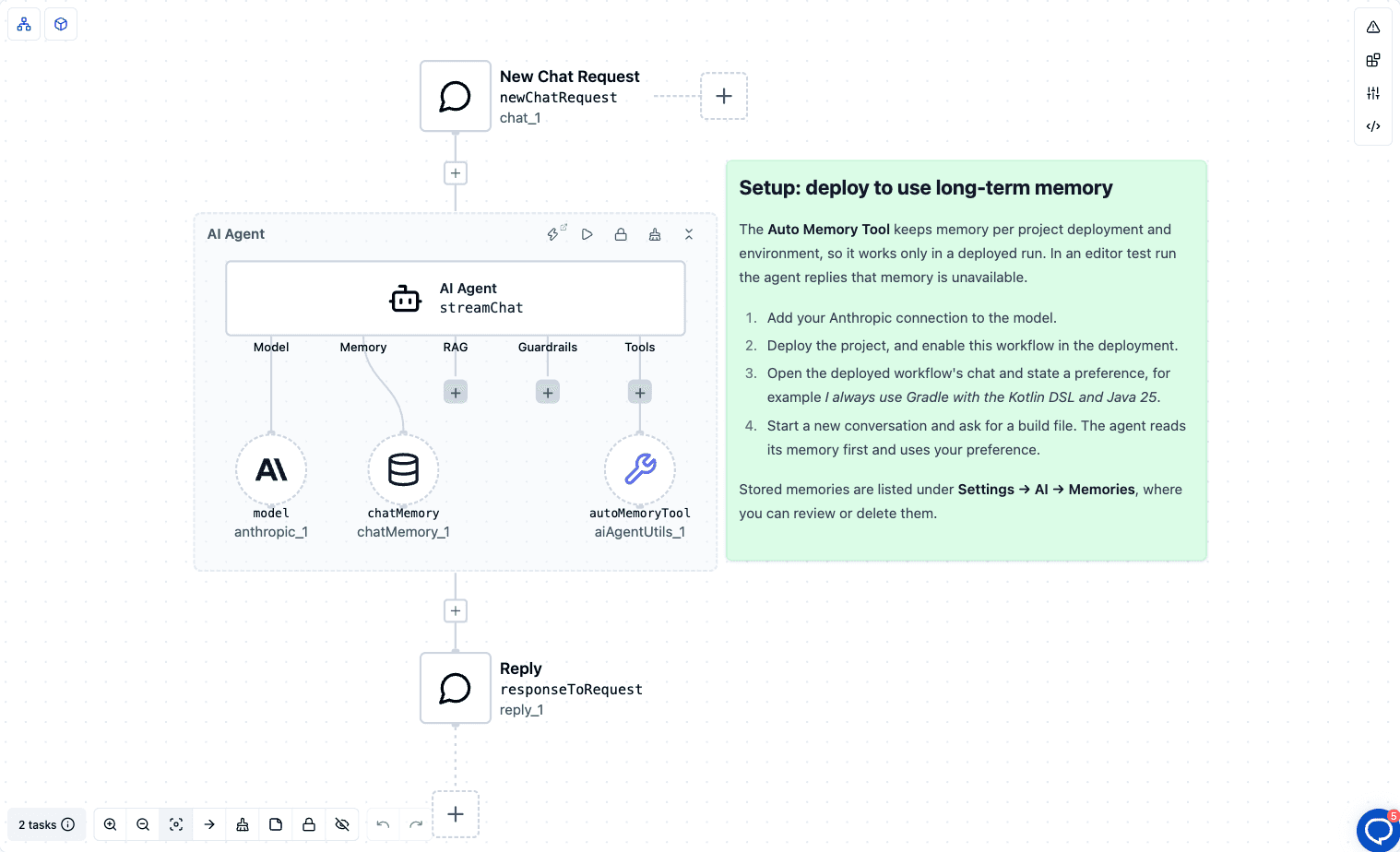
The system prompt tells the agent how to use its memory:
You are a coding buddy for a Java developer. At the start of every conversation, read your memory index and any relevant memory files. When the user states a lasting preference (build tool, Java version, testing style, answer length), save it as a memory right away and say that you saved it. Apply remembered preferences without being asked.
There is nothing to configure on the Auto Memory Tool itself. The green note on the canvas explains the one thing that matters: long-term memory works only in a deployed run. More on that below.
The Spring AI post draws the line in one sentence: "Use ChatMemory for the current task; use AutoMemoryTools for facts that should still be available next week."
| Chat Memory | Auto Memory Tool | |
|---|---|---|
| Holds | The turns of one conversation | Facts the agent chose to keep |
| Written by | The platform, every turn | The agent, on purpose, with a tool call |
| Lasts | That conversation | Until it is edited or deleted |
| In the template | Remembers what you said a minute ago | Remembers your build tool in next week's chat |
The template uses both. Chat Memory lets you say "now add a test" without repeating the context. The Auto Memory Tool lets a new conversation start from what the agent already knows about you.
Long-term memory is a small set of entries, plus an index.
title, an optional description, and a type, then the fact itself.MEMORY.md lists every entry on one line, newest first. The agent reads the index at the start of a conversation and opens only the entries it needs. ByteChef keeps the index up to date on every change, so the agent never edits it by hand.If you tell the coding buddy "I always use Gradle with the Kotlin DSL and Java 25", it might save an entry like this. This is an illustration, not output from a run:
---
title: Build setup
description: Gradle with the Kotlin DSL, Java 25
type: USER
---

Always use Gradle with the Kotlin DSL and target Java 25.
The agent works with its memory through six tools. The names and behavior come from the Spring AI library:
| Tool | What it does |
|---|---|
MemoryView | Lists the index, or shows one entry with line numbers |
MemoryCreate | Creates a new entry |
MemoryStrReplace | Replaces an exact piece of text in an entry |
MemoryInsert | Inserts text at a line in an entry |
MemoryDelete | Deletes an entry |
MemoryRename | Renames an entry |
Entry names are flat, such as build_setup.md. There are no folders.
In the Spring AI library, memory is a folder of Markdown files on disk. That works well for one agent on one machine. A platform needs more. Whose memory is this? Does it survive a move to another server? Can someone look at it and fix a wrong fact?
The library keeps storage behind two small interfaces, so you can swap where the entries live. ByteChef plugs its own storage in there. The agent still sees the same six tools and the same format. Underneath, entries are saved through ByteChef's memory service, which uses the database by default. A self-hosted install can set bytechef.ai.auto-memory.provider to keep them in file storage instead.
ByteChef works out the owner of the memory from the run itself. You don't configure it.
When the run has no owner, the tool still loads but every memory call returns a short "memory is unavailable" message with the reason. The agent can tell the user instead of failing. This happens in three cases:
That's why the template's note says to deploy first.
Here are the steps from the canvas note:
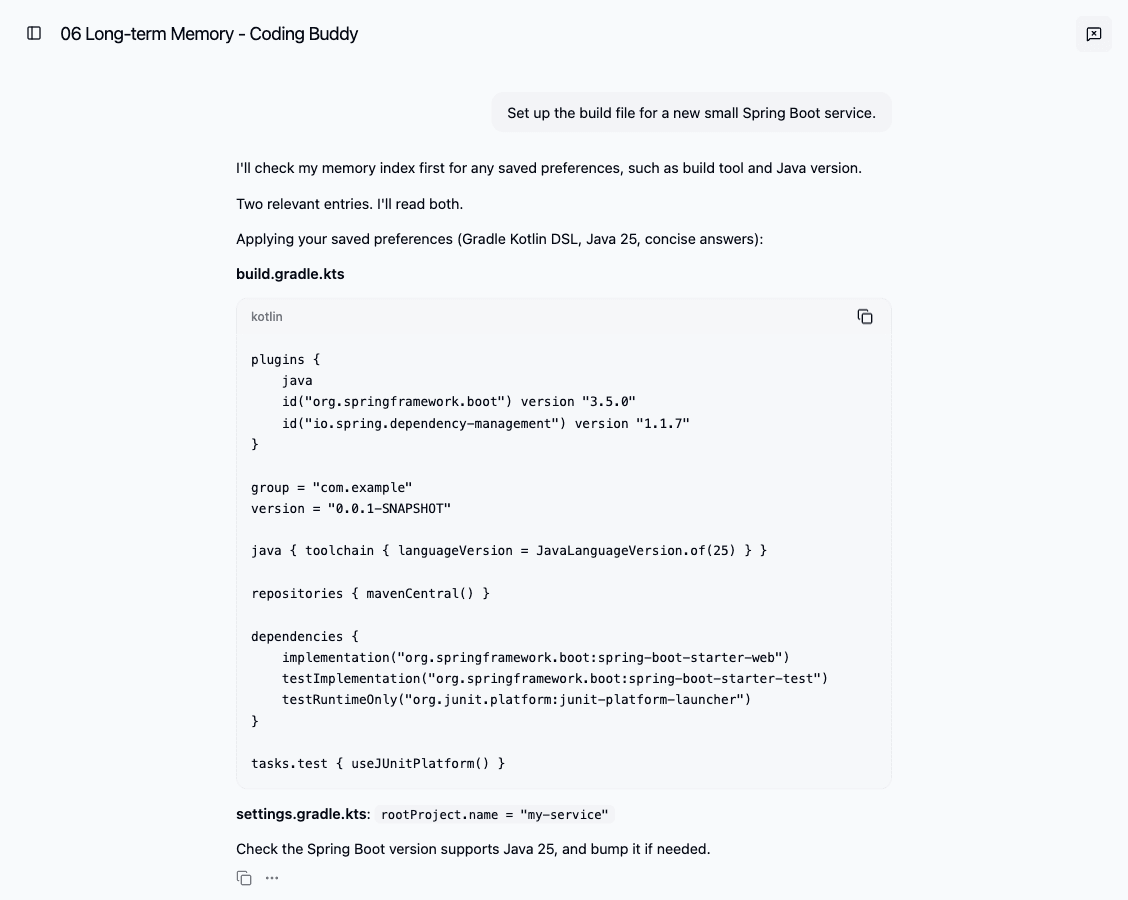
This is step 5 in a real deployed chat. The request doesn't mention Gradle or Java, yet the agent read its memory first and wrote a Gradle Kotlin DSL build with a Java 25 toolchain.
If you try step 4 in an editor test run instead, the agent will tell you memory is unavailable. That is expected.
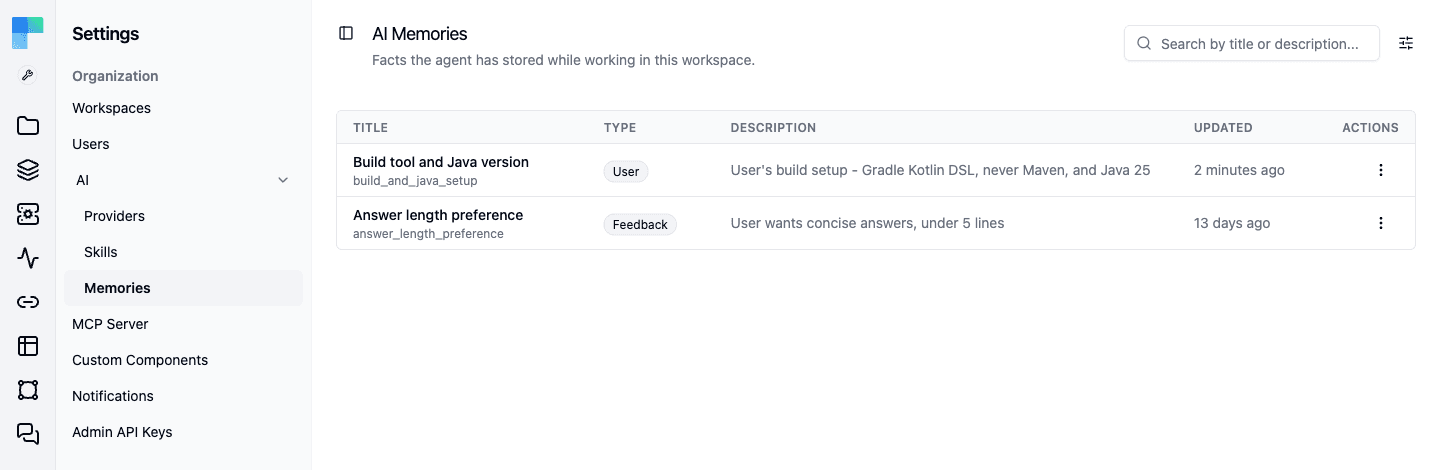
Stored memories are listed under Settings → AI → Memories. Each one shows its title and type. You can search by title or description, filter by type or by owner (the deployment or integration instance), open an entry, edit it, or delete it. When a preference changes, you can fix the memory there, or just tell the agent and let it update the entry itself.
ByteChef keeps the Spring AI design: the curated memory layer, the six purpose-named tools, the index plus typed entries, and the split between short-term and long-term memory. It changes what sits underneath:
Memory also works well with the other patterns in this series. Agent Skills give an agent know-how that is the same for everyone. Long-term memory gives it what it learned about your users and your project.
Chat memory answers "what did we just talk about?". Long-term memory answers "what do I already know about you?". Spring AI packaged the second one as six tools and a simple file format. ByteChef keeps both and puts a database and per-deployment ownership underneath, so memory lasts, stays separate for each deployment or customer, and is there for you to inspect.
The quickest way to see it is to run it. Import the Remember coding preferences across chats template, deploy it, tell it your build tool once, and open a new chat.
Get the latest guides on complex automation, AI agents, and visual workflow best practices delivered to your inbox.