8 min read
Ivica Čardić
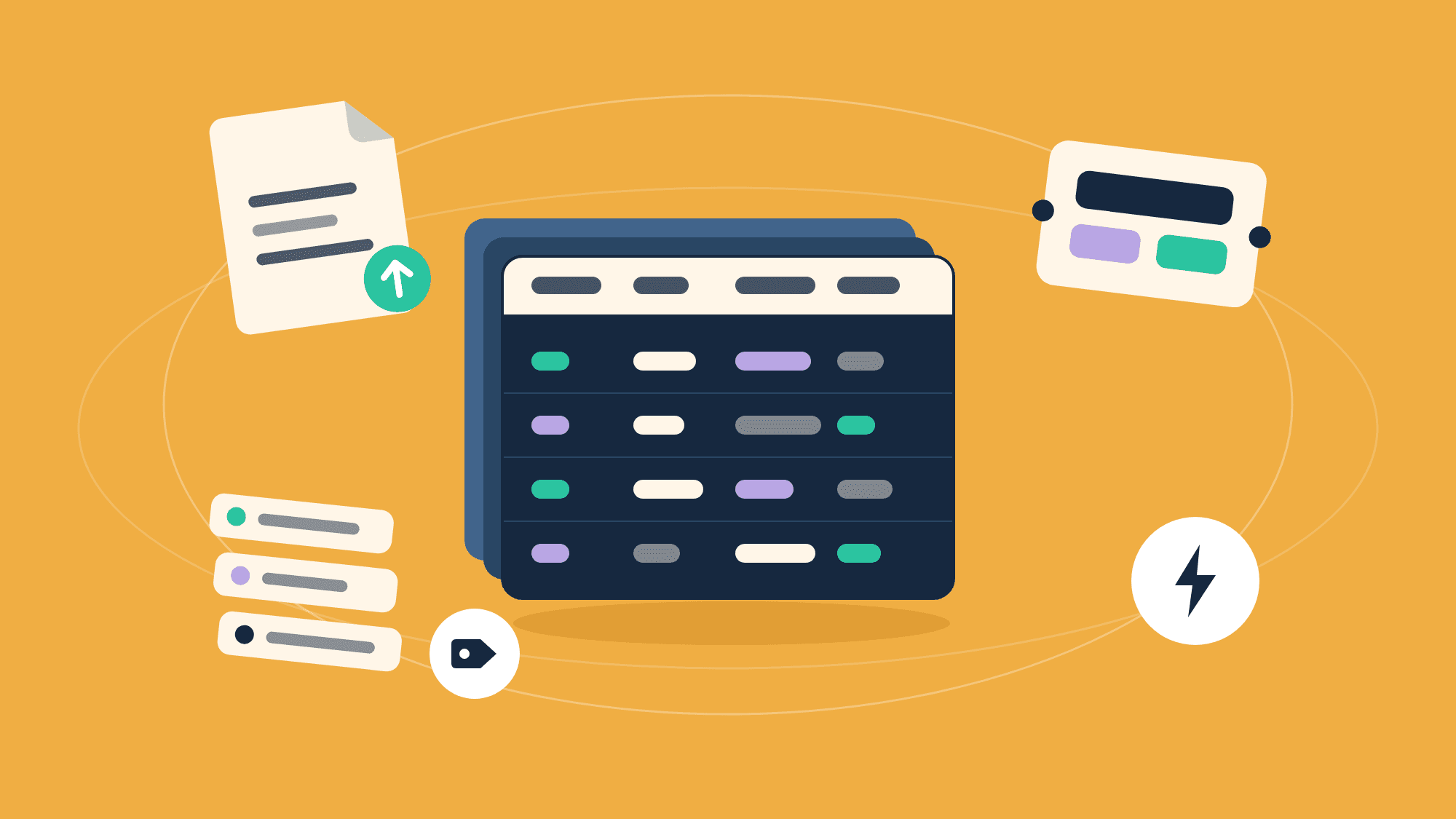
TL;DR: Data Tables are ByteChef's built-in place to keep records. Create a table with typed columns (string, number, integer, date, date-time, boolean), fill it in a spreadsheet-like grid or import a CSV, and use it from your workflows through six actions (create, get, find, update, delete, clear) and three triggers that start a workflow whenever a row is created, updated, or deleted. Those same six actions are available to AI agents as tools, so an agent can look things up and write rows for you. Your Development, Staging, and Production rows stay in separate tables, so test data never leaks into live automations. No database to set up, no spreadsheet to babysit.
There's a question every automation project runs into by week two: "where do we keep the records?" The leads the workflow has already processed. The subscriptions to check against. The running list of approvals, orders, escalations. Workflow steps don't remember anything between runs; the data has to live somewhere, and the classic answers are both awkward. A spreadsheet bolted onto the side is easy but fragile: no real types, no stable way to point at a row, rate limits, and an API that was never meant to be your database. An actual database is solid but heavy: someone has to provision it, design it, secure it, and write the plumbing for every read and write.
Data Tables are ByteChef's answer to that gap: tables that live inside the platform, as easy as a spreadsheet from the front, as dependable as a database underneath, and already connected to everything else your workflows do.
A Data Table starts the way you'd hope. Open Data Tables in the Automation workspace, click New Table, give it a name, and add your columns; each one gets a type: string, number, integer, date, date-time, or boolean.
From there you get a familiar grid. Add a row by typing into the empty one at the bottom. Click a cell to edit it, and you get the right editor for the column: a checkbox for booleans, a date picker for dates, a number field for numbers. Select rows with checkboxes to delete them. Longer tables load more rows as you scroll.
Already have the data in a spreadsheet? Import a CSV from the table's ⋮ menu and the rows land in the matching columns. The same menu exports a CSV back out, so nothing you put in is trapped. Once you've got a few tables, tags keep the list organized.
Picking a type per column sounds like a small chore, and it pays for itself almost immediately: a date column is a real date rather than text that usually parses, numbers sort like numbers instead of alphabetically, and a boolean is true or false rather than "yes", "Y", and "TRUE" all living in the same column. Every row also gets its own id that never changes, so you can hold onto a specific row and come back to it later, something row numbers in a spreadsheet can never promise you.
Here's the part people are usually surprised by. A Data Table isn't one shared pile of rows; ByteChef keeps a separate set of rows for each environment. The table you filled with junk while building in Development is genuinely not the table your Production workflow reads from.
That means you can test a workflow that inserts, updates, and deletes records without a moment's worry about what it's touching, then promote it and watch it run against real data. No "_TEST" prefix conventions, no second copy of a spreadsheet that drifts out of sync, no accidentally emailing your actual customers because a test row was sitting in the live sheet.
Add the Data Table component to a workflow and you can read and write any of your tables. There's no connection to set up and nothing to authenticate against; the tables are part of the platform, so they're just there:
Pick your table and the action's inputs reshape themselves around that table's columns, so you're filling in Email and Status, not guessing at field names.
That covers the patterns automations lean on constantly: accumulate ("append every order this workflow processed"), enrich later ("store the record now, update it when the webhook finally lands"), hand off ("one workflow writes the row, another picks it up"), and keep a log ("record what this run did, so there's something to look at on Monday").
This is where Data Tables stop being just storage. Most built-in tables in other tools are passive: you read and write them, and that's the end of it. ByteChef's tables can start a workflow. The component ships three triggers:
Which quietly changes the shape of what you can build. A table stops being a filing cabinet at the edge of your automations and becomes the thing they're organized around. One workflow adds a row; three other workflows react to it, and the one doing the writing doesn't need to know they exist.
Say an intake workflow drops a new order into a table. A fulfillment workflow, a customer-notification workflow, and a reporting workflow each start themselves on Record Created, independently. Want to add a fourth later? Build it and switch it on. Nothing else needs touching.
Data Tables aren't only for workflows you draw by hand. Every one of those six actions is also available to AI agents as a tool, so an agent can look up a record, add one, update one, or clear a table, using exactly the same operations your workflows use.
That means a table can be shared ground between the two ways of working. A scheduled workflow keeps a table of open tickets up to date; an agent you're chatting with reads that same table to answer "what's still unresolved?" and writes a row back when it takes something on. Same data, same rules, no separate copy to keep in sync.
Data Tables aren't trying to replace your production database; they're for the working data of your automations. A rough guide:
| Reach for a Data Table when… | Reach for something else when… |
|---|---|
| Workflows need to share data and remember things between runs | It's your product's system of record → a real database |
| You're tracking processed items, queues, lookups, or logs | People need to co-edit free-form content → a spreadsheet or doc |
| Another workflow should react when the data changes | You're syncing large sets between systems → DataStream (coming soon) |
| The dataset is small and workflows are the ones writing it | The knowledge lives in documents, not rows → Knowledge Base |
Two things worth knowing before you commit. A Data Table is not a transactional system of record: there's no cross-row transaction or multi-writer locking, so if several outside systems are writing the same data at the same time, point your workflow at a real database instead. And it's sized for small datasets, not warehouses: think lookup tables, queues, flags, and processed-item lists rather than millions of rows.
That right-hand column is really a tour of ByteChef's storage story: Data Tables for structured rows, the Knowledge Base for searchable documents, and DataStream (coming soon) for moving bulk data between systems. Three shapes of data, three purpose-built homes.
Remembering things is the unglamorous half of automation. Every workflow beyond the trivial needs to keep track of something, and how well it remembers (real types or everything-as-text, stable ids or shifting row numbers, reacting to changes or polling for them) quietly decides how far that automation can grow before it starts to hurt.
Data Tables give that job a proper home: tables you fill in like a spreadsheet, with types that hold, ids that stay put, test data kept away from live data, six actions to read and write them from your workflows or hand to an agent, and three triggers so a change to a row can set the next workflow going. No database to provision, no sheet to babysit, just somewhere real for your workflows to keep what they know.
Got a workflow juggling state in a spreadsheet? Open ByteChef, create a Data Table, and give your records somewhere better to live.
Get the latest guides on complex automation, AI agents, and visual workflow best practices delivered to your inbox.