22 min read
Ivica Čardić
TL;DR: New from Chat in the embedded sample app is a chat page where your user builds a workflow by talking to ByteChef's workflow agent. It's one React component,
EmbeddedWorkflowChat, that takes the connected user's JWT, a list of starter suggestions, an optional system prompt with your house rules, and anonWorkflowReadycallback. On mount it creates an empty draft workflow; every turn after that streams over AG-UI fromPOST /automation/workflows/{uuid}/copilot/chat, and the agent edits that draft directly. When it needs something from the user it renders an interactive card in the thread: a multiple-choice question, an option picker, a connection picker, or a Connect button that opens the ConnectDialog from part one. When the first turn finishes,onWorkflowReady(uuid)fires and you can send the user to the editor. This is part nine of the series.
In part eight your users started from a workflow you built for them. That's the fastest path, but it only works when you guessed their automation in advance. Often you didn't. Real automations are discovered as much as they're declared: "when a deal closes... actually only enterprise deals... and loop in the account manager... and skip weekends."
That back-and-forth is what New from Chat is for. Your user describes what they want in plain language, and ByteChef's workflow agent builds it in their account while they watch. It adds a trigger, wires steps, looks up the actions it needs, asks when something is ambiguous, and stops to let the user connect an app when a credential is missing. The user never sees a canvas unless they want to.
Open Automations in the sample app. The split button in the top right lists every way to start a workflow:

Here's how the options compare:
| Option | The user... | Best when |
|---|---|---|
| New from Template (part eight) | Picks a workflow you built | You know the common automations up front |
| New from Embedded Workflow Builder | Drags nodes on ByteChef's canvas | The user is comfortable with visual builders |
| New from Prompt | Writes one description, gets one result | The request is short and unambiguous |
| New from Chat (this part) | Talks it through with an agent, turn by turn | The request is fuzzy, or the user doesn't know the apps' vocabulary |
| New from Custom Workflow Builder (part seven) | Fills in a UI you designed | You want full control of the experience |
Chat is the most forgiving option for non-technical users. They don't need to know that Slack's action is called Send Channel Message or that a schedule trigger has a dayOfWeek property. The agent knows, and when it isn't sure what the user means, it asks.
Click New from Chat and you land on /automations/chat:
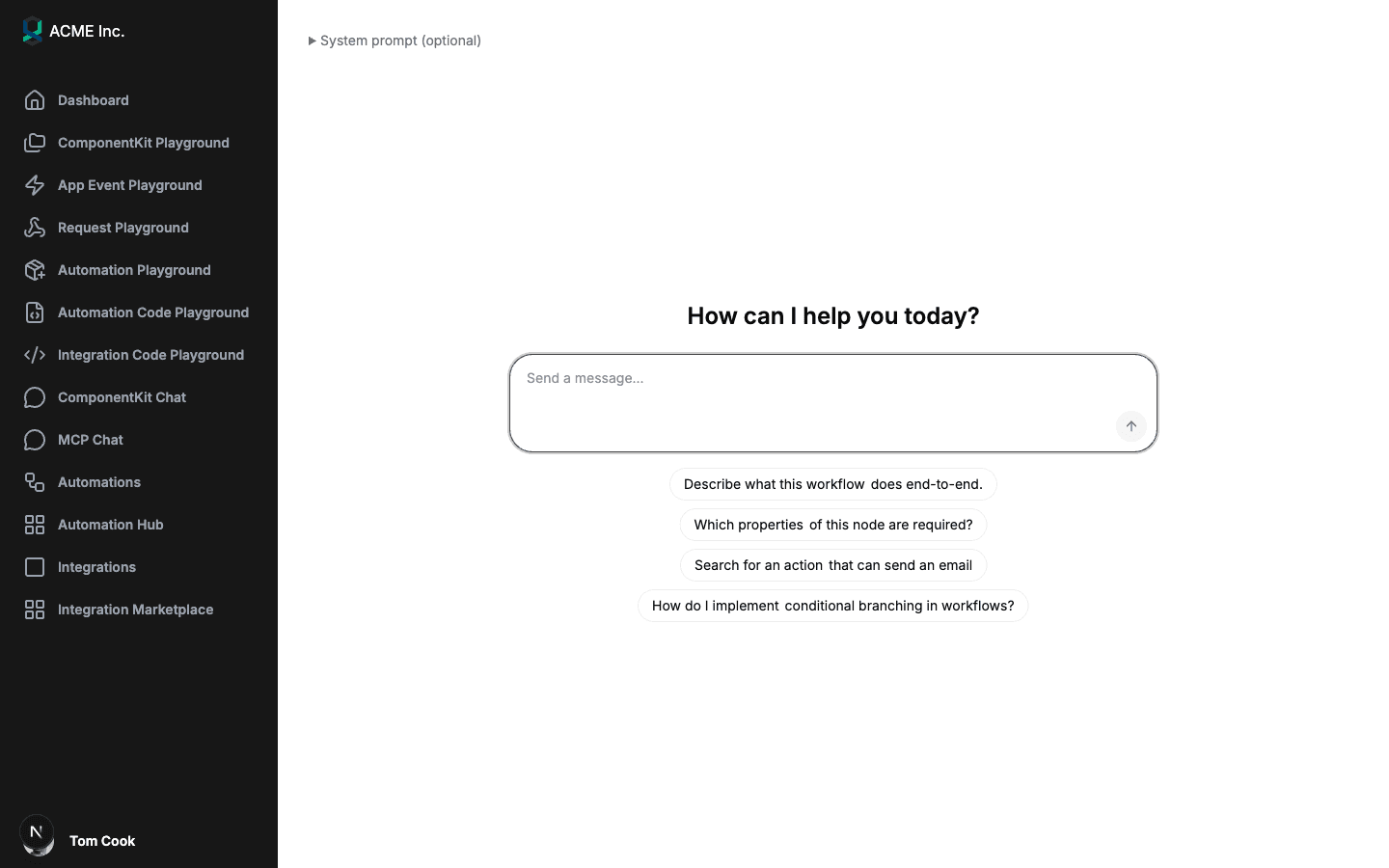
The page has three parts:
Once the conversation starts, the message box docks to the bottom of the page and the thread fills the space above it. As soon as the first turn finishes, an Open workflow button appears in the top right corner.
Here's the whole page from the sample, app/automations/chat/page.tsx, trimmed to the parts that matter:
export default function GenerateFromChatPage() {
    const [jwtToken, setJwtToken] = useState<string | null>(null);
    const [systemPrompt, setSystemPrompt] = useState('');
    const [workflowUuid, setWorkflowUuid] = useState<string | null>(null);

    const router = useRouter();

    useEffect(() => {
        getToken().then(setJwtToken);
    }, []);

    return (
        <div className="flex h-screen w-full flex-col p-4">
            <div className="mb-3 flex items-center justify-between gap-4">
                <details className="flex-1 text-sm">
                    <summary>System prompt (optional)</summary>

                    <Textarea
                        onChange={(event) => setSystemPrompt(event.target.value)}
                        placeholder="e.g. Always prefer Slack over email; keep workflows under five steps."
                        value={systemPrompt}
                    />
                </details>

                {workflowUuid && (
                    <Button onClick={() => router.push(`/automations/${workflowUuid}`)}>Open workflow</Button>
                )}
            </div>

            <div className="min-h-0 flex-1">
                {jwtToken && (
                    <EmbeddedWorkflowChat
                        baseUrl={BYTECHEF_APP_BASE_URL}
                        environment={BYTECHEF_ENVIRONMENT}
                        jwtToken={jwtToken}
                        onWorkflowReady={setWorkflowUuid}
                        suggestions={[
                            {
                                title: 'Search for an action',
                                label: 'that can send an email',
                                action: 'Search for an action that can send an email',
                            },
                            {
                                title: 'How do I implement',
                                label: 'conditional branching in workflows?',
                                action: 'How do I implement conditional branching in workflows?',
                            },
                            // ...
                        ]}
                        systemPrompt={systemPrompt}
                    />
                )}
            </div>
        </div>
    );
}
getToken() is the same helper the whole sample uses. It asks the sample's back-end to sign a connected-user JWT, exactly as in part one. The chat waits for the token before it mounts, because everything it does is on behalf of that user.
| Prop | Type | What it does |
|---|---|---|
jwtToken | string (required) | The connected user's JWT. Sent as Authorization: Bearer ... on every request |
baseUrl | string | Your ByteChef instance. Defaults to https://app.bytechef.io |
environment | 'DEVELOPMENT' | 'STAGING' | 'PRODUCTION' | Sent as X-Environment. Defaults to PRODUCTION, so pass it explicitly while you develop |
suggestions | {title, label, action}[] | Starter chips. title and label are shown side by side; action is the message that gets sent |
systemPrompt | string | Your house rules, applied to every turn |
onWorkflowReady | (workflowUuid: string) => void | Called once, after the agent's first turn finishes |
className | string | Extra classes for the outer container |
The component fills its parent's height, so give it a parent with a fixed or flexible height (the sample uses min-h-0 flex-1 inside a h-screen column).
Unlike useConnectDialog or EmbeddedWorkflowBuilder, the chat isn't an npm export. It lives as source in the sample app, under front-end/src/components/embedded-workflow-chat/, and you copy the folder into your project:
embedded-workflow-chat/
├── index.ts                            # exports the component
├── EmbeddedWorkflowChat.tsx            # the public component
├── EmbeddedCopilotRuntimeProvider.tsx  # AG-UI agent and event handling
├── workflow-chat-thread.tsx            # the thread UI (messages, composer, chips)
├── dataComponents.tsx                  # interactive cards (questions, pickers, Connect)
├── store.ts                            # zustand store holding the transcript
├── api.ts, constants.ts                # skeleton workflow and endpoint URLs
├── chat-config-context.tsx             # gives cards the JWT, base URL and environment
├── EmbeddedChatBoundary.tsx            # error boundary
└── assistant-ui/                       # markdown, tool card and reasoning renderers
That's deliberate. A chat is the most visible thing in your product, and you'll want it to look like your product, not like ours. The thread is built from assistant-ui primitives styled with Tailwind, so restyling it is ordinary React work. The dependencies are @ag-ui/client, @assistant-ui/react, @assistant-ui/react-markdown, zustand, lucide-react, tailwind-merge, and @bytechef/embedded for the ConnectDialog.
The agent doesn't generate a workflow and hand it back at the end. It edits a real workflow, in place, during the conversation. So before the user types anything, the component creates one:
export const SKELETON_WORKFLOW_DEFINITION = JSON.stringify({
    description: '',
    inputs: [],
    label: 'New Workflow',
    tasks: [],
    triggers: [],
});

const response = await fetch(`${baseUrl}/api/embedded/v1/automation/workflows`, {
    method: 'POST',
    headers: {
        Authorization: `Bearer ${jwtToken}`,
        'Content-Type': 'application/json',
        'X-Environment': environment,
    },
    body: JSON.stringify({definition: SKELETON_WORKFLOW_DEFINITION}),
});

const workflowUuid = (await response.text()).replace(/"/g, '').trim();
This is the same create endpoint the custom builder uses, and the workflow lands in the same place: the connected user's personal project for that environment, which ByteChef creates the first time it's needed. While the request is in flight, the component shows Starting.... If it fails (an expired JWT, a wrong baseUrl), it shows the error in red instead of the chat.
The UUID it gets back anchors the whole conversation. Every turn is sent to that workflow, and the agent reads and rewrites that workflow's definition. A ref latch makes sure only one skeleton is created, even under React StrictMode, which runs effects twice in development.
One consequence to plan for: every visit to the chat page creates a draft workflow, even if the user leaves without typing. We'll come back to that in Hardening.
When the user sends a message, the component posts the conversation to ByteChef's copilot endpoint using an AG-UI HttpAgent:
const agent = new HttpAgent({
    agentId: 'workflow_editor',
    url: `${baseUrl}/api/embedded/v1/automation/workflows/${workflowUuid}/copilot/chat`,
    headers: {
        Authorization: `Bearer ${jwtToken}`,
        'X-Environment': environment,
    },
    threadId: conversationId,
});

agent.setState(
    trimmedSystemPrompt
        ? {additionalSystemPrompt: trimmedSystemPrompt, mode: 'BUILD', workflowUuid}
        : {mode: 'BUILD', workflowUuid}
);

await agent.runAgent({runId: randomUUID()}, subscriber);
Of everything in that state, the server only uses the system prompt. It ignores agentId and mode too: the endpoint always runs the workflow-editor build agent and rebuilds the rest of the state itself, as described in What the Agent Can and Can't Do.
AG-UI is an open protocol for streaming agent runs to a front-end. The response is a text/event-stream, and each event says what the agent is doing right now. The subscriber turns those events into chat UI:
| AG-UI event | What the user sees |
|---|---|
TEXT_MESSAGE_START, _CONTENT, _END | A new assistant message, streamed in token by token |
TOOL_CALL_START, _ARGS, _END | A tool card named after the tool (for example searchTasks or updateWorkflow), with its input arguments filling in live |
TOOL_CALL_RESULT | The tool card gets its result and a success or error icon. If the result is an interactive request, a card is added under it (see the next section) |
RUN_ERROR | A red error callout in the thread, such as The copilot run failed. Reference: 3f2b... |
RUN_FINISHED | The turn is over. The first time this happens, onWorkflowReady fires |
Consecutive tool calls are grouped into a single assistant message so their cards stack neatly instead of each one taking a full message's spacing.
The server ends the open text message whenever the agent calls a tool, and starts a new one when it writes again. So a turn reads in the order it happened: "Let me find the right trigger", the tool cards for that lookup, then the next thing the agent says in a message of its own.
Errors tell the user what they can act on, and nothing more. When an embedded run fails for a reason the user can do something about, ByteChef sends a fixed sentence followed by the run's ID:
| Cause | What the user reads |
|---|---|
| No AI provider set up for the environment | No AI provider is set up for this environment, so the chat can't answer. |
| The provider is rate limiting | The AI provider is rate limiting requests right now. Try again in a minute. |
| The provider is overloaded | The AI provider is overloaded right now. Try again in a minute. |
| The provider rejected its API key | The AI provider rejected its API key. Ask an administrator to check it. |
| The conversation outgrew the model | This conversation is too long for the AI model. Start a new chat. |
Each one ends with "Reference: " and the run ID. Anything else reads "The copilot run failed. Reference: ...". The sentences are fixed text, never the exception's own message, because the browser is the user's and an exception can name tables, internal hosts or keys. The full cause goes to the server log under the same run ID, so when a user reports a failure, ask for the reference and search your ByteChef logs for it.
The thread also has the controls users expect from a modern chat:
Edit and Refresh rewind the agent too, not just the screen. The agent's memory of the conversation lives on the server, keyed to the user, the workflow and the conversation. Every turn, the chat sends the history the user can see, and before the model runs ByteChef cuts its memory back to the last user message both sides agree on, so a reply the user edited away is gone for the agent as well. The server only ever removes messages this way; it never takes the client's word for what was said.
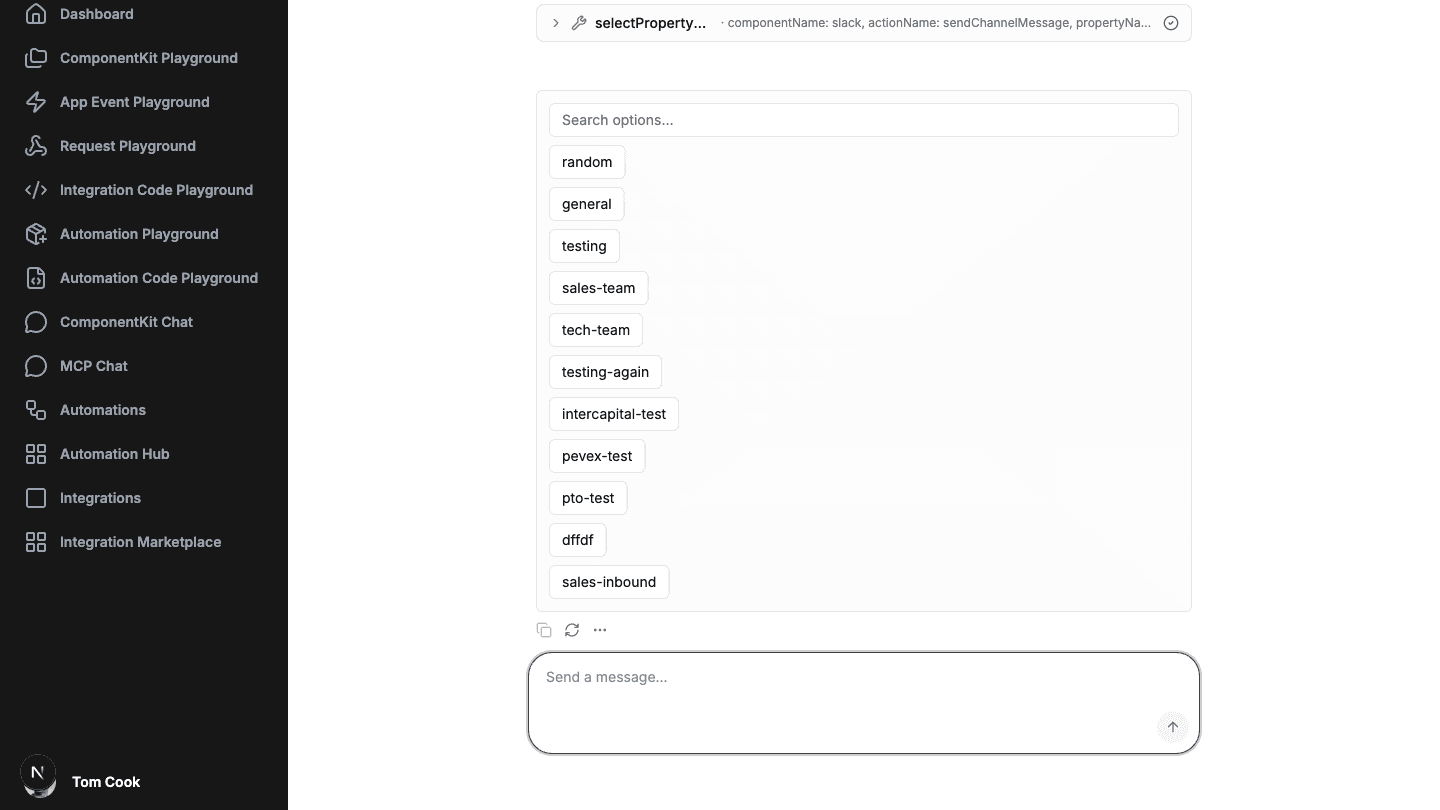
A text-only chat would force the agent to ask "which channel? please type its exact name" and hope for the best. Instead, some of the agent's tools return a small JSON envelope with a kind, and the chat renders a purpose-built card for it. Three of them (questions, the connection picker and Connect) do nothing on the server but hand the question to the browser. The property picker does a little more: it looks up the property's real options on the server first, using a connection the user is allowed to use.
{
    "kind": "create-connection",
    "componentName": "slack",
    "componentLabel": "Slack"
}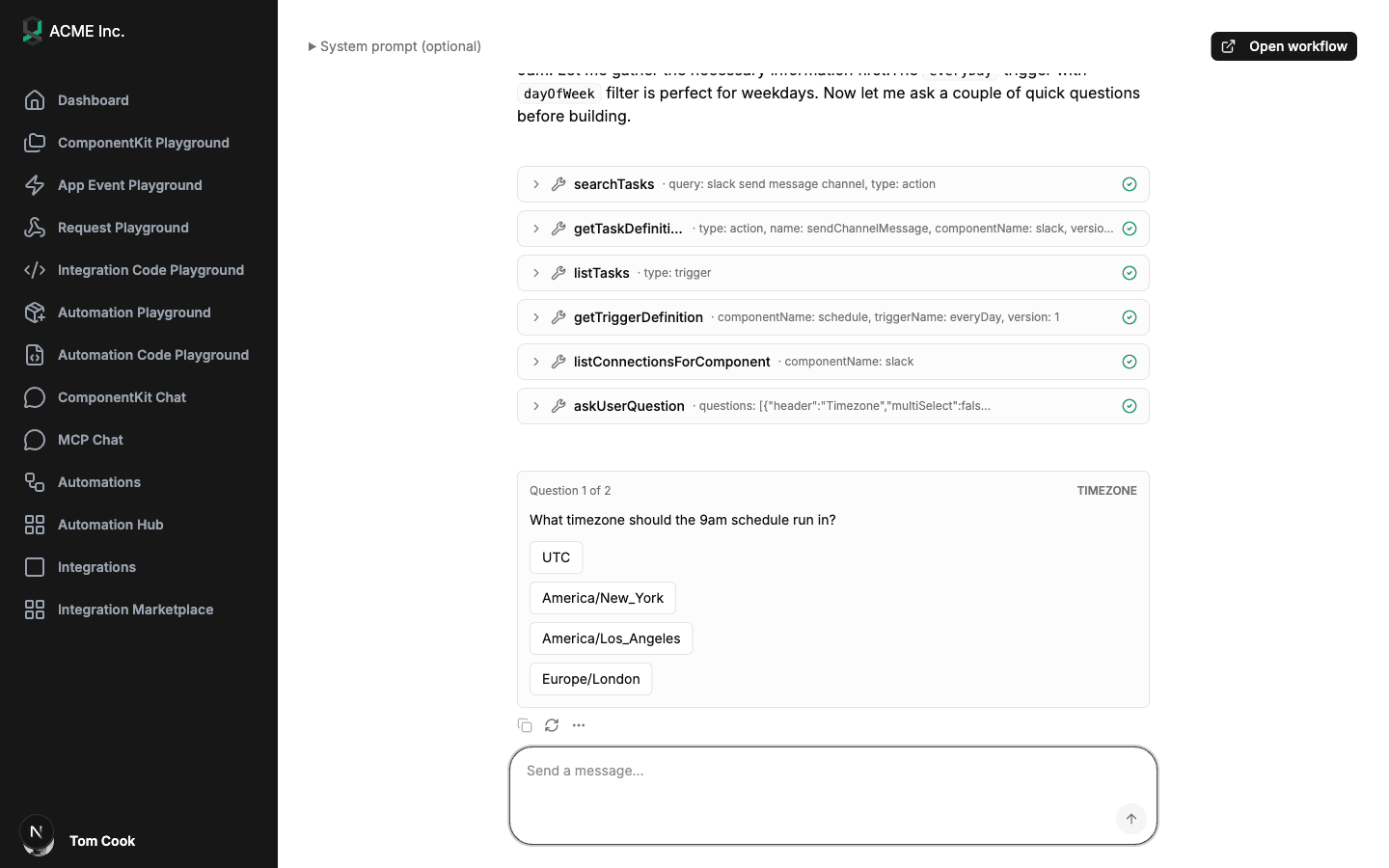
The sample maps four kinds to cards in dataComponents.tsx:
kind | Card | What happens on click |
|---|---|---|
ask-user-question | One or more multiple-choice questions, shown one at a time with Question 1 of 3 and a Previous link | The answers are sent back as "User picked: ..." |
select-property-option | A searchable list of valid values for a property, such as Slack channels or Google Sheets | The chosen label and its real value are sent back, and the agent writes the value into the workflow |
select-connection | A searchable list of the user's existing connections for an app | The chosen connection's name and ID are sent back. With exactly one connection, it's picked automatically |
create-connection | A Connect Slack button | Opens the ConnectDialog. When the user finishes, the card changes to Connected Slack |
When the agent shows a card, its turn ends right there: it doesn't guess the answer and carry on, it waits. The user's pick goes back as an ordinary message ("User picked: general"), which starts the next turn with exactly the information the agent asked for. When a card has been answered it collapses into a short summary with a green check (Picked: #standup), so the thread stays readable.
The create-connection card is where the whole series comes together. Say the user asks for a Slack reminder and hasn't connected Slack yet. The agent calls its createConnection tool, and the chat shows a Connect Slack button. Clicking it:
GET /api/embedded/v1/integrations with the user's JWT and finds the integration whose componentName is slack.useConnectDialog from @bytechef/embedded.The user goes through the same OAuth or API-key flow they'd see on your Integrations page, without leaving the chat. When they come back, they tell the agent to continue, and it can now pick the new connection with select-connection.
Note that createConnection is signaling only. The agent never sees or stores credentials, and no connection is created on the server by the tool call. The browser drives the whole flow through the ConnectDialog, just as it would anywhere else in your app. If the app isn't one of your integrations, the card says No integration is available for Slack instead of opening anything.
The user decides what the workflow does. You get to decide how it's built. Open System prompt (optional) and write the rules every workflow from your product should follow:
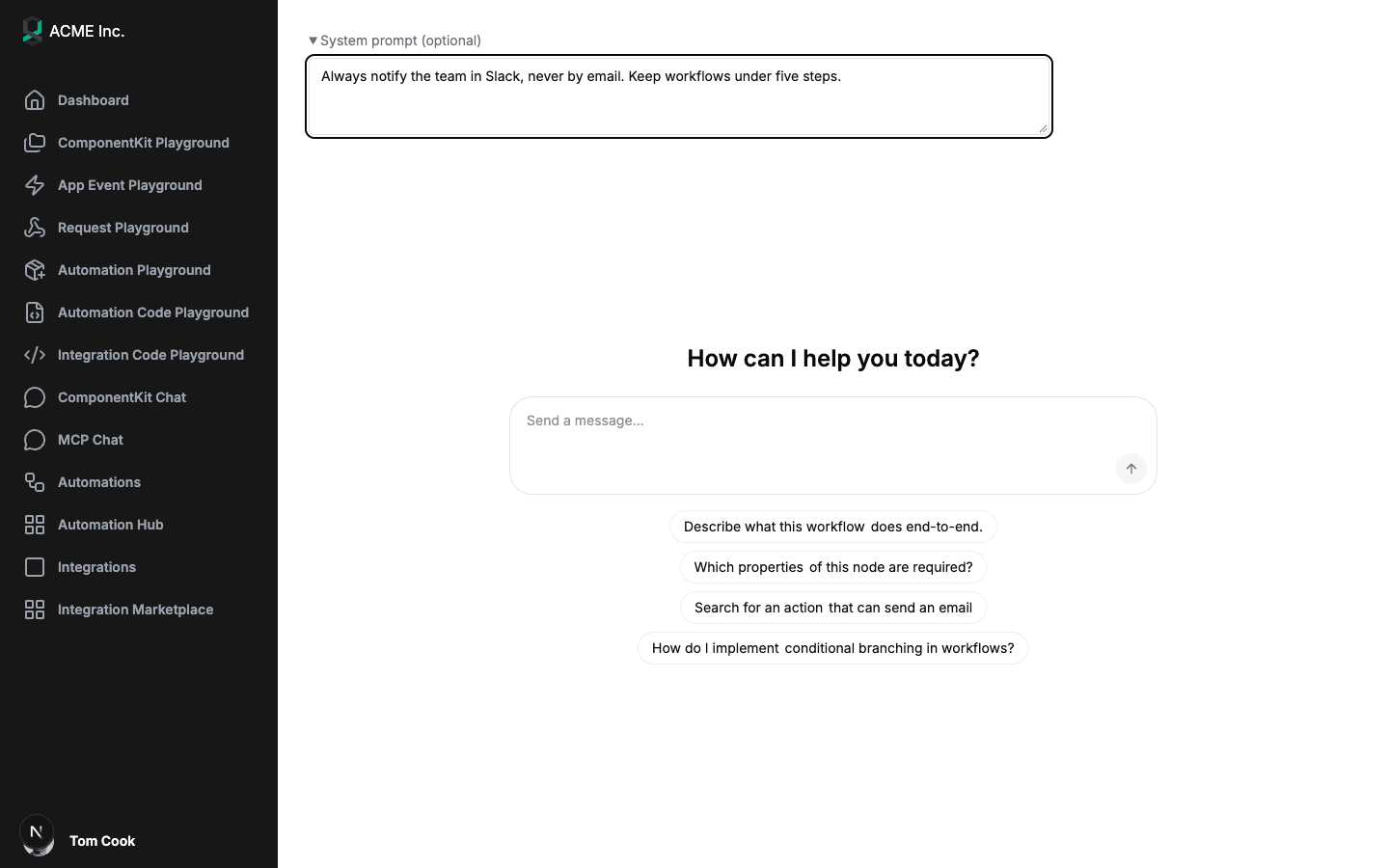
Good system prompts encode decisions your users shouldn't have to make:
Always notify the team in Slack, never by email.
Keep workflows under five steps.
Use the Europe/Berlin time zone for every schedule unless the user names another.
Never delete records in the CRM; update a status field instead.
A few details about how ByteChef treats it:
In the sample, the system prompt is a text box on the page so you can experiment. In production, it usually belongs in your code, not in your users' hands: build it from your product's conventions, and maybe from what you know about the user (their plan, their time zone, the apps their company has approved).
The chat is a public surface: whatever runs in it runs with the connected user's JWT, and the browser controls the request body. So the copilot endpoint doesn't trust the AG-UI state it receives. On every turn, ByteChef:
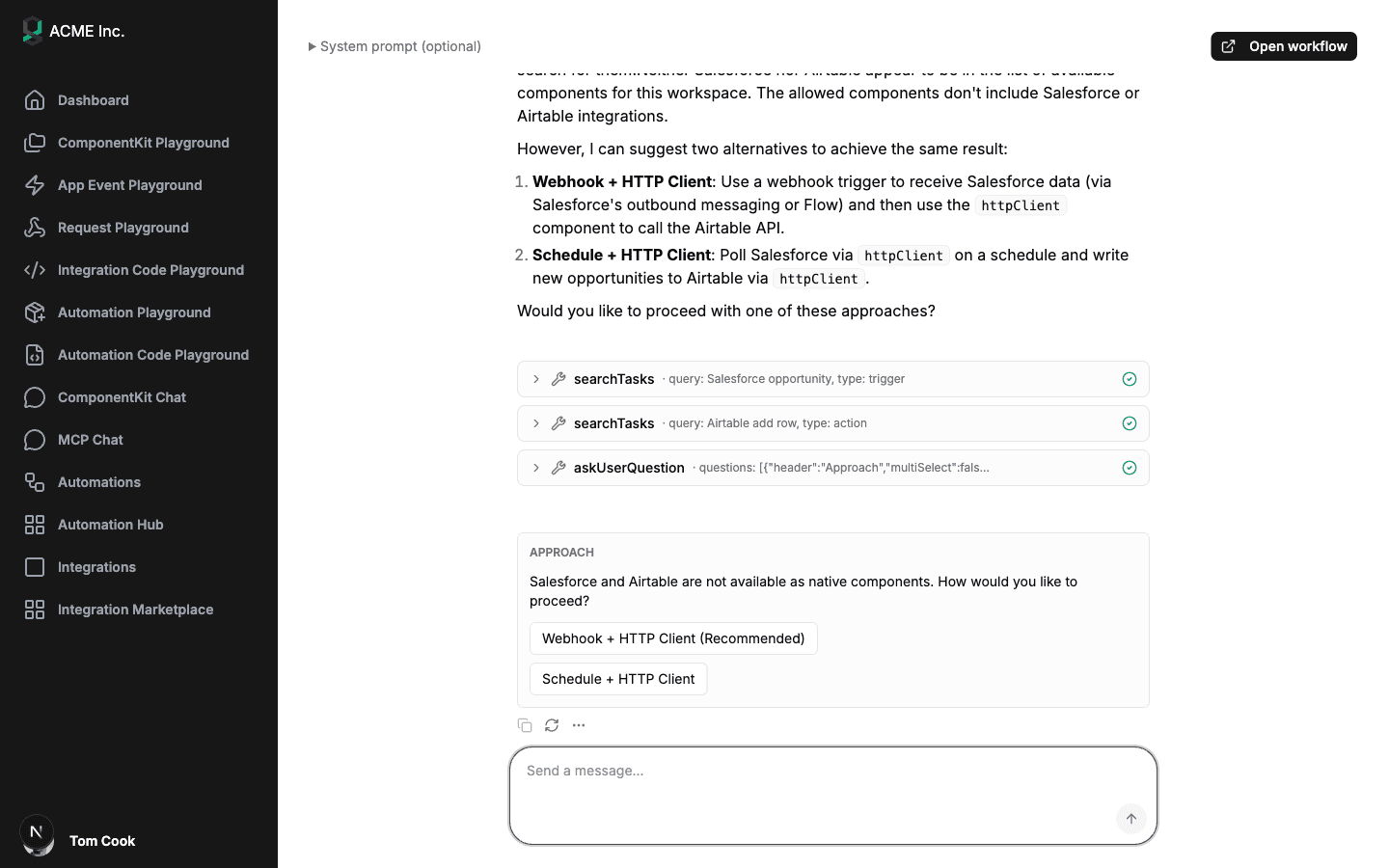
{workflowUuid} in the path must be a workflow in the connected user's own project for that environment. Another user's UUID gets an error, not a conversation.state is thrown away except the additional system prompt. The server then sets the values the run needs itself: BUILD mode, non-autonomous, the workflow ID it just verified, the user's project, the environment resolved from the X-Environment header (PRODUCTION if the header is missing), and a conversation key built from the tenant, the user and the workflow. A client can't switch the agent into another mode, point it at another workspace, or read another user's conversation by editing the request.That last point is easy to miss and important. If your product offers HubSpot and Slack but not Salesforce, a user asking for "Salesforce deals to Slack" gets a conversation about what's possible, not a workflow full of nodes that could never run:
The chat produces a real ByteChef workflow, so it isn't a dead end. When the first turn finishes, the component calls onWorkflowReady with the UUID it created on mount:
<EmbeddedWorkflowChat
    // ...
    onWorkflowReady={setWorkflowUuid}
/>

{workflowUuid && (
    <Button onClick={() => router.push(`/automations/${workflowUuid}`)}>Open workflow</Button>
)}
When the build is done, the agent says what it made:
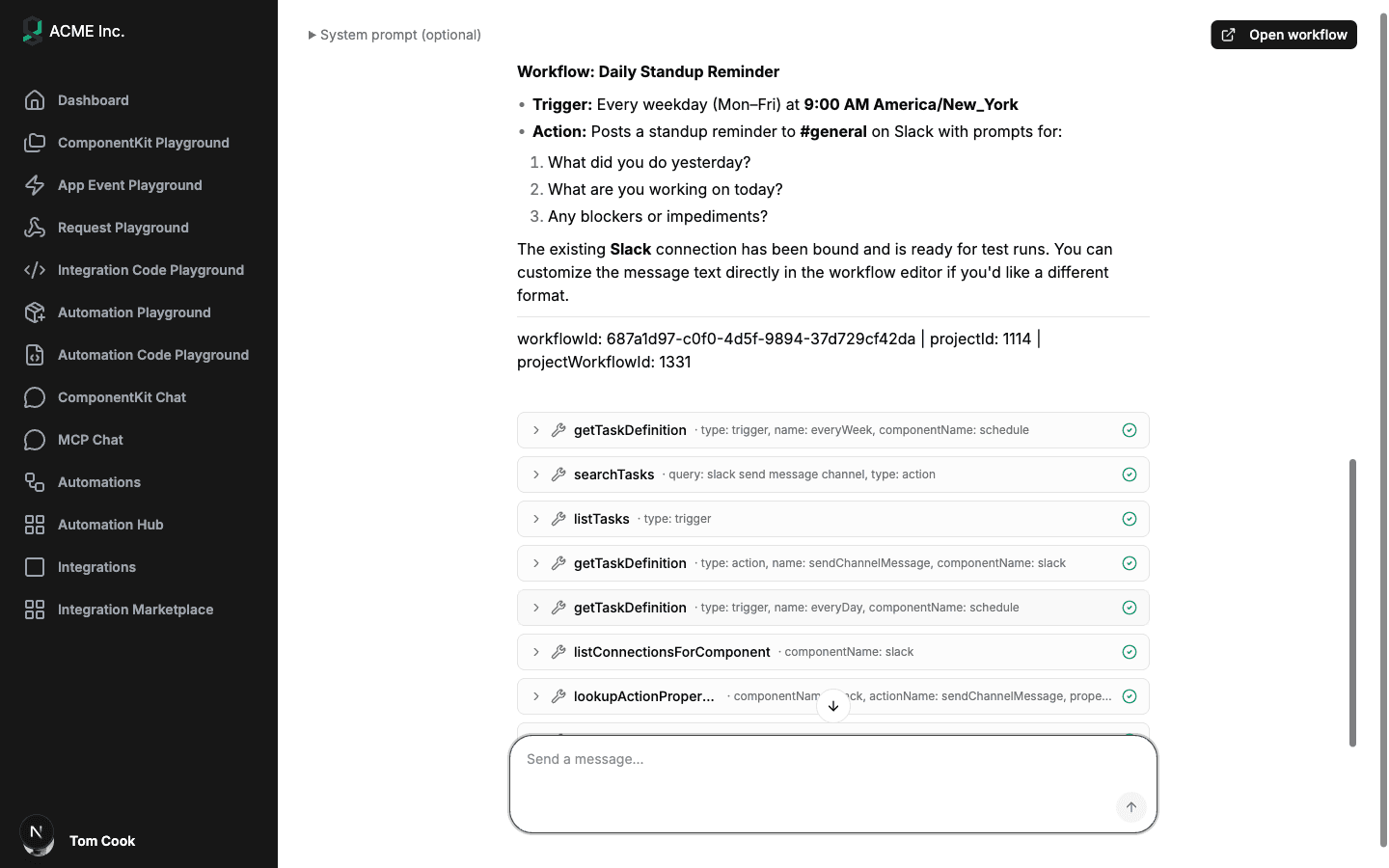
Two things about this callback are worth knowing:
The /automations/{uuid} page renders ByteChef's embedded editor, the same EmbeddedWorkflowBuilder we saw in part eight, so the user can review and fine-tune what they talked into existence. Chat to draft, canvas to polish.
Like a copied template, a chat-built workflow is a draft in the user's own project. Nothing runs until it's published and enabled, which is the right default for something an AI just wrote. The same calls from part seven take it live:
// Freeze the current definition as the user's first version
await fetchWithAuth(`/api/embedded/v1/automation/workflows/${workflowUuid}/publish`, {
    method: 'POST',
    headers: {'Content-Type': 'application/json'},
    body: JSON.stringify({description: 'Created from chat'}),
});

// Turn it on (DELETE to turn it off)
await fetchWithAuth(`/api/embedded/v1/automation/workflows/${workflowUuid}/enable`, {method: 'POST'});
In the sample, the user does this themselves: Publish in the editor, then the toggle on the Automations list. A more guided product could add an Activate button under the chat that runs both calls once the user is happy.
The chat needs three things from your ByteChef instance:
bytechef.ai.copilot.enabled=true. Without it the /copilot/chat endpoint doesn't exist and the first turn fails.Embedded workflows and the copilot endpoint are Enterprise Edition features.
The sample page is intentionally small. Before you ship a chat, close these gaps:
DELETE /automation/workflows/{uuid} when the user leaves.environment explicitly. The component defaults to PRODUCTION. A JWT signed for another environment is rejected when the component creates its workflow, and the sample says so: "ByteChef rejected the chat's token for the DEVELOPMENT environment. Check that the token is valid and was signed for the same environment as the component's environment prop."onWorkflowReady fires after the first turn. If you want a stricter signal (a trigger exists, no open issues), fetch the workflow when the callback fires and check it yourself.multiSelect flag the agent sends isn't honored yet.EmbeddedChatBoundary hides a harmless assistant-ui unmount error, but it also renders nothing for any other crash. Replace that null with a friendly fallback and report the error.key) to start fresh with a new skeleton workflow and a new conversation, which also gives the agent an empty memory.Chat moves the line further toward ByteChef than any part so far, and leaves you the parts that make it feel like your product:
Your code for the feature is one component, one callback and a button. Behind it is an agent that knows every action in your catalog and can turn "remind my team about standup every weekday" into a scheduled Slack workflow on the user's own account.
Here's the series so far:
Parts three and nine both put an AI chat in your product, but they do opposite jobs. The ComponentKit chat acts on the user's apps right now: it sends the email, creates the ticket. New from Chat builds something that acts later, on its own, every time the trigger fires. One is an assistant; the other is an automation author.
Following along? Enable the copilot and an AI provider in ByteChef, run the embedded sample app, and open Automations → New from Chat. Ask it for something small, like a weekday Slack reminder, and watch it build.
Get the latest guides on complex automation, AI agents, and visual workflow best practices delivered to your inbox.