19 min read
Ivica Čardić

TL;DR: New from Prompt in the embedded sample app is a dialog with two text boxes: what the user wants automated, and an optional system prompt with your house rules. Submitting it sends one request,
POST /api/embedded/v1/automation/workflows/generatewith{prompt, systemPrompt?}, signed with the connected user's JWT. ByteChef creates a draft workflow in the user's own project, runs the same workflow agent that powers New from Chat in autonomous mode, and answers with the new workflow's UUID once the agent has built and validated it. No questions, no streaming, no client-side AI code. The agent only uses your enabled integrations and connection-free components, and the result is a draft the user reviews in the editor before anything runs. This is part ten of the series.
In part nine your users talked a workflow into existence, one turn at a time. That's the right tool when the request is fuzzy. But plenty of requests aren't. "When a lead comes in, post it to #sales and email them a welcome note" is already a complete specification. The user knows exactly what they want, and a conversation would only slow them down.
New from Prompt is for those users. They write a sentence or two, click Generate, and get a finished workflow back. Behind the button is the same agent as the chat, with one difference: it isn't allowed to ask anything. It resolves every ambiguity itself, picks sensible defaults, validates what it built, and saves it.
Open Automations in the sample app. The split button in the top right lists every way to start a workflow:
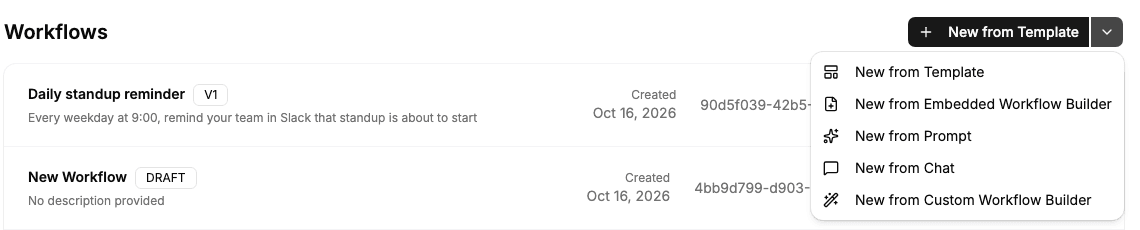
Here's how the options compare:
| Option | The user... | Best when |
|---|---|---|
| New from Template (part eight) | Picks a workflow you built | You know the common automations up front |
| New from Embedded Workflow Builder | Drags nodes on ByteChef's canvas | The user is comfortable with visual builders |
| New from Prompt (this part) | Writes one description, gets one finished workflow | The request is short and unambiguous |
| New from Chat (part nine) | Talks it through with an agent, turn by turn | The request is fuzzy, or needs the user's input along the way |
| New from Custom Workflow Builder (part seven) | Fills in a UI you designed | You want full control of the experience |
Prompt is the lowest-effort AI option, for the user and for you. The user types once. You render a form and make one fetch call. There's no stream to parse, no transcript to store and no cards to render.
Click New from Prompt and a dialog opens over the Workflows list:
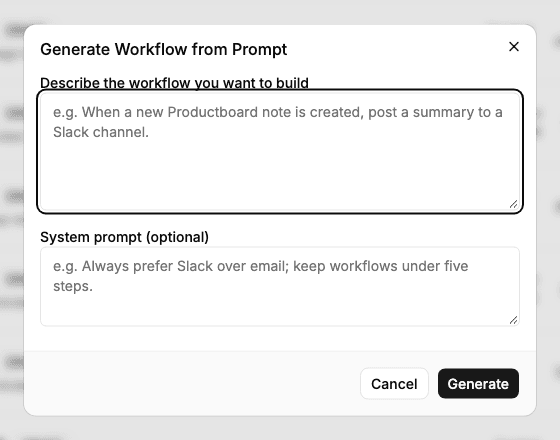
It has two fields:
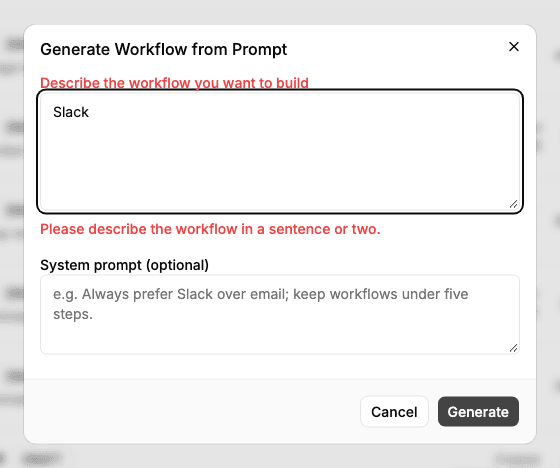
The description has to be a real sentence. The form rejects anything shorter than ten characters before a request is ever sent:
Once the user has written something useful, they click Generate. Both buttons are disabled and the label changes to Generating... until ByteChef answers:
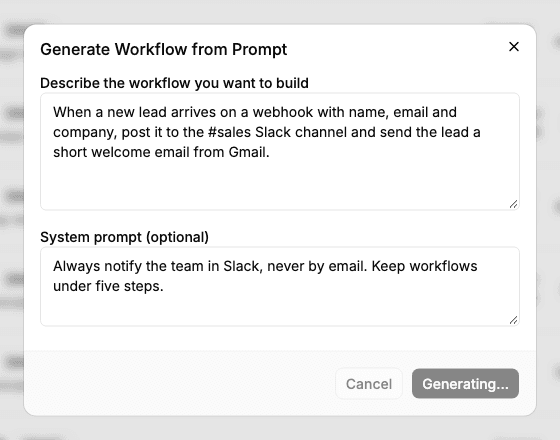
When the response arrives, the dialog closes, a green Workflow generated successfully! banner appears, and the list reloads with the new workflow in it. For this request, that took 47 seconds:

Here's the dialog from the sample, app/automations/components/generate-workflow-dialog.tsx, trimmed to the parts that matter:
const formSchema = z.object({
    prompt: z.string().min(10, 'Please describe the workflow in a sentence or two.'),
    systemPrompt: z.string().optional(),
});

export default function GenerateWorkflowDialog({isOpen, onClose, onWorkflowGenerated}: GenerateWorkflowDialogPropsI) {
    const [error, setError] = useState<string | null>(null);
    const [isSubmitting, setIsSubmitting] = useState(false);

    const form = useForm<FormValues>({
        defaultValues: {prompt: '', systemPrompt: ''},
        resolver: zodResolver(formSchema),
    });

    const handleSubmit = async (values: FormValues) => {
        setError(null);
        setIsSubmitting(true);

        try {
            const workflowUuid = await generateWorkflow(values.prompt, values.systemPrompt);

            form.reset();
            onClose();
            onWorkflowGenerated(workflowUuid);
        } catch (generateError) {
            setError(
                generateError instanceof Error
                    ? generateError.message
                    : 'Failed to generate workflow. Please try again.'
            );
        } finally {
            setIsSubmitting(false);
        }
    };

    // ...a Dialog with two FormFields (Textarea), Cancel and a submit button that reads
    // "Generating..." while isSubmitting is true
}
It's an ordinary react-hook-form dialog. All of the AI is on the server; the browser only collects two strings and waits.
The Workflows page mounts it and decides what happens afterwards:
<DropdownMenuItem onClick={() => setIsGenerateDialogOpen(true)}>
    <SparklesIcon className="h-4 w-4 mr-2" />
    New from Prompt
</DropdownMenuItem>

// ...

<GenerateWorkflowDialog
    isOpen={isGenerateDialogOpen}
    onClose={() => setIsGenerateDialogOpen(false)}
    onWorkflowGenerated={handleWorkflowGenerated}
/>
const handleWorkflowGenerated = () => {
setSuccess('Workflow generated successfully!');
fetchWorkflowsData();
};onWorkflowGenerated receives the new workflow's UUID. The sample ignores it and just reloads the list, where the new workflow's title links to /automations/{uuid}. In your product, this callback is the place to send the user straight to the editor (see Handing Off the Result).
The whole feature is one function in lib/api.ts:
export async function generateWorkflow(prompt: string, systemPrompt?: string): Promise<string> {
    const trimmedSystemPrompt = systemPrompt?.trim();

    const response = await fetchWithAuth('/api/embedded/v1/automation/workflows/generate', {
        method: 'POST',
        headers: {'Content-Type': 'application/json'},
        body: JSON.stringify(trimmedSystemPrompt ? {prompt, systemPrompt: trimmedSystemPrompt} : {prompt}),
    });

    if (!response.ok) {
        throw new Error(`Failed to generate workflow: ${response.status}`);
    }

    const newWorkflowUuid = (await response.text()).trim();

    return newWorkflowUuid.startsWith('"') && newWorkflowUuid.endsWith('"')
        ? newWorkflowUuid.slice(1, -1)
        : newWorkflowUuid;
}
fetchWithAuth is the sample's wrapper from part one: it adds the connected user's JWT as Authorization: Bearer ... and the X-Environment header. The response body is the UUID as a JSON string, so the function strips the quotes.
On the wire, it's this:
POST /api/embedded/v1/automation/workflows/generate
Authorization: Bearer <connected user's JWT>
X-Environment: DEVELOPMENT
Content-Type: application/json

{
    "prompt": "When a new lead arrives on a webhook with name, email and company, post it to the #sales Slack channel and send the lead a short welcome email from Gmail.",
    "systemPrompt": "Always notify the team in Slack, never by email. Keep workflows under five steps."
}HTTP/1.1 200 OK
Content-Type: application/json
"8b0c5d1e-..."| Field | Required | What it does |
|---|---|---|
prompt | Yes | The user's description. A blank prompt is rejected with "Prompt must not be blank" |
systemPrompt | No | Your house rules, added to the agent's instructions for this one generation |
X-Environment header | No | Which environment's project, integrations and AI settings to use. Defaults to PRODUCTION, so send it explicitly while you develop |
The call is synchronous. ByteChef answers only after the agent has finished building. The three-step lead workflow in this post took under a minute, but bigger workflows and slower models can take several. The server waits up to ten minutes before it gives up. Keep that in mind for every proxy, load balancer and serverless function between the browser and ByteChef; we'll come back to it in Hardening.
The same feature exists in four shapes. The two frontend forms are authenticated with the connected user's JWT, and the user is whoever the token says. The two backend forms take the user's ID in the path and are authenticated with your environment's API secret key, for calls from your own server:
| Called from | Create a new workflow | Rebuild an existing workflow |
|---|---|---|
| Browser (user's JWT) | POST /automation/workflows/generate | POST /automation/workflows/{workflowUuid}/generate |
| Your backend (API key) | POST /{externalUserId}/automation/workflows/generate | POST /{externalUserId}/automation/workflows/{workflowUuid}/generate |
The rebuild form runs the agent against a workflow the user already has, with a new description. It's how you'd build a Regenerate or Change it with AI button next to an existing automation: the UUID stays the same and the definition is rewritten.
The backend forms open up flows the user never sees. For example, when a customer finishes onboarding and has connected Slack, your server could generate a starter automation from what you know about them, so their Automations page isn't empty on day one.
Here's what happens between the click and the UUID, in order:
autonomous: true.The agent's instructions have a section that only applies when autonomous is true, and it overrides everything else about asking. In autonomous mode the agent must:
updateWorkflow and ends its turn.Everything else is the same agent you met in part nine. It searches the catalog for triggers and actions (searchTask, listTasks), reads their definitions and properties (getTaskDefinition, getTaskProperties, getTaskOutputProperty), validates every task before it builds (validateTask), and validates the finished workflow before saving it. What comes back isn't a guess at the JSON format; it's a definition that passed the same validator as a workflow built by hand.
Compared with the chat, autonomous mode trades interactivity for speed. The chat would stop and show a channel picker; the prompt agent picks a sensible value and moves on. The chat would show a Connect Slack card; the prompt agent builds the Slack step anyway and leaves the connection for the user to pick in the editor.
The user decides what the workflow does. You decide how it's built. The systemPrompt field is where you write the rules every generated workflow should follow:
Always notify the team in Slack, never by email.
Keep workflows under five steps.
Use the Europe/Berlin time zone for every schedule unless the user names another.
Never delete records in the CRM; update a status field instead.
Notice how this interacts with the example request. The user asked for a welcome email to the lead, and the system prompt says never by email. These don't conflict: the rule is about how the team gets notified, and the agent applies it that way. In our run it built exactly three steps: the webhook trigger, a message to #sales in Slack for the team, and the welcome email to the lead from Gmail, as asked. Write rules the way you'd brief a colleague, and the agent reads them that way.
How ByteChef treats it:
In the sample, the system prompt is a text box so you can experiment. In production it belongs in your code, not in your users' hands: build it from your product's conventions and from what you know about the user (their plan, their time zone, the apps their company has approved), and send it with every request.
One current limitation: the rebuild endpoints (.../workflows/{workflowUuid}/generate) accept a systemPrompt in the request, but don't pass it on to the agent yet. Until that's fixed, put any rules that matter for a rebuild into the prompt itself.
The generate endpoint is a public surface: anyone holding a connected user's JWT can call it with any text. So ByteChef doesn't trust anything in the request except the two strings, and it sets the agent's boundaries itself:
The allow-list matters even more here than in the chat. A chat agent asked for "Salesforce deals to Slack" when you don't offer Salesforce can explain that and ask what to do instead. A prompt agent can't ask, so it has to work with what the catalog offers. Whatever it ends up building, it never produces nodes for apps your users can't connect.
A generated workflow is a real ByteChef workflow, so the editor is the natural next stop. The sample reloads the list, and the workflow's title links to /automations/{uuid}, which renders ByteChef's embedded editor:
export default async function AutomationPage({params}: {params: {workflowUuid: string}}) {
    const {workflowUuid} = await params;

    const jwtToken = await getToken();

    return (
        <EmbeddedWorkflowBuilder
            baseUrl={BYTECHEF_APP_BASE_URL}
            connectionDialogAllowed={true}
            environment={BYTECHEF_ENVIRONMENT}
            jwtToken={jwtToken}
            workflowUuid={workflowUuid}
        />
    );
}
In your product, skip the list and go straight there. The callback already has the UUID:
const router = useRouter();

<GenerateWorkflowDialog
    // ...
    onWorkflowGenerated={(workflowUuid) => router.push(`/automations/${workflowUuid}`)}
/>
In the editor the user sees what the agent built: the trigger, each step, and the values it chose. Here's the workflow generated from the lead prompt above:
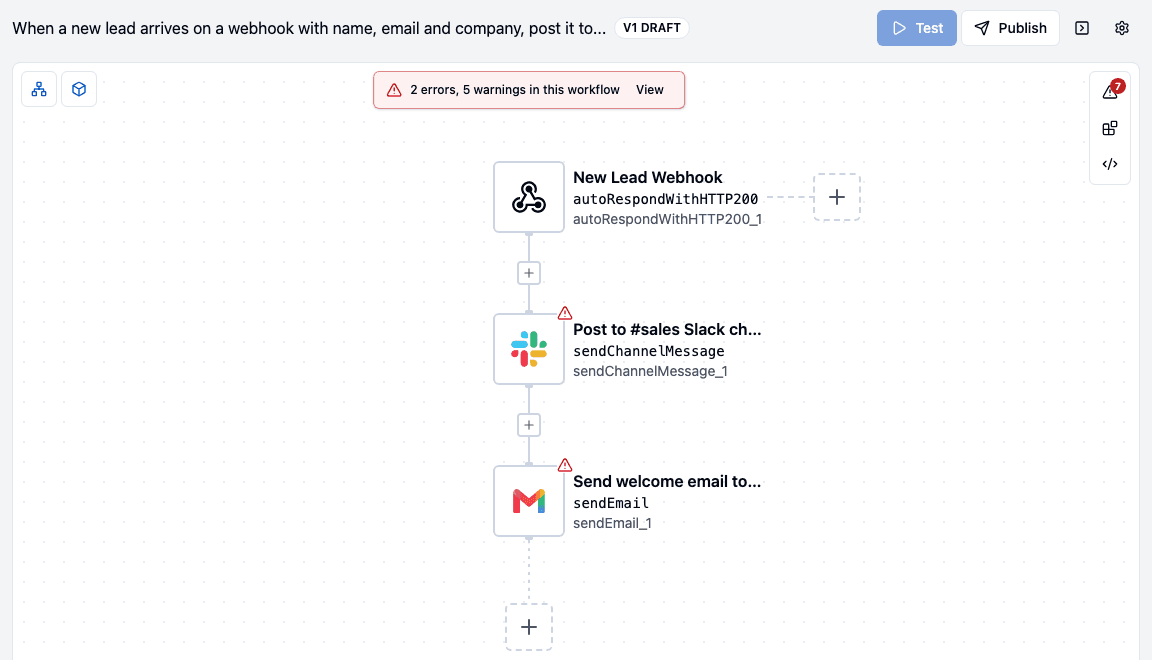
The agent did more than pick the steps. It set the Slack channel to sales and wrote a message with the lead's name, email and company, each one a reference to the webhook payload (${autoRespondWithHTTP200_1.body.name} and so on). For the Gmail step it sent the email to the lead's address and wrote the subject and a short body that greets them by name. The workflow even got a description: "Receives a new lead via webhook and posts to #sales Slack channel, then sends a welcome email via Gmail."
This review is where the autonomous agent's defaults get confirmed, and the editor tells the user what's left. Click View on the banner:
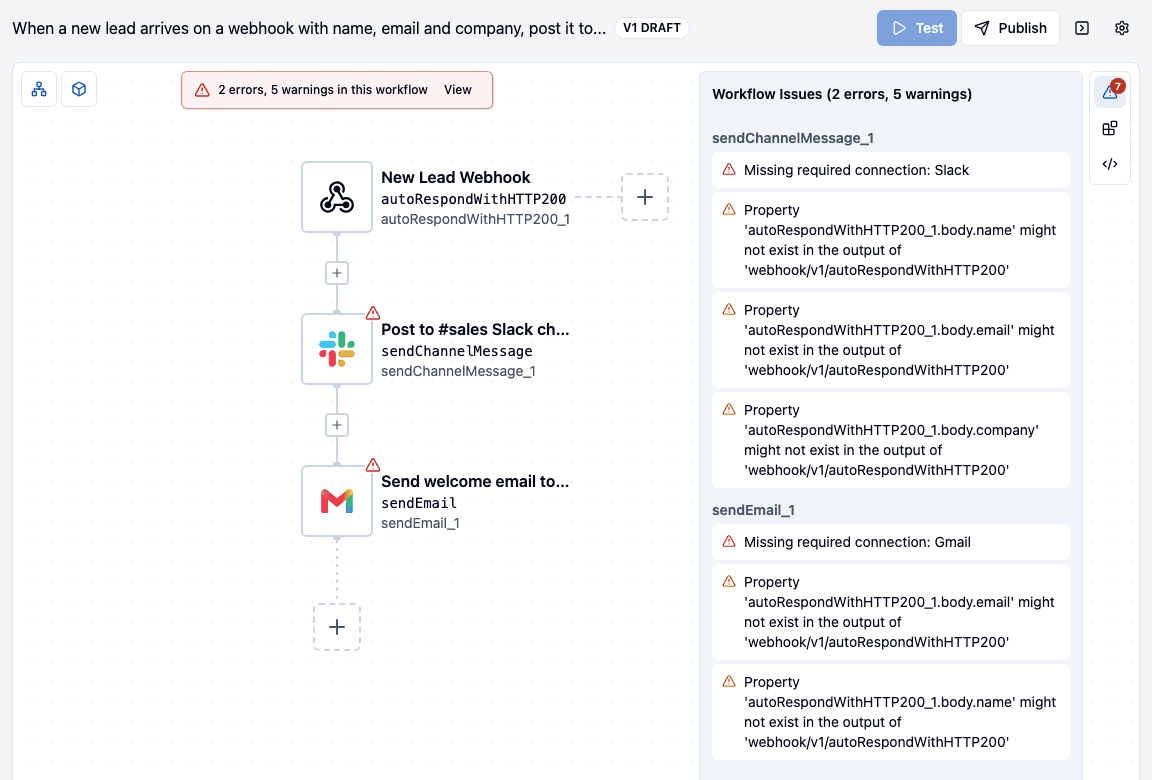
connectionDialogAllowed={true}, a user who hasn't connected an app yet can do it right there through the ConnectDialog.body.name, body.email and body.company exist from the definition alone. They're warnings, not errors: a reminder to check those field names against what your app actually sends.Anything else the user wants different, like the message wording or the email text, is an ordinary field to edit.
Like a copied template or a chat-built workflow, a generated workflow is a draft. Nothing runs until it's published and enabled, which is the right default for something an AI just wrote. The same calls from part seven take it live:
// Freeze the current definition as the user's first version
await fetchWithAuth(`/api/embedded/v1/automation/workflows/${workflowUuid}/publish`, {
    method: 'POST',
    headers: {'Content-Type': 'application/json'},
    body: JSON.stringify({description: 'Generated from prompt'}),
});

// Turn it on (DELETE to turn it off)
await fetchWithAuth(`/api/embedded/v1/automation/workflows/${workflowUuid}/enable`, {method: 'POST'});
In the sample, the user does this themselves: Publish in the editor, then the toggle on the Automations list.
Both options run the same agent with the same tools, the same catalog limits and the same system prompt handling. They differ in everything around it:
| New from Prompt | New from Chat | |
|---|---|---|
| Requests | One POST, one JSON response | One AG-UI stream per turn |
| Agent mode | Autonomous: never asks, picks defaults | Interactive: asks questions, shows pickers |
| Missing connection | Builds the step; user connects it in the editor | Shows a Connect card in the thread |
| Ambiguity | Resolved by the agent | Resolved by the user |
| Code in your app | A form and a fetch | A copied chat component with its dependencies |
| When the workflow exists | Before the agent runs (the response comes when it's done) | On mount, before the first message |
| Best for | Clear, short requests | Fuzzy requests and users who want a say |
They also combine well. Generate from a prompt to get a first version fast, then offer a Change it with AI button that sends a new description to the rebuild endpoint when the user wants something different.
The generate endpoint needs three things from your ByteChef instance:
bytechef.ai.copilot.enabled=true. Without it the endpoint fails with "AI Copilot is not enabled. Set bytechef.ai.copilot.enabled=true to use workflow generation."Embedded workflows and workflow generation are Enterprise Edition features.
The sample dialog is intentionally small. Before you ship it, close these gaps:
DELETE /automation/workflows/{uuid}, or filter out workflows without a trigger.onWorkflowGenerated to open the workflow instead of only refreshing the list, so the review happens while the user is still thinking about it.X-Environment explicitly. Without it, ByteChef uses PRODUCTION, which is rarely what you want while developing.Prompt gives ByteChef more of the work than any part before it, and asks the least code of you:
Your code for the feature is a form, one fetch and a redirect. Behind it is an agent that knows every action in your catalog and turns "post new leads to #sales and send them a welcome email" into a webhook-triggered Slack and Gmail workflow on the user's own account.
Here's the whole series:
Parts seven through ten are four ways to create the same thing: a real ByteChef workflow in the user's own project. They run from the most control (your own builder) to the least effort (one sentence). Most products end up offering several of them, and since they all produce the same kind of workflow, a user can start with one and finish in another.
Following along? Enable the copilot and an AI provider in ByteChef, run the embedded sample app, and open Automations → New from Prompt. Describe something small with one of your connected apps, click Generate, and open the result in the editor.
Get the latest guides on complex automation, AI agents, and visual workflow best practices delivered to your inbox.