21 min read
Ivica Čardić
TL;DR: Turn on Shared Connection when you create or edit a connection under Embedded → Connections, and every connected user in that environment can pick it in their automations, the Automation Hub and the embedded builder. Only your admins can change it. Your frontend reads
sharedandeditableon each connection, andconnectionDialogAllowed: falsein the JWT keeps users on your accounts.
So far in this series, every connection belonged to the user: their Gmail in part one, only their own accounts in the part seven picker, a connection they owned behind every callback in part fourteen. That's the right default, because most automations act inside the customer's own tools.
Some accounts are yours, though: the Slack workspace your alerts go to, the enrichment API you pay for, your own SMTP relay. Asking every customer to paste the same key is pointless, and handing each a copy they can rotate or delete is worse. You want one connection that every user can pick and nobody but you can touch. That's a shared connection, and here's how to create one, how ByteChef decides who sees it, and what your frontend should do with it.
For each connected user, ByteChef works out the set of connections they're entitled to in their environment. It has two halves. What they own is what they created plus what belongs to their integration instances (made by the Connect dialog): only they see it, they and your admins can reconnect or delete it, and it carries shared: false, editable: true. What's shared is what you created under Embedded → Connections with Shared Connection on: every connected user in that environment sees it, only your admins can change it, and it carries shared: true, editable: false.
The server enforces that set everywhere a user lists or picks a connection. The list endpoints return only those connections, and asking ByteChef to wire anything else into an automation fails with 400 Bad Request. Put simply, ownership decides what a user can change; entitlement decides what they can use.
Shared connections are one of four ways a connection can reach a connected user's workflow:
| Approach | Set up by | The user... | Use it when |
|---|---|---|---|
| The user's own connection (part one) | The user, through the Connect dialog or the builder | Authorizes their own account | The automation acts in their tools |
| Shared connection (this part) | You, once per environment | Picks your account from a list, next to their own | One account of yours serves everyone, and users may still bring their own |
| Provided Values on an automation configuration | You, per configuration and workflow | Sees Provided by your administrator and picks nothing | Every user of that automation must use your account, no choice |
| Provisioned for one user | You, from Connected Users | Gets an account you entered for them alone | You onboard a specific customer by hand |
The middle two are easy to mix up. A shared connection is an option that sits in the user's pickers next to their own accounts. A provided connection is a decision: in the automation configuration's Provided Values, each connection slot defaults to Let each user connect, and once you pick one of your connections there, users never see a choice. A provided connection doesn't have to be shared, and it isn't added to anyone's connection list. This post is about the option.
Sharing happens in the ByteChef admin UI. These are admin actions, so no public embedded endpoint creates or shares vendor connections.
Connections belong to one environment. Use the selector in the left sidebar header to switch to Development, Staging or Production. A connection shared in Development is invisible to users in Production, so share one per environment, each with that environment's credentials.
Open Embedded → Connections. On an empty page you'll see Create your first connection, with three steps underneath: Create a connection, Share it with connected users, Use it in a workflow. Click Create Connection (or New Connection in the header once the page has connections).
The Create Connection dialog asks for the component (Slack, Airtable, your SMTP server and so on) and a Name. Pick one users will recognize, like Acme Ops Slack: pickers show connections by name only, so the name is their only hint that this account is yours. The Environment is a badge showing the sidebar's selection, not a field you change here. Then comes the Shared Connection switch (its info icon explains that every connected user in this environment will be able to use the connection), followed by the credentials the component needs (an API key, a token, or an OAuth sign-in) and optional tags. Here's the dialog with the switch on:
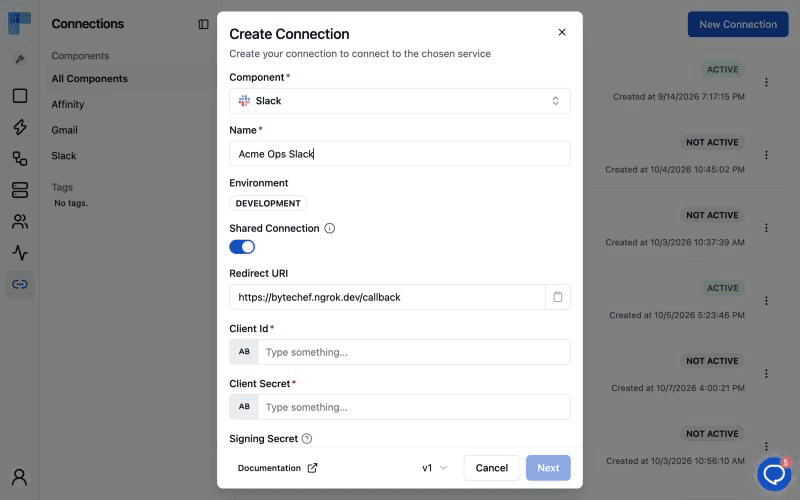
Turn the switch on and click Save.
The switch is in the edit dialog too. Choose Edit from the connection's menu, and Edit Connection lets you change the Name, Shared Connection and tags. Flip the switch and click Save.
Turning sharing off works the same way, and the connection leaves users' lists and pickers right away. It doesn't rewire automations that already use it, though; see Edge Cases and Gotchas.
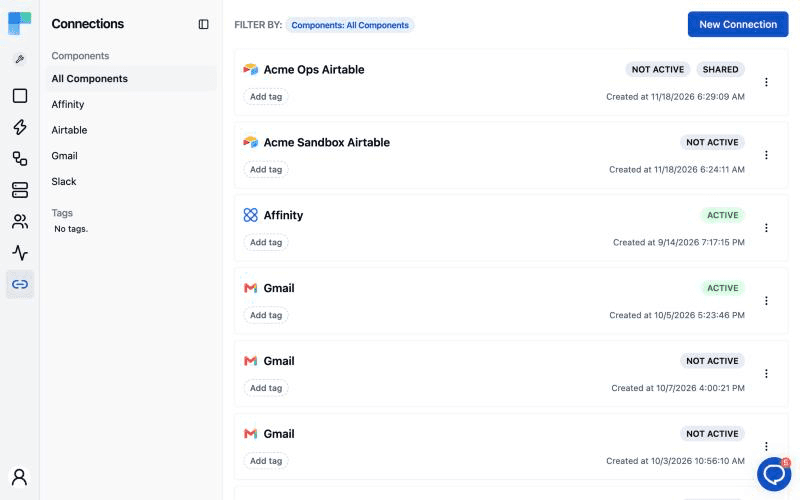
Each row shows the component icon, name, tags, creation date and two kinds of badges. The status badge reads Active when the credentials are valid and something uses the connection (a workflow, an integration instance or a test configuration), and Not Active when they're valid but nothing references it yet. A brand-new shared connection therefore stays Not Active until a user's automation picks it: the badge reports usage, not reachability. When the credentials are the problem, it shows the credential status instead, such as INVALID. Shared connections also get a Shared badge.
API keys get rotated and OAuth grants get revoked. To swap a shared connection's credentials, open Edit and click Update credentials. The dialog hides the name, switch and tags and shows only the credential form; save with Update credentials. A toast confirms Credentials updated, and the new values are verified the next time the connection runs. If ByteChef has already marked the credentials as rejected, Edit opens straight into this mode with a warning, These credentials were rejected, because workflows using the connection are blocked until new credentials are saved.
The connection keeps its ID, so every user's automation picks up the new credentials on its next run. That's the point of sharing, and its risk.
Only ByteChef admins can manage embedded vendor connections; every create, edit, credential update and delete on this page goes through a server-side admin check. The page also lists only your connections, shared or not. Connections a connected user owns (ones they created and the ones behind their integration instances) never appear, and opening, editing or deleting one through this surface answers "not found". So you can't share one customer's connection with others, even by accident.
Here's exactly what ByteChef puts in a connected user's list, in order:
Then it keeps only embedded connections in the user's environment, so a shared connection from another environment never makes it through, and neither does anything from ByteChef's own Automation side.
The order matters. When ByteChef chooses a connection on the user's behalf, it takes the first one that fits, so a user's own account always wins over yours (more in How Automations Pick a Connection).
On the frontend, the connected user's JWT from part one is all you need. Two endpoints return the list:
GET /api/embedded/v1/connections
Authorization: Bearer <connected user's JWT>
X-Environment: DEVELOPMENT
GET /api/embedded/v1/components/slack/connections?connectionIds=1051,1062
Authorization: Bearer <connected user's JWT>
X-Environment: DEVELOPMENTThe first returns everything the user is entitled to. The second narrows it to one component, and the optional connectionIds parameter narrows it further to the IDs you name. IDs the user isn't entitled to are silently dropped, so you can pass IDs from your own records without leaking anything about other users. X-Environment defaults to PRODUCTION when omitted, so send it explicitly while you develop.
A response looks like this:
[
    {
        "id": 1062,
        "name": "My Slack",
        "componentName": "slack",
        "connectionVersion": 1,
        "authorizationType": "OAUTH2_AUTHORIZATION_CODE",
        "createdDate": "2026-11-20T08:14:02Z",
        "credentialStatus": "VALID",
        "shared": false,
        "editable": true
    },
    {
        "id": 1051,
        "name": "Acme Ops Slack",
        "componentName": "slack",
        "connectionVersion": 1,
        "authorizationType": "OAUTH2_AUTHORIZATION_CODE",
        "createdDate": "2026-11-18T10:02:45Z",
        "credentialStatus": "VALID",
        "shared": true,
        "editable": false
    }
]
Credentials never come back; the response tells you what an account is, never what's inside it.
Two flags should drive your UI. shared describes the connection: an admin shared it with every connected user in the environment, so label it in your pickers ("Provided by Acme", a badge, an icon). editable describes the caller's rights: it's true only when this user may reconnect or delete it, which means only for connections they own, so show Reconnect and Delete only then. credentialStatus is VALID or INVALID; an invalid own connection is one the user should reconnect, while an invalid shared one is yours to fix.
Your server can read the same list for any user with your environment's API secret key instead of a user token:
GET /api/embedded/v1/{externalUserId}/components/slack/connections
Authorization: Bearer <your API secret key>
X-Environment: DEVELOPMENT
Same shape, same flags, computed for that user: handy when your server decides which account an automation should use.
Users still need to create and maintain the connections that are theirs. Three endpoints cover it, all relative to /api/embedded/v1 and all authorized by the user's JWT:
| Method and path | Does | Returns |
|---|---|---|
POST /components/{componentName}/connections | Creates a connection owned by the user | 200 with the new ID; 403 when the JWT forbids creating connections |
DELETE /connections/{id} | Deletes a connection the user owns | 204; 404 if it's missing or not theirs; 409 while an automation uses it |
POST /connections/{id}/reauthorize | Replaces the credentials, keeping the ID | 204; 404 if it's missing or not theirs |
POST /api/embedded/v1/components/airtable/connections
Authorization: Bearer <connected user's JWT>
X-Environment: DEVELOPMENT
Content-Type: application/json

{
    "name": "My Airtable",
    "connectionVersion": 1,
    "authorizationType": "BEARER_TOKEN",
    "parameters": {"token": "pat..."}
}HTTP/1.1 200 OK
1063name, connectionVersion and parameters are required. authorizationType names the component's authorization (BEARER_TOKEN, API_KEY, OAUTH2_AUTHORIZATION_CODE and so on) and is left out for components without one. The connection is created in the environment from X-Environment.
There's no shared field: a connection a connected user creates is always private to them, whatever they send. Creating is also the one action the JWT can switch off. If the token carries "connectionDialogAllowed": false, this call answers 403 (see Keeping Users on Your Accounts).
DELETE /api/embedded/v1/connections/1063
Authorization: Bearer <connected user's JWT>
X-Environment: DEVELOPMENT
Success is 204 No Content. Two failures are worth handling. 404 Not Found means the connection doesn't exist or the user doesn't own it; a shared connection looks exactly like a missing one, so users can't probe or remove yours. 409 Conflict comes back while something still uses the connection, with a body naming the reason:
{"reason": "CONNECTION_IS_USED"}POST /api/embedded/v1/connections/1063/reauthorize
Authorization: Bearer <connected user's JWT>
X-Environment: DEVELOPMENT
Content-Type: application/json
{
"parameters": {"token": "pat...new"}
}Success is 204 No Content. The connection keeps its ID, so every workflow wired to it keeps working, and a successful call marks the credentials valid again; that's how an INVALID connection recovers.
Send the complete credential set. The parameters replace the connection's authorization parameters as a whole, so any you leave out are cleared, while connection-level properties stay as they were. One helpful exception: for a connection that belongs to an integration instance, ByteChef restores the authorization parameters your integration's instance configuration supplies (an OAuth2 app's client ID and secret, for example) unless the request sends its own. Like delete, reauthorize answers 404 for anything the user doesn't own, shared connections included.
Sharing adds your account to every user's list without stopping them from adding their own. Often that's what you want. When it isn't (say your plan only includes the Slack workspace you operate), you want users to pick yours and nothing else. That decision lives in the JWT, as a boolean connectionDialogAllowed claim:
const payload = {
    sub: externalUserId,
    name,
    iat: Math.floor(Date.now() / 1000),
    connectionDialogAllowed: false,
};
A token without the claim allows creating connections. Set it to false and three things change. The embedded workflow builder offers only existing connections: its picker drops the Create Connection button and shows No connections available. when there's nothing to pick. The connection API rejects creation, with POST /components/{componentName}/connections answering 403, enforced on the server. And the Automation Hub's activation dialog hides its Connect button, so users can only pick an account already in their list, yours included. That last one is UI-only, because the activation dialog's Connect creates an integration instance connection, not a plain one.
The claim doesn't affect the standalone Connect dialog (useConnectDialog) or reauthorizing an existing connection. It must be a real boolean: anything else makes the token invalid, so the string "false" won't do what you mean. And since ByteChef can't tell which embedded component a request comes from, the claim applies to everything that token is used for. To give the Automation Hub and a separately embedded EmbeddedWorkflowBuilder different rules, mint a separate token for each.
The SDK has a prop with the same name. In @bytechef/embedded 0.4.0, connectionDialogAllowed is a required boolean on EmbeddedWorkflowBuilder and an optional one on AutomationHub. ByteChef's embedded pages offer connection creation only when the token allows it and the prop isn't false. The prop can take the permission away in the UI, but true can't grant what the token denies, and only the claim is enforced by the server. Decide in the token, and pass the prop with the same value so UI and server agree.
If you embed ByteChef's own UI instead of building yours, all of this is already wired up.
The Automation Hub has a Connections tab that lists everything from GET /connections in a table with Name, App, Created and Shared columns. Shared connections get a Shared badge; the user's own show a dash. Here's how it looks in the sample app:
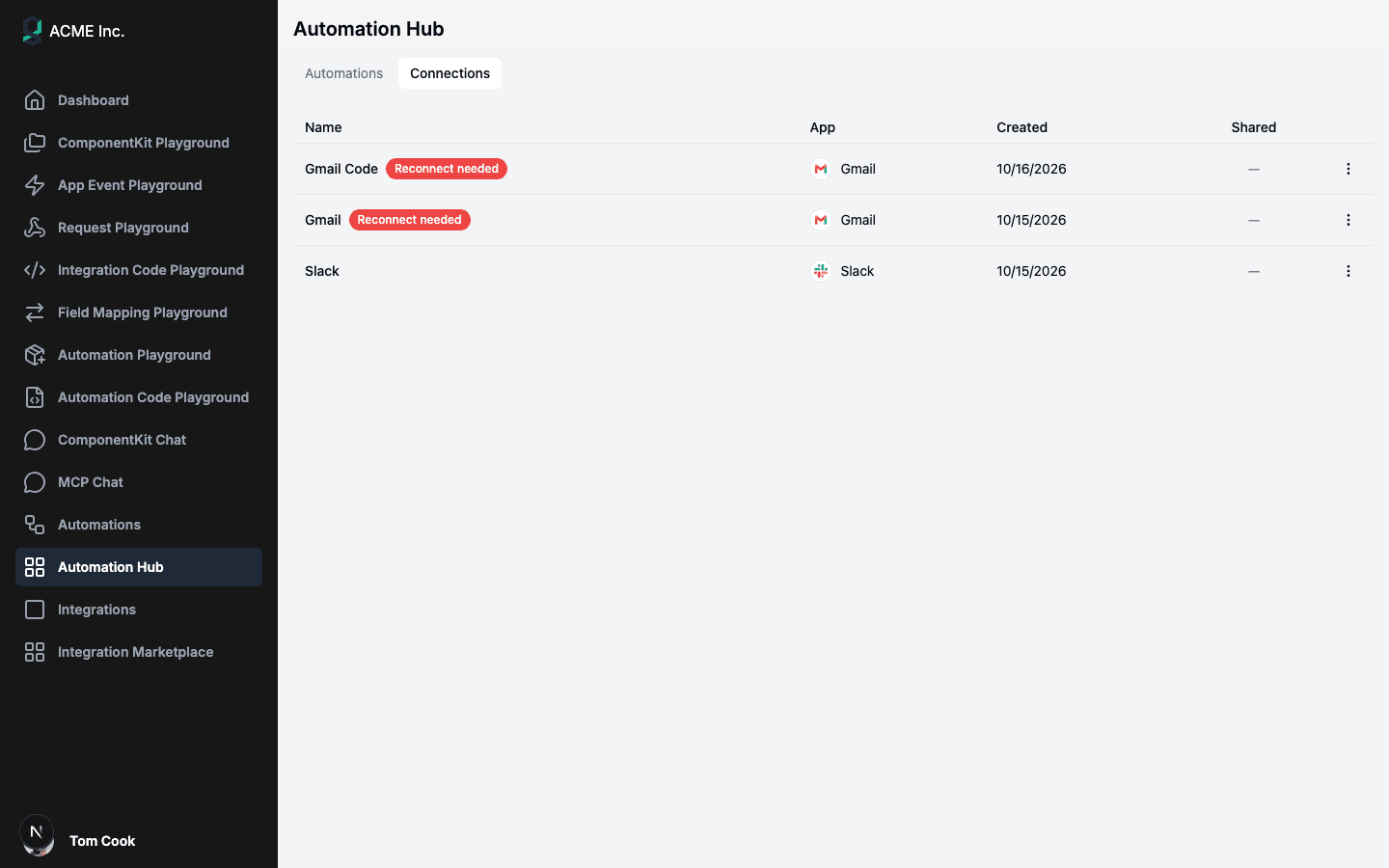
Only rows with editable set get the actions menu. Reconnect opens the Connect dialog for the connection's integration and saves the new credentials through /connections/{id}/reauthorize; it's offered when an integration can be resolved for the connection (the integration whose instance owns it, or otherwise one for the same component). Delete sits behind a Remove connection? confirmation, and if the server answers 409, the row shows This connection is still used by an enabled automation. An own connection whose credentials are INVALID gets a Reconnect needed badge next to its name.
Shared rows have no menu at all: users see your account and when it was created, nothing more. The tab doesn't create connections either; new ones come from the activation dialog and the builder.
When a user activates a template from the hub, the Connect step lists one row per app the automation needs, each with a Select a ... account dropdown filled from GET /components/{componentName}/connections. Your shared connection appears there by name, next to the user's own accounts, and the user must pick one explicitly; nothing is preselected.
One catch surprises people. The dropdown only appears for an app that has an integration with an enabled instance configuration visible to the user in that environment. Without one, the row says the app isn't set up yet and tells the user to ask their administrator, even when a perfectly good shared connection exists. So for users to pick your shared Slack account here, Slack needs an integration in that environment too. If you don't want an integration at all, use Provided Values on the automation configuration instead: provided apps skip the picker and show Provided by your administrator.
In the embedded workflow builder, each node's Connection tab lists the same entitled set, filtered to that node's component. Picking a shared connection works like picking an own one, and the Create Connection button beside the picker follows the connectionDialogAllowed rule above.
The Custom Workflow Builder's dropdown and the select-connection card in New from Chat both call GET /components/{componentName}/connections, so your shared account shows up in both without new code. ByteChef's UI reads shared and editable; yours should too.
When a user activates a template, the request names a connection per component:
POST /api/embedded/v1/automation/workflow-templates/{workflowUuid}/provision
Authorization: Bearer <connected user's JWT>
X-Environment: DEVELOPMENT
Content-Type: application/json

{
    "connections": {"slack": 1051}
}
For each connection slot in the workflow, ByteChef works down this list:
connections anyway answers 409, because the value is locked.connections names an ID for the component, it must be in the user's entitled set (own or shared). If it isn't, the request fails with 400 Bad Request.Step four is where the ordering pays off: a user with their own Slack account gets theirs, and a user without one gets yours automatically. If nothing fits a required slot, the call answers 409 and names the missing component. That makes "share a default, let users override" a real pattern rather than a UI trick.
The embedded sample app has no page of its own for shared connections; they surface in three places. front-end/src/app/automation-hub/page.tsx mounts <AutomationHub /> from @bytechef/embedded, whose Connections tab lists your shared connections with the Shared badge and whose activation dialog offers them in its dropdowns. front-end/src/app/automations/[workflowUuid]/page.tsx mounts <EmbeddedWorkflowBuilder />, whose pickers include them. And front-end/src/app/builder/components/connection-picker.tsx, the Custom Workflow Builder's dropdown, calls fetchComponentConnections in front-end/src/lib/api.ts, which wraps GET /api/embedded/v1/components/{componentName}/connections.
Two details matter before you copy any of it. First, both SDK pages pass connectionDialogAllowed={true} and the sample's token doesn't carry the claim, so users can create connections in the Hub and the builder. To lock them to existing accounts, set the claim to false in the token and pass connectionDialogAllowed={false} to match. Second, the sample's ComponentConnection type is just {id, name}, so the custom picker shows your shared account like any other. Widen the type and label it:
export interface ComponentConnection {
    editable: boolean;
    id: number;
    name: string;
    shared: boolean;
}
{(connections ?? []).map((connection) => (
<option key={connection.id} value={connection.id}>
{connection.shared ? `${connection.name} (shared)` : connection.name}
</option>
))}To try the locked-down mode, note that the sample's token server already accepts extra claims. back-end/src/index.ts spreads a customClaims object from the POST /api/token body into the JWT payload, so sending {"externalUserId": "...", "customClaims": {"connectionDialogAllowed": false}} is enough to see the builder drop its Create Connection button.
SDK 0.3 had a sharedConnectionIds prop on AutomationHub and EmbeddedWorkflowBuilder. It had no effect, since the server never added the connections it named, and SDK 0.4.0 removes it. Sharing is decided only on the server, by the Shared Connection switch, so delete the prop; TypeScript will point you to every place that still passes it.
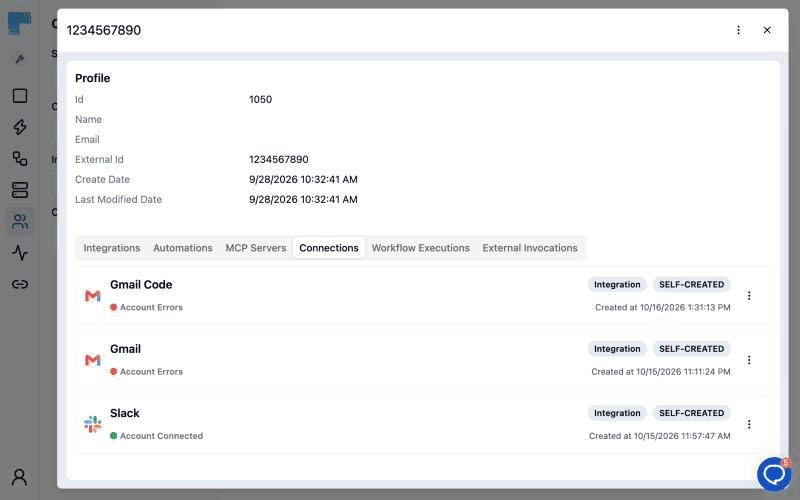
When a customer asks "which Slack account is my automation using?", open Embedded → Connected Users, click the user and switch to the Connections tab. It lists everything that user is entitled to, each with an origin badge:
| Badge | Meaning |
|---|---|
| Self-created | The connected user created this connection |
| Provisioned | An admin created this connection for the user |
| Internal | One of your shared connections |
Internal rows show the Credentials key icon greyed out, with a tooltip saying shared connections are edited on the Connections page: one place to change them, for everyone.
404 means "not yours". Use editable to hide reconnect and delete on shared rows rather than handling the error.false the button disappears, but that guard is UI-only. For a hard guarantee that every user of an automation uses your account, provide the connection in the automation configuration.connectionDialogAllowed in the JWT, pass the same value as the SDK prop, and remove sharedConnectionIds from your SDK components.shared and editable in your own UI. Label shared accounts in pickers, and hide reconnect and delete unless editable is true.409 on delete with a message that tells the user which automation to change first.INVALID breaks every automation using it, and only you can fix it, so make Embedded → Connections part of your on-call routine.You decide which accounts to share, what to call them, and whether to share, provide or leave it to users. ByteChef handles the entitlement merge, the ownership and admin checks, and a Hub, builder and activation dialog that respect all of it. Your part is one switch in a dialog and two flags in your UI.
Shared connections decide which accounts every user can reach. The next question is which integrations, automations and inputs each user should see at all. Part sixteen, Permission Expressions and Internal-Only Inputs, shows how to filter the catalog per user with expressions over their metadata, and how to keep inputs that only you should set out of your users' hands.
Here's the series so far:
Part one gave every user their own accounts; this part adds yours next to them. Every way to create and run a workflow from parts four through fourteen reads the same entitled list, so one switch puts your account everywhere at once, while ownership keeps it yours.
Following along? Under Embedded → Connections, create a connection with Shared Connection on in the environment your embedded sample app uses, then open the sample's Automation Hub and switch to its Connections tab. Your connection is there with a Shared badge, ready to pick and impossible to delete.
Get the latest guides on complex automation, AI agents, and visual workflow best practices delivered to your inbox.