21 min read
Ivica Čardić

TL;DR: Your backend signs a short-lived RS256 JWT per user with a Signing Key, and ByteChef verifies it on every request, treats
subas the connected user, and keeps that token inside one user and one environment. SetBYTECHEF_EMBEDDED_ALLOWED_PARENT_ORIGINSso only your app can frame and initialize the embedded pages, and turn on the audit log. Admin operations need a tenant admin, MCP tools have server-wide and per-user switches, and rate limiting is yours to build. This is part seventeen of the series.
Part sixteen ended on a careful sentence: permission expressions shape what a connected user is offered, but they aren't a hard security boundary. Fair enough. So where is the boundary?
Over sixteen parts you framed ByteChef's pages in iframes, handed browsers signed tokens, called APIs from your backend, and gave AI agents a URL into your customers' accounts. Each of those is a door. This part walks through all of them and sorts the controls into what ByteChef enforces on the server, what it only hides in the UI, and what's left to you. Most of the boundary is already on: you have two settings to make (allowed parent origins and the audit log), and a few things in the sample app to change before real users touch it.
| Layer | What enforces it | What you configure |
|---|---|---|
| Who the user is | JWT signature checked against your Signing Key | A Signing Key per environment, a short TTL |
| Which user's data | sub must match the {externalUserId} path, and every frontend endpoint reads the user from the token | Nothing |
| Which environment | Signing Keys, API Keys, connected users and MCP servers all belong to one environment | The X-Environment header, optionally an environmentId claim |
| Which sites may frame the pages | frame-ancestors CSP plus an origin-checked handshake | BYTECHEF_EMBEDDED_ALLOWED_PARENT_ORIGINS |
| Who runs the admin side | Tenant-admin checks on every embedded admin operation | Who has the admin role |
| What an agent may call | Server-wide and per-user MCP tool switches | Your MCP servers and their tools |
| Credentials at rest | Encrypted connection parameters | The encryption key provider |
| Evidence | Audit events, when enabled | bytechef.audit.enabled |
| Volume | Nothing today | Rate limits at your own ingress |
Everything in ByteChef Embedded rests on one idea from part one: your users never get ByteChef accounts. Your backend vouches for them with a signed token, and ByteChef trusts the signature rather than the browser.
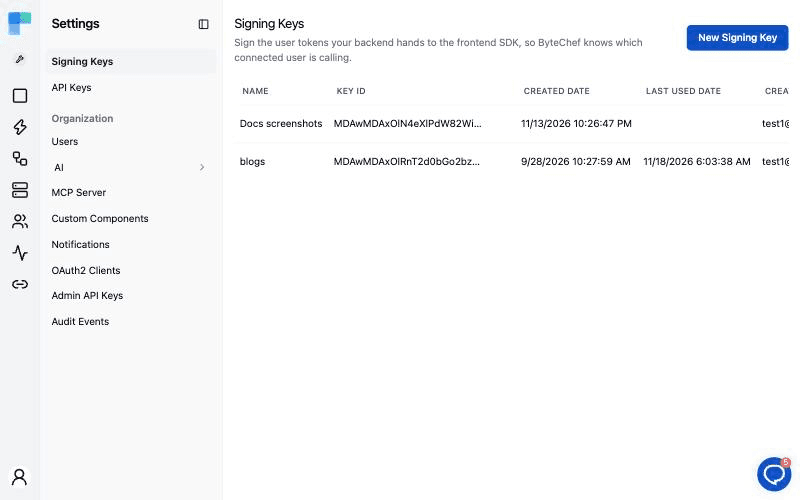
Open Embedded → Settings → Signing Keys and click New Signing Key. The dialog asks for a Name (at least two characters).
When you click Create Signing Key, the dialog switches to Save your private Signing Key, showing the private key in a text box with a Copy button.
Behind that click, ByteChef generates an RSA 2048-bit key pair and stores the public key with a generated Key Id, the kid your tokens will carry. The private key comes back once, as a PKCS#8 PEM block (-----BEGIN PRIVATE KEY-----), and is never stored. Click Done and it's gone; if you lose it, create a new key. The key belongs to whichever environment is selected in the ByteChef UI when you create it, so a Development key won't verify Production requests.
The table lists Name, Key Id, Created Date, Last Used Date and Created By, and editing a key only renames it. Only tenant admins can manage keys, but any of them can manage every key in the environment, so keep that group small.
Your backend mints the token. Here's a production-shaped version of the sample's signer:
import jwt from 'jsonwebtoken';

export function signConnectedUserToken(userId: string): string {
    return jwt.sign(
        {
            sub: userId,                    // your user's id: the connected user's External Id
            environmentId: 2,               // optional: pin the token to PRODUCTION
            connectionDialogAllowed: true,  // optional: may this user create new connections?
        },
        process.env.BYTECHEF_PRIVATE_KEY!,
        {
            algorithm: 'RS256',
            expiresIn: '10m',
            keyid: process.env.BYTECHEF_KID!,
        }
    );
}
When it arrives as Authorization: Bearer <JWT>, ByteChef runs these checks before any endpoint code:
| Part of the token | What ByteChef does with it |
|---|---|
Header kid | Required. It names your tenant and the Signing Key. ByteChef looks the key up in the request's environment; an unknown kid is a 401 |
| Signature | Verified against the stored RSA public key. Sign with RS256, as the docs and sample do |
exp | An expired token is a 401. ByteChef doesn't require exp, so always set one |
sub | Required. It is the connected user's External Id, and it decides whose data the request touches |
environmentId | Optional. When present it must be a number equal to the request's environment (0 DEVELOPMENT, 1 STAGING, 2 PRODUCTION), or the token is rejected |
connectionDialogAllowed | Optional, default true. Must be a boolean, or the token is invalid. More on it below |
name, email, anything else | Ignored. The sample sends name, but ByteChef doesn't read it from the token |
That last row surprises people. Name, email and metadata come from elsewhere: the admin UI, a CSV import, or a PATCH call (to /api/embedded/v1/me with the user's JWT, or to /api/embedded/v1/{externalUserId} from your backend). That matters again for permission expressions.
The first request for a new sub creates the connected user in that environment; there's no separate create call. Click Disable on a user under Embedded → Connected Users and every later request with their token is a 401 until you enable them again. Failed authentication answers a bare 401, and if the check itself can't run (the database is down, say), the answer is a 503, not a silent pass.
Because nothing ties a user to a particular key, rotation is deliberately boring:
Tokens still signed with the old key then fail with a 401, which users won't notice with a ten-minute TTL and a frontend that refreshes on 401. One caution: the server doesn't fill in Last Used Date for Signing Keys, so confirm the rollout on your side instead of waiting on that column.
ByteChef Embedded accepts two kinds of bearer credential on /api/embedded/v1/..., and they never overlap. The connected-user JWT is signed by your backend with a Signing Key and held by the browser, for one user, for minutes. It's used on frontend paths such as /automation/workflows or /connections, and the user is the token's sub. The Embedded API Key, created under Embedded → Settings → API Keys, stays on your backend indefinitely. It's used on user-addressed paths such as /{externalUserId}/automation/workflows, where the path segment names the user.
ByteChef tells them apart by shape: a value that looks like a JWT (three dot-separated segments) is verified as one, and anything else is treated as an API Key.
A JWT is allowed on the user-addressed paths too, but only for itself. If the token's sub doesn't match the {externalUserId} segment, ByteChef rejects the request with a 401 before the endpoint runs. The segment is URL-decoded before the comparison, so user%401 and user@1 are the same user. A token minted for user 1234 can't read or change user 5678, whatever the path says.
The frontend paths have no user segment at all. Each endpoint reads the user from the token, so there's nothing in the request a browser could change to point it at someone else.
API Keys are rejected on the frontend paths (the ones that start with automation, connections, components, integrations, integration-instances, me and the like), because those have no user for a key to act as. A key must also be an Embedded key from the same environment as the request, so an Automation API Key, or a Development key on a Production call, gets a 401.
The admin page puts it plainly: "Do not share your API key with others or expose it in the browser or other client-side code." JWTs belong in the browser, each one locked to a single user. API Keys belong on your server.
Every embedded request is evaluated in exactly one environment, chosen by the X-Environment header:
GET /api/embedded/v1/automation/workflows
Authorization: Bearer <connected user's JWT>
X-Environment: DEVELOPMENT
No header means PRODUCTION, and the SDK components default their environment prop to PRODUCTION too. An unknown value is a 401 (Invalid X-ENVIRONMENT header).
Signing Keys, API Keys, connected users and MCP servers each belong to one environment, so user 1234 in Development and user 1234 in Production are two different connected users with different connections and workflows. In the admin UI, the environment selector decides which world you're looking at and creating things in.
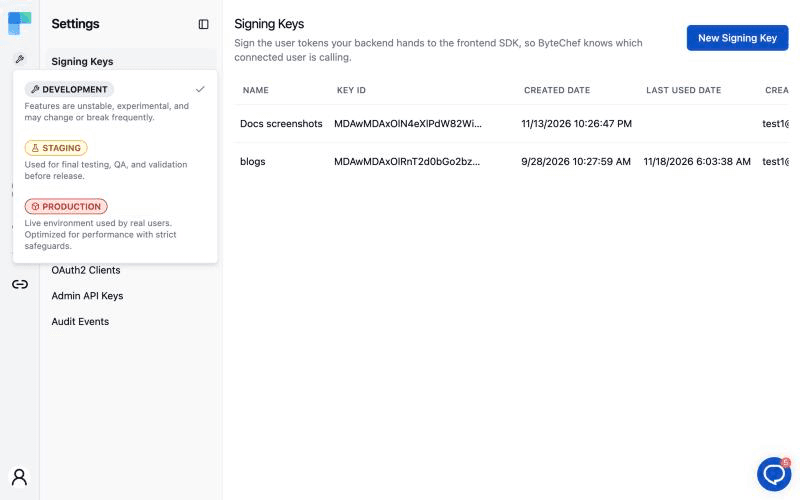
This explains the most confusing 401 in development: a token signed with a Development key, sent without the header, is checked against Production keys. Add the environmentId claim if a token must never be accepted in another environment.
The workflow builder, the Automation Hub and the Integration Marketplace render inside your product as iframes loaded from workflow-builder.html, automation-hub.html and integration-marketplace.html on your ByteChef server. Left unrestricted, any website could frame them too, which is exactly the setup clickjacking relies on.
Tell the ByteChef server which origins may embed them:
BYTECHEF_EMBEDDED_ALLOWED_PARENT_ORIGINS=https://app.example.com,https://admin.example.comThe property form is bytechef.embedded.allowed-parent-origins. It ships empty, and you need to restart the server after changing it. Once a list is set, those three pages send Content-Security-Policy: frame-ancestors https://app.example.com https://admin.example.com, so the browser itself refuses to render them inside any other site. They also accept their initialization message only from the listed origins, which we'll look at next. The rest of the ByteChef UI sends X-Frame-Options: DENY whatever the list says, so only those three embeddable pages can be framed at all.
Write each entry as an exact origin: scheme, host and optional port. The server trims whitespace and a trailing slash, and that's all. Don't use wildcards. A browser would accept https://*.example.com in frame-ancestors, but the handshake compares origins exactly, so a page framed from https://eu.example.com would render and then never initialize. List each origin instead.
With the list empty, any origin can embed the pages, and each page logs a console warning: "no allowed parent origins are configured, so any website can embed this page and initialize it." Production shouldn't show it.
If you build the ByteChef client yourself, VITE_EMBEDDED_PARENT_ORIGINS sets a build-time fallback list that's used only while the server list is empty.
The frame header decides who may display the page; the handshake decides who may tell it which user it serves. That happens over postMessage, and both sides check where every message comes from.
Inside the iframe, the ByteChef page first reads the allowed parent origins from the server. It then posts EMBED_READY to its parent, addressed only to those origins (with none configured, it addresses the origin the browser reports in the iframe's referrer). Next it listens for EMBED_INIT and accepts it only when the message comes from its direct parent window and, when origins are configured, from one of them. Everything else is ignored. The token from EMBED_INIT is kept in memory only, never written to local storage, and when a new EMBED_INIT carries a different token or environment, the page drops every cached query and reloads as the new identity.
In your app, the @bytechef/embedded components (EmbeddedWorkflowBuilder, AutomationHub, IntegrationMarketplace) listen for EMBED_READY only from the origin of the baseUrl you passed, and post EMBED_INIT addressed to that same origin. If your baseUrl is https://bytechef.example.com, no other site can trigger the handshake, and no other site can receive the token. The Marketplace goes one step further for its connect requests: it acts on EMBED_OPEN_CONNECT_DIALOG only when the message comes from its own iframe's window.
The JWT travels inside EMBED_INIT, never in the iframe's URL, which keeps it out of browser history, Referer headers and access logs. When your app refreshes the token, the components send a new EMBED_INIT without reloading the page.
If the iframe stays blank with a console error about frame-ancestors, your app's origin isn't in the list: add the exact origin, scheme and port included. If the list is empty and your app sends Referrer-Policy: no-referrer, the page can't learn your origin and never announces itself, so configure the list.
Some controls are enforced on the server and some only shape the UI, a difference that matters the moment someone opens devtools.
| Control | Enforced by the server? | What it does |
|---|---|---|
connectionDialogAllowed claim in the JWT | Yes | With false, creating a connected-user connection is rejected with a 403, and the builder and Hub only offer existing connections |
connectionDialogAllowed prop | Only as a restriction | Required on EmbeddedWorkflowBuilder, optional on AutomationHub. false hides connection creation; true can't grant what the token denies |
includeComponents | No | Filters the builder's palette |
tabs, editWorkflowAllowed, layoutSwitcherAllowed | No | Shape the Automation Hub's UI |
| Enabled integration instance configurations | Yes | Decide which integrations a user can see and connect, and which components the workflow agent may use |
| Shared connections | Yes | Usable by every connected user; only the owner can reconnect or delete a connection |
| Permission expressions | Evaluated on the server, but see below | Decide what a user is offered |
The claim is per token. ByteChef can't tell which component a request came from, so if the Automation Hub should allow new connections and the builder shouldn't, mint a separate token for each. The claim also doesn't cover the standalone Connect dialog from useConnectDialog, the integration instance connections it creates, or reauthorizing an existing connection.
Permission expressions read data the user can change. They're evaluated on the server, but the inputs aren't yours alone. An expression sees the connected user's metadata, email, name, externalId and environment, and it fails closed, so an expression that throws hides the item. The catch is that a connected user holding their own JWT can call PATCH /api/embedded/v1/me and change their own name, email and metadata. An expression like metadata.plan == 'enterprise' is a fine way to tidy a catalog and a poor way to protect anything. If a feature must be restricted, restrict it with something the user can't edit: which instance configurations you enable, which tokens you mint, and what your own backend allows.
Embedded authentication is a bearer token in a header, never a cookie, and that shapes everything here. CSRF attacks ride on cookies, so the embedded API doesn't use CSRF tokens. ByteChef skips CSRF checks for /api/embedded/v1/..., the embedded MCP endpoint, and the internal endpoints the iframe pages call with an Authorization header. A forged request from another site simply has no token to send. The admin UI is different: it runs on a session cookie, and its requests keep the cookie-based XSRF protection.
There's no server session on the embedded side either: authentication is evaluated per request and never stored, so there's nothing to hijack beyond the token itself. And don't mistake CORS for access control. Many browser-facing embedded endpoints opt in to cross-origin calls from any origin. What stops a hostile page isn't CORS; it's that the page doesn't have a valid token.
The ConnectDialog's OAuth popup carries its own guard. The SDK generates a random state, keeps it in session storage, and rejects any response that doesn't match ("OAuth error: State mismatch.").
Everything you configure under Embedded is checked on the server against one rule: the caller must be a tenant admin, meaning a ByteChef user with the admin authority (ROLE_ADMIN). That rule covers well over a hundred operations: integrations and their configurations, automations, App Events, MCP servers and tools, connected users, connection administration, workflow executions and Signing Keys.
A connected user's token carries no roles at all, so it can never satisfy a tenant-admin check, whatever endpoint it reaches. The few operations a connected user can perform on admin-shaped data (switching a workflow or an MCP tool on their own integration instance, deleting their own connection) first verify that the instance or connection belongs to them.
In the UI, the Signing Keys and API Keys pages are shown to admins only. Other Embedded pages may open for a regular ByteChef user, but the server refuses their changes.
The embedded MCP server is the door an AI agent walks through, so it gets its own layers of control.
The URL routes; the token authenticates. The URL has the form https://<your-bytechef>/api/embedded/{secretKey}/mcp, and the secret picks which server. Embedded MCP servers require authentication by default, so each request must also carry a connected-user JWT whose sub picks whose tools and connections are used; without one, the request is a 401 before any tool is listed. The Create MCP Server dialog only asks for a name and doesn't offer to turn authentication off. If the secret leaks, rotate it from the server's Connect tab and give clients the new URL.
An MCP server also lives in one environment, and a request whose X-Environment doesn't match it is rejected. Switch a server off and every call answers 403 with {"error":"server_disabled","message":"This MCP server is disabled. Enable it in ByteChef to use it."}.
As the admin, you decide which tools exist. Creating, editing and deleting MCP servers, their components and their workflow tools requires a tenant admin. Each tool has a server-wide switch: switched off, it isn't listed and can't be called, whatever a connected user has enabled for themselves, and a user can't switch it on for their own instance either. Newly added tools start switched on at the server level, so review the list whenever you add a component.
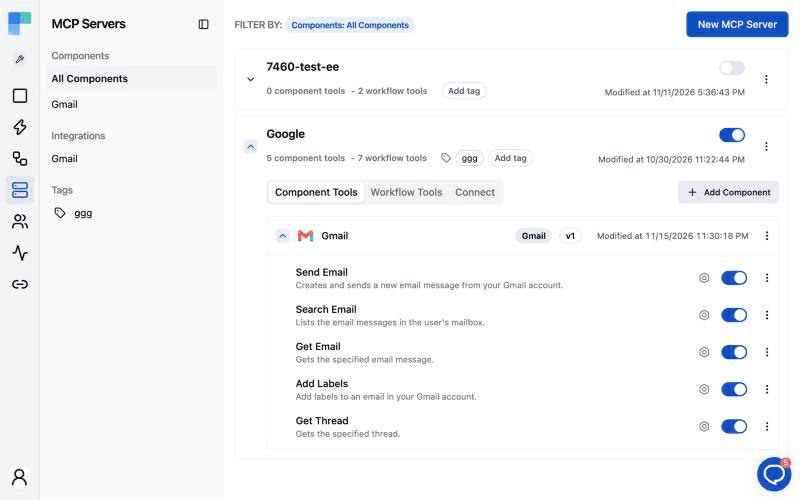
Your users then decide what they actually use. Per user, tools start switched off, and users turn them on in the ConnectDialog's Tools tab, only on their own integration instances. An admin can switch a server or tools off for one user from the MCP Servers tab of that user's sheet under Embedded → Connected Users, but that flips the user's own switches, which they can flip back. For anything that must stay off, use the server-wide switch.
When a tool needs a connection the user doesn't have, it returns a connection_required link: a setupUrl to connect.html with a ByteChef-signed token in the query string. That token is valid for 10 minutes and names the user, integration and environment. It's the one place a token travels in a URL, so don't log tool results verbatim, and don't paste these links anywhere persistent.
Workflow tools also time out: each one waits up to 300 seconds for its run, then fails the call with an error saying the job didn't finish in time.
Since part one, ByteChef has stored your users' OAuth tokens and API keys so you don't have to. Connection parameters (tokens, keys and secrets) are stored encrypted with AES-GCM, with a fresh random IV per value. You choose where the encryption key lives. BYTECHEF_ENCRYPTION_PROVIDER defaults to FILESYSTEM, which generates a key on first start and keeps it in ~/.bytechef/key (/root/.bytechef/key in the Docker image). For containers, several replicas or ephemeral disks, set it to PROPERTY and supply the same BYTECHEF_ENCRYPTION_PROPERTY_KEY on every instance. Lose the key and stored credentials can't be decrypted, so back it up with the database.
Secrets don't go back out over the wire: the embedded connection endpoints return metadata (name, component, authorization type, credential status, shared, editable) and never credential values.
ByteChef can record who did what, but the audit log starts switched off. Set BYTECHEF_AUDIT_ENABLED=true (property bytechef.audit.enabled) and restart. Until you do, Embedded → Settings → Audit Events shows "Audit events are disabled."
Once it's on, the embedded side records:
SIGNING_KEY_CREATED, _UPDATED, _DELETEDCONNECTION_CREATED, CONNECTION_REAUTHORIZED, CONNECTION_DELETED, CONNECTION_CREDENTIALS_UPDATEDCONNECTED_USER_CREATED, CONNECTED_USER_ENABLED_UPDATED, CONNECTED_USERS_IMPORTEDMCP_TOOL_ENABLED_UPDATED, CONNECTED_USER_MCP_TOOL_ENABLED_UPDATEDINTEGRATION_PUBLISHED, INTEGRATION_INSTANCE_PROVISIONEDAUTHENTICATION_FAILURE for rejected credentials and CREDENTIAL_USED for accepted onesCREDENTIAL_USED is deduplicated so a busy API Key doesn't flood the table. By default it's written at most once an hour per credential, user and environment on each server (bytechef.audit.credential-usage-interval). Events are kept for 365 days (retention-days), and mask-principals masks user names when events are read back.
ByteChef has no request rate limit per connected user or per tenant. A user with a valid token can call the embedded API as often as they like, and every customer's workflows share the same workers: data stays isolated, but throughput doesn't. Put limits where you know the customer, at your gateway or ingress and on your token endpoint. Throttle App Event bursts, and cap expensive operations such as workflow generation.
The embedded sample app is built to get you running in five minutes, not to face the internet. Here's what it does today and what production needs instead:
| Sample file | What it does | What production needs |
|---|---|---|
back-end/src/index.ts | POST /api/token signs a token for whatever externalUserId the request body names, with no authentication | Derive sub from your own session. Never accept a user id from the browser |
back-end/src/index.ts | Registers CORS with origin: '*' | Allow only your frontend's origin, or serve the token route from the same origin |
back-end/src/index.ts | TOKEN_EXPIRY defaults to 1h | Ten minutes is plenty, minted per session |
back-end/src/index.ts | Puts name in the token | Harmless, but ByteChef ignores it. Sync names and emails with a PATCH call instead |
front-end/src/lib/api.ts | Caches the token in a module variable and refreshes it 30 seconds before exp | Keep the refresh, but key the cache by user. The automation pages call getToken() from server components, where a module variable is shared by every request |
front-end/src/app/automation-hub/page.tsx, front-end/src/app/automations/[workflowUuid]/page.tsx | Pass connectionDialogAllowed={true} as a prop | Keep the prop (the builder requires it), and set the claim in the token for users who shouldn't create connections; the prop alone doesn't stop an API call |
None of this is a flaw in ByteChef's boundary. It's the part that lives in your code: ByteChef runs the checks, but the signature is only as strong as the rule that decides who gets a token. Your side is mostly configuration, plus a token endpoint that only signs for the user who is actually logged in.
Identity
sub set to your user's stable id.exp set on every token, about ten minutes, and the frontend refreshing on expiry or on a 401.environmentId in the token if you want it pinned to one environment.connectionDialogAllowed set per token where users shouldn't create connections.Credentials and environments
X-Environment sent explicitly on every call, including from the SDK's environment prop.The browser
BYTECHEF_EMBEDDED_ALLOWED_PARENT_ORIGINS set to the exact origins of your app, with no console warning on the embedded pages.baseUrl on every SDK component pointing at your real ByteChef origin.includeComponents, tabs, editWorkflowAllowed) treated as presentation, not access control.The admin side and MCP
Operations
BYTECHEF_ENCRYPTION_PROVIDER=PROPERTY with a backed-up key on multi-instance or container deployments.BYTECHEF_AUDIT_ENABLED=true, with retention set to your policy.Authorization headers, EMBED_INIT payloads or connection_required links.Part of this boundary lives in the SDK: the origin checks on the handshake, and the token riding in EMBED_INIT instead of a URL. The next part, Part eighteen: What's New in the Embedded SDK 0.4.0, looks at that release from the SDK's side: what changed, what's new, and what to update when you upgrade.
Here's the series so far:
Parts one through sixteen each added a door: a dialog, an API, an iframe, an agent endpoint. This part is the frame around them. One signed token opens every door, but only ever for one user in one environment, and the admin side stays behind a lock no connected user's token can reach.
Following along? Set BYTECHEF_EMBEDDED_ALLOWED_PARENT_ORIGINS to your local sample app's origin, restart ByteChef, and open the embedded sample app. Then frame the Automation Hub from a page on another port and watch the browser refuse it, and send a request with another user's id in the path to see the 401.
Get the latest guides on complex automation, AI agents, and visual workflow best practices delivered to your inbox.